
How to Transfer Contacts From Old Iphone to New Iphone
Are you thinking of switching to a new iPhone but worried about losing your contacts? Don’t worry, we’ve got you covered! In this article, we’ll show you how to transfer contacts from your old iPhone to your new one using various methods.
Why Transfer Contacts?
Transferring contacts is an essential step when upgrading to a new iPhone. You don’t want to lose all the important phone numbers and addresses saved on your old device. With these steps, you can easily move your contacts to the new iPhone, ensuring that you have access to all your important contact information.
Method 1: Synchronization of Icloud
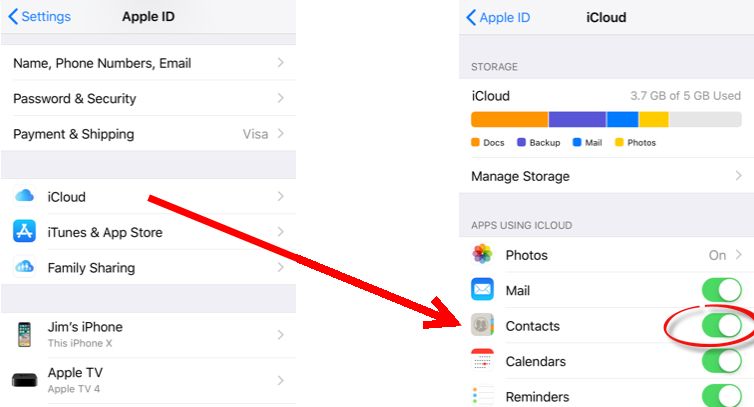
The first method is the simplest and most efficient way to transfer contacts from your old iPhone to your new one using iCloud synchronization. If both iPhones use the same Apple ID, you can enable iCloud synchronization to automatically transfer contacts between devices.
To do this:
- Open the Settings app on your old iPhone.
- Tap on [your name] at the top of the screen and select “iCloud.”
- Ensure that the switch next to “Contacts” is turned on.
- Repeat these steps on your new iPhone, ensuring that iCloud synchronization is enabled.
Once you’ve completed these steps, all your contacts will be automatically transferred from your old iPhone to your new one.
Method 2: Using My Contacts Backup App
If you’re not using the same Apple ID for both iPhones or want a backup of your contacts just in case, you can use the My Contacts Backup app. This free app allows you to export and import contacts between devices.
To do this:
- Install the My Contacts Backup app on your old iPhone.
- Open the app and tap on “Backup.”
- Select the contacts you want to backup and choose the format (vCard).
- Share the backup file via email or transfer it to your new iPhone.
- Open the Contacts app on your new iPhone, tap on “+” at the top-right corner, and select “Import vCard” to add the backed-up contacts.
Method 3: Recovering a Backup
If you’ve previously created a backup of your contacts using iCloud or iTunes, you can restore it on your new iPhone. This method is helpful if you’ve lost your contacts due to an issue with your old iPhone or if you want to transfer contacts from an older device.
To do this:
- Open the Settings app on your new iPhone.
- Tap on [your name] and select “iCloud” or “iTunes & App Store.”
- Look for the backup of your contacts, which should be listed under “Backups.”
- Select the backup to restore it on your new iPhone.
Method 4: Transferring Contacts From Android
If you’re switching from an Android device to a new iPhone and want to transfer contacts, follow these steps:
- Open the Settings app on your old Android device.
- Tap on “Account” and select “Google.”
- Ensure that Google synchronization is enabled for contacts.
- Transfer the vCard file containing your contacts to your new iPhone.
- Open the Contacts app on your new iPhone, tap on “+” at the top-right corner, and select “Import vCard” to add the backed-up contacts.
Method 5: Transferring Contacts From Sim
If all your contacts are saved on your old SIM card, follow these steps:
- Insert the SIM card into your new iPhone.
- Open the Settings app on your new iPhone.
- Tap on “Contacts” and select “SIM.”
- Your contacts will be transferred to your new iPhone.
Conclusion
Transferring contacts from an old iPhone to a new one is easier than you think! With these methods, you can ensure that all your important contact information is safely transferred to your new device. Remember to always back up your contacts regularly and explore other features of your new iPhone.
Faqs
- Q: How do I Transfer Contacts From my Old Iphone to a New Android Device?
A: You can use the vCard method, exporting contacts from your old iPhone to a file that you can import on your new Android device. - Q: Can I Transfer Contacts Using Icloud if I’m Switching From an Android Device?
A: Yes, but you’ll need to create a backup of your contacts on your old Android device first and then restore it on your new iPhone using the vCard method. - Q: How do I Recover Lost Contacts on my New Iphone?
A: You can try restoring a backup from iCloud or iTunes if available, or contact Apple support for further assistance. - Q: Can I Transfer Contacts From an Old Sim Card to a New Iphone?
A: Yes, but you’ll need to insert the SIM card into your new iPhone and follow the steps to transfer contacts using the SIM method. - Q: How do I Backup my Contacts on my Iphone?
A: You can use the My Contacts Backup app or export them via iCloud or iTunes. - Q: Can I Transfer Contacts From an Old Ipad to a New Iphone?
A: Yes, but you’ll need to create a backup of your contacts using iCloud or iTunes and then restore it on your new iPhone.
Feel free to ask any additional questions in the comments below!


