
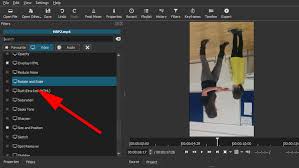
How to Rotate a Video: A Comprehensive Guide
Are you tired of videos that seem to be spinning out of control? Do you want to adjust the orientation of your video without having to edit it from scratch? Look no further! In this article, we will guide you through the process of rotating a video using various software and online tools.
Why Rotate a Video?
Rotating a video can be useful in various situations:
- To correct the orientation of a video that was recorded at an incorrect angle
- To create a vertical video from a horizontal one for social media platforms like Instagram or TikTok
- To apply a specific rotation effect to a video for creative purposes
Software For Rotating Videos
There are several software programs available that allow you to rotate videos. Here are some of the most popular ones:
Vlc Media Player
VLC is a free and open-source media player that can be used on Windows, macOS, and Linux. To rotate a video using VLC, follow these steps:
- Open VLC and select the “Media” menu.
- Choose “Open File” and select the video you want to rotate.
- Click on the “Tools” menu and select “Effects and Filters”.
- In the “Video Effects” tab, click on the “Geometry” tab.
- Select the “Transformation” option and choose the desired rotation angle (90°, 180°, or 270°).
- Click “Apply” to apply the rotation effect.
Adobe Premiere Pro
Adobe Premiere Pro is a professional video editing software that can be used on Windows and macOS. To rotate a video using Adobe Premiere Pro, follow these steps:
- Open Adobe Premiere Pro and create a new project.
- Import the video you want to rotate into the project.
- Select the video clip in the timeline and go to the “Effects” panel.
- Search for the “Rotate” effect and drag it onto the video clip.
- Adjust the rotation angle as desired.
Davinci Resolve
DaVinci Resolve is a free video editing software that can be used on Windows, macOS, and Linux. To rotate a video using DaVinci Resolve, follow these steps:
- Open DaVinci Resolve and create a new project.
- Import the video you want to rotate into the project.
- Select the video clip in the timeline and go to the “Transform” panel.
- Choose the desired rotation angle (90°, 180°, or 270°).
- Click “Apply” to apply the rotation effect.
Online Tools For Rotating Videos
If you don’t want to install software on your computer, there are several online tools that allow you to rotate videos. Here are some of the most popular ones:
Rotatemyvideo
RotateMyVideo is a free online tool that allows you to rotate videos up to 250MB in size. To use RotateMyVideo, follow these steps:
- Go to the RotateMyVideo website and click on the “Pick Video” button.
- Select the video you want to rotate from your computer or cloud storage.
- Use the arrows to adjust the rotation angle as desired.
- Click “Rotate Video” to apply the rotation effect.
Video2edit
Video2Edit is another online tool that allows you to rotate videos. To use Video2Edit, follow these steps:
- Go to the Video2Edit website and click on the “Upload Video” button.
- Select the video you want to rotate from your computer or cloud storage.
- Use the menu to select the desired rotation angle (90°, 180°, or 270°).
- Click “Rotate Video” to apply the rotation effect.
Mobile Apps For Rotating Videos
If you have a smartphone or tablet, there are several mobile apps that allow you to rotate videos on-the-go. Here are some of the most popular ones:
Google Photos (Android/iOS/iPadOS)
Google Photos is a free app that allows you to edit and rotate photos and videos. To rotate a video using Google Photos, follow these steps:
- Open Google Photos and select the video you want to rotate.
- Tap on the “Edit” button.
- Swipe left or right to adjust the rotation angle as desired.
- Tap “Save copy” to save the rotated video.
Photo (iOS/iPadOS)
The Photo app is a free app that allows you to edit and rotate photos and videos on your iPhone or iPad. To rotate a video using the Photo app, follow these steps:
- Open the Photo app and select the video you want to rotate.
- Tap on the “Edit” button.
- Swipe left or right to adjust the rotation angle as desired.
- Tap “Done” to save the rotated video.
Conclusion
Rotating a video can be useful in various situations, from correcting the orientation of a video to applying a specific rotation effect for creative purposes. Whether you use software like VLC, Adobe Premiere Pro, or DaVinci Resolve, or online tools like RotateMyVideo or Video2Edit, rotating a video is a straightforward process that can be completed in just a few steps.
Faqs
- What Are The Benefits of Rotating a Video?
Rotating a video can help correct the orientation of a video that was recorded at an incorrect angle, create a vertical video from a horizontal one for social media platforms, or apply a specific rotation effect to a video for creative purposes. - Can I Rotate Videos Using Mobile Apps?
Yes, there are several mobile apps that allow you to rotate videos on-the-go, such as Google Photos and Photo (iOS/iPadOS). - What is The Maximum File Size Limit For Rotating Videos Online?
The maximum file size limit for rotating videos online varies depending on the tool used. For example, RotateMyVideo allows you to upload videos up to 250MB in size. - Can I Apply Other Effects to my Video While Rotating It?
Yes, most software and online tools allow you to apply other effects to your video while rotating it, such as adjusting brightness, contrast, or saturation. - How Long Does it Take to Rotate a Video?
The time it takes to rotate a video varies depending on the tool used and the size of the file. Generally, rotating a video using software can take anywhere from a few seconds to several minutes, while online tools may take longer due to upload and processing times. - Can I Export my Rotated Video in Different Formats?
Yes, most software and online tools allow you to export your rotated video in different formats, such as MP4, AVI, or MOV.
We hope this article has been helpful! If you have any further questions or concerns, feel free to ask us.


