
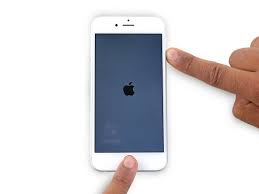
How to Reset Iphone 6: A Step-by-step Guide
Are you tired of dealing with a malfunctioning iPhone 6? Perhaps the device has become outdated, or you simply want to start fresh with a new phone. Whatever your reason, resetting your iPhone 6 can be a great solution. In this article, we will guide you through the process of resetting your iPhone 6 using two different methods: ITunes and Settings.
Why Reset Your Iphone 6?
Resetting your iPhone 6 can be beneficial in several ways:
- Resolve Technical Issues: If your phone is experiencing glitches or freezing, a reset may resolve these problems.
- Reinstall Ios: A reset will give you the latest version of iOS, ensuring that your device stays up-to-date and secure.
- Sell or Trade-in: If you’re planning to sell or trade-in your iPhone 6, resetting it can make the process smoother.
Method 1: Resetting Iphone 6 Using Itunes
To reset your iPhone 6 using iTunes:
- Connect your phone to your computer using a Lightning cable.
- Open iTunes on your computer and select your iPhone 6 from the top left menu.
- Click on “Summary” and then click on “Restore iPhone.”
- Select “Restore and Update” to begin the reset process.
Method 2: Resetting Iphone 6 Using Settings
To reset your iPhone 6 using Settings:
- Go to Settings > General > Reset.
- Choose “Erase All Content and Settings.”
- Tap “Erase Now” to confirm the reset.
Troubleshooting Tips
If you’re experiencing any issues during the reset process, here are some troubleshooting tips:
- Dfu Mode: If your iPhone 6 is not responding, try connecting it to iTunes in DFU mode.
- Power Cycle: If your device is frozen, try power cycling by holding down the Sleep/Wake button for 10 seconds.
- Visit an Apple Store: If none of the above solutions work, visit an Apple Store or contact their support team for further assistance.
Conclusion
Resetting your iPhone 6 can be a straightforward process when done correctly. By following these steps and troubleshooting tips, you should be able to resolve any issues with your device. Always remember to back up your data before performing a reset.
Here are eight FAQs related to resetting an iPhone 6:
- Q: What is the difference between a soft reset and a hard reset?
A: A soft reset restarts your phone, while a hard reset erases all content and settings. - Q: How long does it take to reset my iPhone 6?
A: The time it takes to reset your device depends on various factors, such as the speed of your internet connection. - Q: Can I restore data from a backup after resetting my phone?
A: Yes, you can recover data from a previous backup if you have done one before resetting your iPhone 6. - Q: What should I do if my iPhone 6 is frozen during the reset process?
A: Try power cycling or using DFU mode to resolve any issues. - Q: Can I still use my iPhone 6 after resetting it?
A: No, you will need to set up your device again after resetting it. - Q: How do I restore data from a backup if I have not done one before?
A: Unfortunately, this is not possible without having a previous backup. - Q: What happens if I reset my iPhone 6 and forget my password or Apple ID?
A: You will need to contact Apple support for assistance in recovering your account information. - Q: Can I reset my iPhone 6 multiple times?
A: Yes, you can reset your device as many times as needed, but be aware that each time may erase data and settings.
Conclusion
Resetting your iPhone 6 is a relatively straightforward process when done correctly. By following these steps and troubleshooting tips, you should be able to resolve any issues with your device.


