
How to Remove Clock From Samsung Galaxy Screen
Are you tired of seeing the clock on your Samsung Galaxy screen? Do you want to personalize your phone’s home screen without cluttering it with unnecessary information? Look no further! In this article, we will guide you through the steps to remove the clock from your Samsung Galaxy screen, and also provide some additional tips on how to customize your phone.
Why Remove Clock From Screen?
The clock on your Samsung Galaxy screen can be useful in certain situations, but it’s not always necessary. Maybe you’re someone who likes to keep their personal life private, or maybe you just don’t want the clock to distract you from other important information. Whatever the reason, removing the clock is a simple process that we’ll walk you through.
Personalizing Clock on Samsung Galaxy
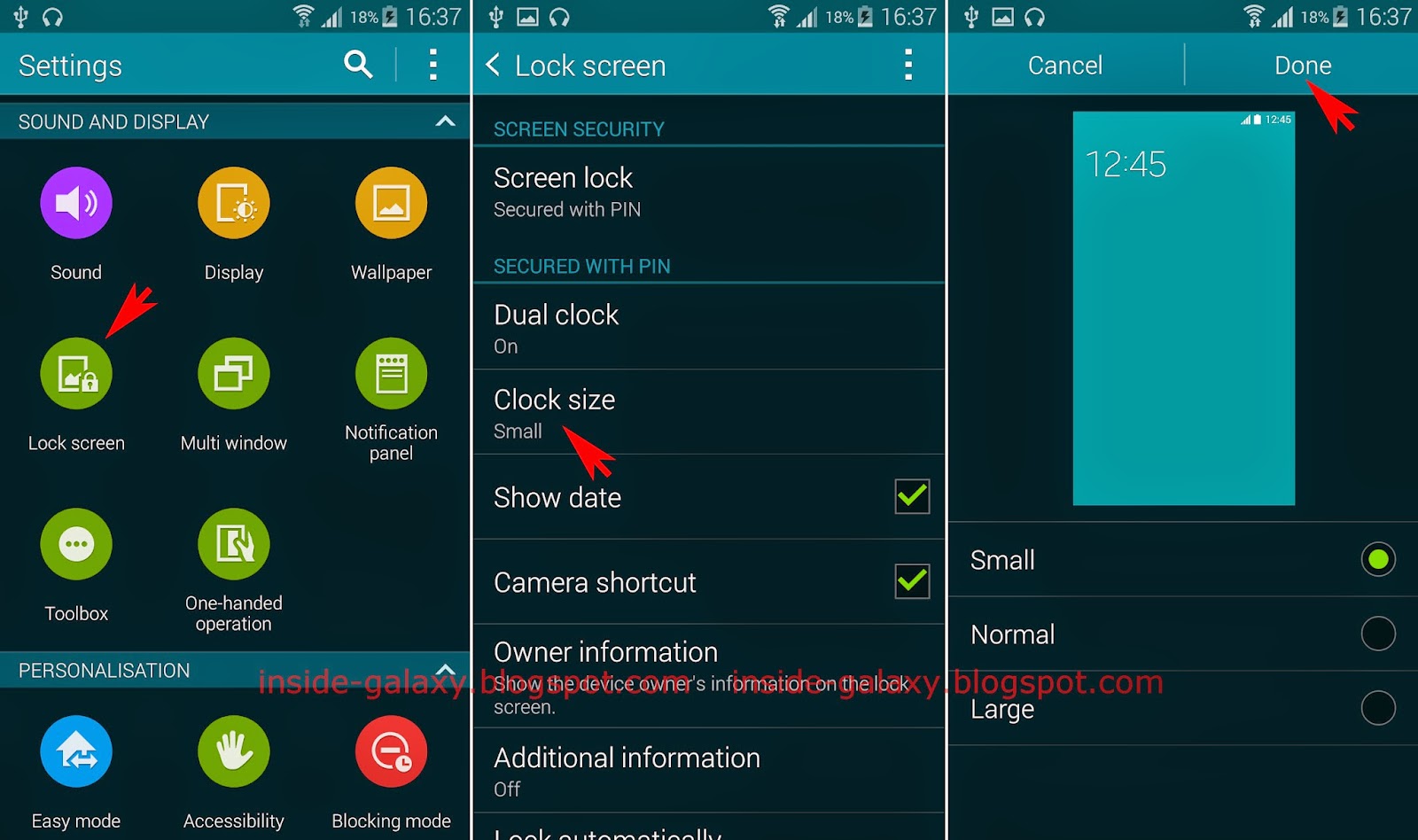
Before we dive into removing the clock, let’s talk about how to personalize it first. The good news is that you can customize the clock on your Samsung Galaxy screen without using any external apps. Here are some steps to follow:
- Open the Settings app on your phone.
- Tap on Display and then tap on Style Clock.
- In the Style Clock menu, you’ll see several options for customizing the clock. You can choose from different font styles, colors, and even add a background image.
Removing Clock From Screen
Now that we’ve covered personalizing the clock, let’s move on to removing it altogether. Here are some steps to follow:
- Go back to the Settings app and tap on Display.
- Tap on Style Clock again.
- This time, instead of customizing the clock, you’ll see an option called “Remove clock”. Tap on that.
That’s it! The clock should now be removed from your Samsung Galaxy screen. Note that if you want to add the clock back at a later time, you can simply go back to the Style Clock menu and re-enable it.
Using Apps to Remove Clock
If the above method doesn’t work for you, don’t worry. There are several apps available in the Google Play Store that can help you remove the clock from your Samsung Galaxy screen. One such app is called Good Lock, which we’ll discuss later on.
Using Good Lock App
The Good Lock app is a powerful tool that allows you to customize various aspects of your Samsung Galaxy phone, including the clock on your home screen. Here’s how to use it:
- Go to the Google Play Store and download the Good Lock app.
- Open the app and tap on Lockstar.
- In the LockStar menu, you’ll see an option called “Remove clock”. Tap on that.
That’s it! The clock should now be removed from your Samsung Galaxy screen. Note that if you want to add the clock back at a later time, you can simply go back to the LockStar menu and re-enable it.
Conclusion
Removing the clock from your Samsung Galaxy screen is a simple process that we’ve walked you through in this article. We hope that our guide has been helpful in showing you how to personalize and customize your phone’s home screen without cluttering it with unnecessary information. If you have any other questions or need further assistance, please don’t hesitate to ask.
Frequently Asked Questions
- Q: Can I Remove The Clock From my Samsung Galaxy Screen if I’m Not Using a Specific App?
A: Yes, you can remove the clock from your Samsung Galaxy screen without using an external app. Just go to Settings > Display and tap on Style Clock. - Q: How do I Personalize The Clock on my Samsung Galaxy Screen?
A: To personalize the clock, go to Settings > Display and tap on Style Clock. You can choose from different font styles, colors, and even add a background image. - Q: Can I Use an App to Remove The Clock From my Samsung Galaxy Screen?
A: Yes, you can use an app called Good Lock to remove the clock from your Samsung Galaxy screen. - Q: How do I Install The Good Lock App on my Samsung Galaxy Phone?
A: To install the Good Lock app, go to the Google Play Store and download it. Then, open the app and tap on LockStar to customize your lock screen. - Q: Can I Add The Clock Back to my Samsung Galaxy Screen if I Remove it Using an App?
A: Yes, you can add the clock back to your Samsung Galaxy screen at any time by going back to the Style Clock menu or the Good Lock app and re-enabling it.
We hope that this article has been helpful in showing you how to personalize and customize your Samsung Galaxy phone’s home screen without cluttering it with unnecessary information. If you have any other questions or need further assistance, please don’t hesitate to ask.


