
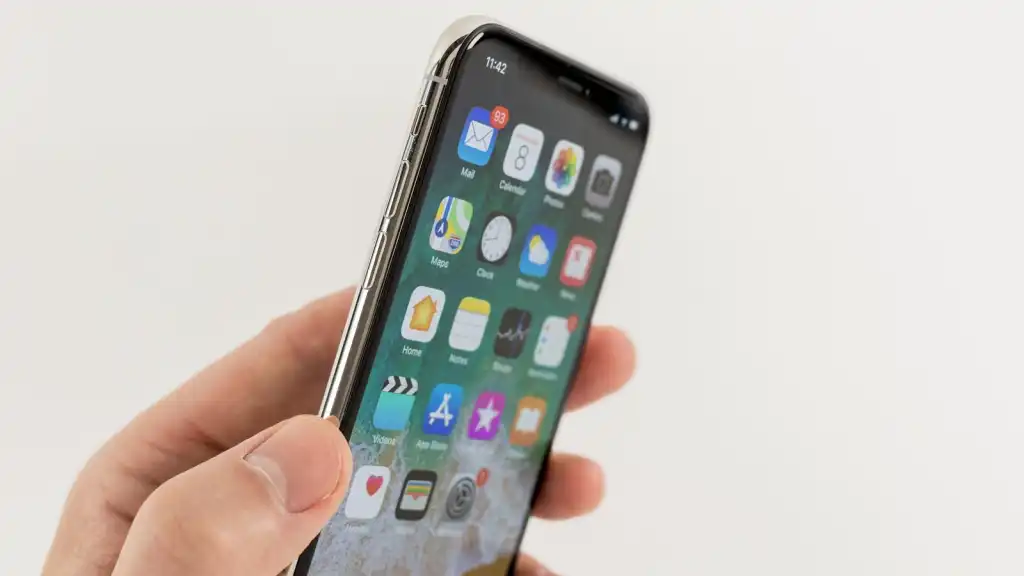
How to Fix a Frozen Iphone 11: A Step-by-step Guide
Are you tired of dealing with a frozen iPhone 11? Do you find yourself frustrated when your phone suddenly stops responding, making it impossible to interact with the touchscreen? Don’t worry; you’re not alone! Many iPhone users have experienced this issue at some point. In this article, we’ll guide you through a simple and effective process to fix a frozen iPhone 11.
Understanding The Problem
Before we dive into the solution, let’s understand why your iPhone might be freezing in the first place. There could be several reasons for this, including:
- Software glitches
- Hardware issues
- Conflicts with other apps or software
Whatever the reason, don’t worry; we’ve got you covered.
The Fix: A Simple Process
Fortunately, fixing a frozen iPhone 11 is relatively easy and straightforward. Here’s what you need to do:
1. Press And Hold The Sleep/wake Button
To start, press and hold the Sleep/Wake button (located on the top right side of your iPhone) for at least 10 seconds. This will force your phone to restart.
Why This Works: The sleep/wake button is responsible for turning your iPhone on and off. By holding it down for an extended period, you’re essentially forcing your phone to shut down and then restart.
2. Release The Button
Once you’ve held the Sleep/Wake button for 10 seconds or more, release it. Your iPhone should now be restarting.
What Happens Next: If your iPhone is indeed frozen, it may take a few moments for the device to complete its shutdown process. Be patient and let it run its course.
3. Wait For The Apple Logo
After shutting down, wait for the Apple logo to appear on your screen. This indicates that your phone is starting up again.
The Final Step: Once you see the Apple logo, release any other buttons or gestures. Your iPhone should now be functioning normally.
What if it Doesn’t Work?
If this process doesn’t resolve your issue, don’t worry! There are a few more things you can try:
1. Connect to Itunes
Connect your iPhone to your computer and open iTunes. Click on the “Restore” button to restore your device from its latest backup.
Why This Works: If your phone is frozen due to software-related issues, restoring it through iTunes should resolve the problem.
2. Try a Dfu Restore
A DFU (Device Firmware Update) restore can also help resolve the issue. This process involves connecting your iPhone to your computer and using iTunes to force a restore of your device’s firmware.
Why This Works: A DFU restore can help resolve issues related to your phone’s software or hardware, including frozen screens.
3. Visit an Apple Store
If none of these solutions work, it may be time to visit an Apple Store for professional assistance.
Getting Help
Remember, you’re not alone! If you’re experiencing technical difficulties with your iPhone 11, there are always resources available to help:
- Contact Apple Support
- Visit an Apple Store in person
- Reach out to Apple’s online support forums
Conclusion
Fixing a frozen iPhone 11 is easier than you think. By following these simple steps and troubleshooting tips, you should be able to resolve the issue without any hassle.
Remember, if all else fails, it may be time to visit an authorized Apple repair center or consult with an expert for personalized assistance.
Hope this helps!


