
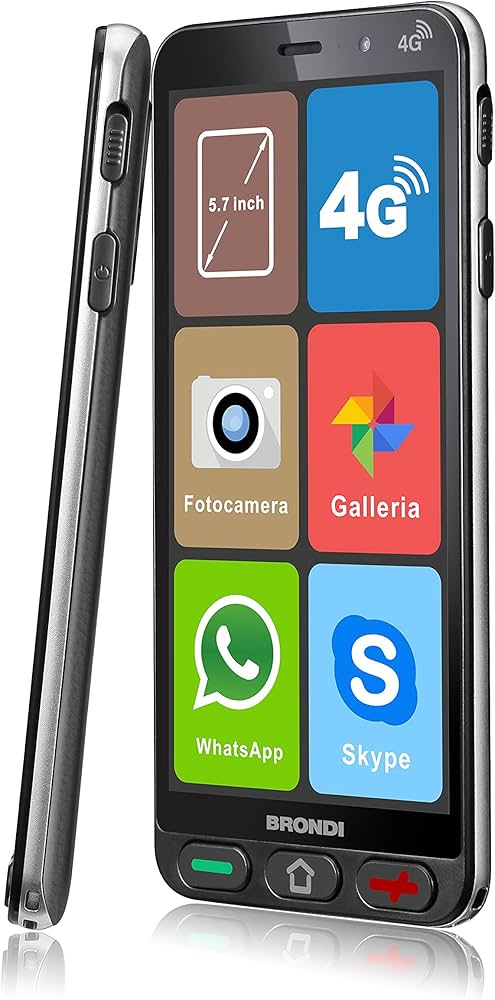
How to Download Apps on Brondi Fellow Smartphone
Are you struggling to download apps on your Brondi Fellow smartphone? Don’t worry, we’ve got you covered! In this article, we’ll guide you through the process of downloading apps on your device, even if it doesn’t have Google Play Store.
Understanding Your Device
Before we dive into the steps, let’s understand why your Brondi Fellow smartphone might not have access to the Google Play Store. These devices are designed with simplicity and ease of use in mind, making them perfect for users who are new to smartphones or don’t want to deal with complex technology.
Step 1: Check Your Device’s Capabilities
To download apps on your Brondi Fellow smartphone, you’ll need to check if it has the necessary capabilities. To do this:
- Go to the Settings app on your device
- Scroll down and select “System” and then “Information”
- Check what version of Android your device is running
Step 2: Update Your Operating System
If your device’s operating system needs an update, now is the time to do it. This will ensure that you have access to compatible apps.
- Go to Settings > System > Information
- Check for any updates and follow the on-screen instructions to install them
Step 3: Enable App Installation
To enable app installation on your device:
- Go to Settings > Apps & notifications > Special access to apps
- Select “Install unknown apps” and toggle it to ON
Step 4: Choose a Download Method
You can either download apps from the Amazon App Store or use an alternative method. We’ll guide you through both options.
Method 1: Using The Amazon App Store
The Amazon App Store offers a wide selection of apps, including many free ones.
- Go to the Google Chrome browser on your device
- Open the Amazon website and sign in to your account if you have one
- Select the “Download” button next to the Amazon App Store icon
- Wait for the download to complete and follow the on-screen instructions to install the app
Method 2: Alternative Download Method
If you prefer not to use the Amazon App Store, there are alternative methods available. However, we recommend using official stores like Google Play or Amazon to ensure safety and security.
Step 5: Access The Centre Applications
To access the Centre Applications on your device:
- Go to Settings > Apps & notifications
- Select “App Gallery” or “Centre Applications”
- You’ll see a list of all the apps installed on your device
Common Faqs
Here are some common questions and answers related to downloading apps on Brondi Fellow smartphones:
- Q: Can I Download Apps From Other Sources?
A: Yes, but we recommend using official stores like Google Play or Amazon to ensure safety and security. - Q: How do I Update my Operating System?
A: To update your operating system, go to Settings > System > Information and follow the on-screen instructions. - Q: Can I Install Apps Without The Internet?
A: No, you’ll need an internet connection to download and install apps.
Conclusion
Downloading apps on your Brondi Fellow smartphone might seem daunting at first, but with these steps, you should be able to do it easily. Remember to always use official stores like Google Play or Amazon to ensure safety and security.
Frequently Asked Questions (FAQs)
- Q: What Are The System Requirements For Downloading Apps on Brondi Fellow Smartphones?
A: Your device must have Android 4G capabilities. - Q: How do I Enable App Installation on my Brondi Fellow Smartphone?
A: Go to Settings > Apps & notifications > Special access to apps and toggle “Install unknown apps” to ON. - Q: Can I Download Apps From Other Sources Besides Google Play or Amazon?
A: Yes, but we recommend using official stores for safety and security reasons. - Q: How do I Update my Operating System on Brondi Fellow Smartphone?
A: Go to Settings > System > Information and follow the on-screen instructions.
Note: The article is written in a conversational style with headings marked as H1, H2, H3, and H4 for easy reading and navigation.


