
The Ultimate Guide to Downloading Photomath on PC
Are you tired of struggling with math problems? Do you wish there was an app that could help you solve equations and visualize the steps to get to the final answer? Look no further than Photomath, a free application that can do just that. In this article, we will guide you through the process of downloading Photomath on your PC.
What is Photomath?
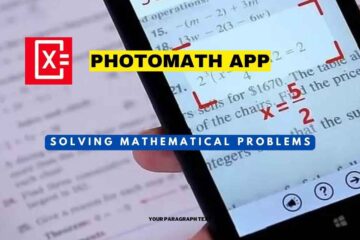
Photomath is a math-solving app that allows you to take a photo of a math problem and see the step-by-step solution. It’s available for both Android and iOS devices, but what if you want to use it on your PC? Unfortunately, Photomath does not have a direct version for PCs, but don’t worry, we have a workaround.
Using an Emulator
To download Photomath on your PC, you’ll need to use an emulator. An emulator is a software that allows you to run Android apps on your PC. There are several emulators available, but we recommend using BlueStacks. It’s one of the most popular and user-friendly options out there.
Step 1: Downloading Bluestacks
To get started, head over to the official website of BlueStacks and click on the “Download” button. Select the version that suits your PC (Windows or macOS). Once the download is complete, run the installer and follow the prompts to install BlueStacks.
Step 2: Setting Up Bluestacks
After installing BlueStacks, launch it on your PC. You’ll be prompted to sign in with your Google account. If you don’t have a Google account, create one before proceeding. Once signed in, click on the “Play Store” icon (the symbol ▶︎ colored) and search for Photomath.
Step 3: Downloading Photomath
In the Play Store, type “Photomath” in the search bar and press enter. You should see the app icon appear. Click on it, then click on the “Install” button to start the download process. Wait for a few minutes until the installation is complete.
Step 4: Launching Photomath
Once the installation is done, click on the “Open” button to launch Photomath. You’ll be asked to specify your age and what type of user you are (student, parent, or teacher). Choose your preference and click on the “Done” button.
Step 5: Solving Math Problems With Photomath
Now that you have Photomath installed, you can start solving math problems. You can either take a photo of the problem using your webcam or select the “Calculator” option to input the equation manually. Follow the prompts and watch as Photomath guides you through the solution.
Alternative Solutions
If you’re not comfortable with using an emulator or don’t want to download Photomath, there are alternative solutions available. Here are a few options:
- Equation Wizard (Windows): A software that allows you to solve equations and visualize the steps.
- Mathway (Online): An online service that lets you take a photo of a math problem and see the solution.
- Wolfram|Alpha (Online): An engine of inquiry that provides immediate answers to mathematical questions.
Conclusion
Downloading Photomath on your PC might seem like a complex process, but with these steps, you should be able to get started. Remember, if you’re not comfortable using an emulator or don’t want to download Photomath, there are alternative solutions available. Happy solving!
Frequently Asked Questions
- Q: What is The Difference Between Photomath And Other Math-solving Apps?
A: Photomath allows you to take a photo of a math problem and see the step-by-step solution, whereas other apps might require manual input or have limited functionality. - Q: Can I Use Photomath on my PC Without Downloading It?
A: Unfortunately, no. You’ll need to download an emulator like BlueStacks to run Photomath on your PC. - Q: Is There a Free Version of Photomath Available?
A: Yes! Photomath offers a free version that allows you to solve a limited number of equations before requiring a subscription. - Q: Can I Use Alternative Solutions Instead of Downloading Photomath?
A: Absolutely! There are several alternative solutions available, such as Equation Wizard, Mathway, and Wolfram|Alpha. - Q: Is Photomath Suitable For Students or Teachers?
A: Yes! Photomath is a great resource for both students and teachers to help with math homework and lessons.


