
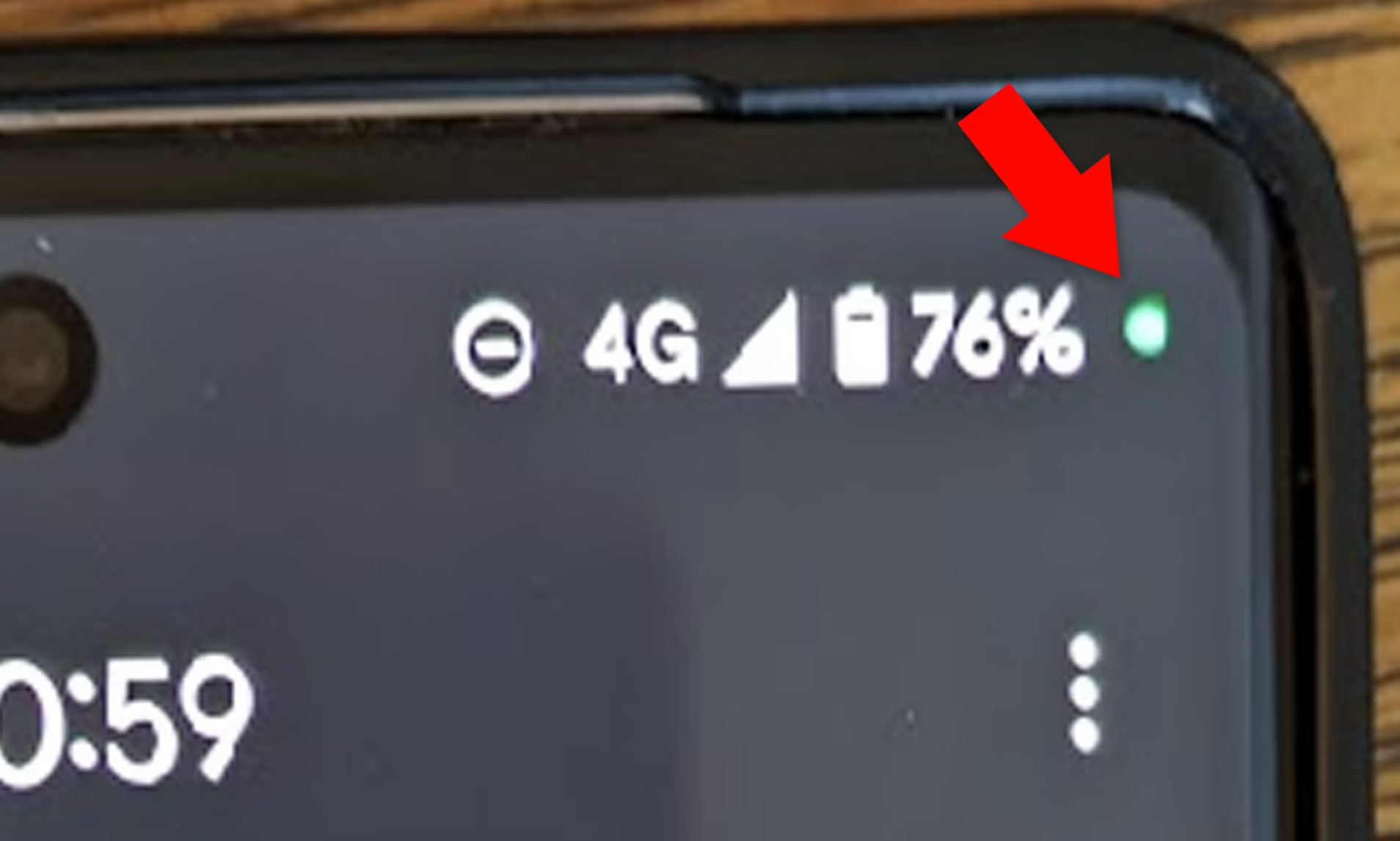
Removing The Disturbing White Screen on Your Smartphone: A Step-by-step Guide
Are you tired of the annoying white screen that keeps appearing on your smartphone, disrupting your workflow? Don’t worry; we’ve got you covered! In this comprehensive guide, we’ll walk you through the steps to remove the disturbing white screen on various smartphone brands.
Understanding The Issue
The white screen issue is a common problem experienced by many smartphone users. It’s usually caused by a feature called “AssistiveTouch” or similar functionalities that provide quick access to certain features or settings. While these features can be helpful, they sometimes get stuck and cause frustration.
Removing The White Screen on Android Devices
If you own an Android device and are struggling with the white screen issue, follow these steps:
- Open Settings: Go to your phone’s Settings app, which is usually represented by a gear icon.
- Access System And Updates: Scroll down and select “System and updates” or “About phone.”
- Tap on Navigation of System: You might find this option under the “System and updates” section or as a separate menu item.
- Select Swift Menu: Look for the “Swift Menu” option, which might be enabled by default.
- Turn Off Swift Menu: Disable the Swift Menu feature by sliding the toggle switch to the left.
That’s it! If you still encounter issues, try restarting your phone or seeking assistance from the manufacturer’s support team.
Removing The White Screen on Huawei Devices
If you’re using a Huawei smartphone and experiencing the white screen issue, follow these steps:
- Open Settings: Access the Settings app on your Huawei device.
- Access System And Updates: Scroll down to find this option or search for it in the settings menu.
- Select Navigation of System: Look for this option under the “System and updates” section.
- Tap on Swift Menu: You’ll find the Swift Menu feature listed under the “Navigation of system” menu.
- Turn Off Swift Menu: Disable the Swift Menu by sliding the toggle switch to the left.
Removing The White Screen on Oppo Devices
For OPPO smartphone users, follow these steps:
- Open Settings: Access the Settings app on your OPPO device.
- Access Other Settings: Scroll down and select “Other settings” or search for it in the settings menu.
- Select Accessibility: Look for this option under the “Other settings” section.
- Tap on Sphere Assistiva: You’ll find this feature listed under the “Accessibility” menu.
- Turn Off Sphere Assistiva: Disable the Sphere assistiva feature by sliding the toggle switch to the left.
Removing The White Screen on Samsung Devices
If you’re using a Samsung smartphone and experiencing the white screen issue, follow these steps:
- Open Settings: Access the Settings app on your Samsung device.
- Access Accessibility Settings: Scroll down and select “Accessibility” or search for it in the settings menu.
- Tap on Menu Accessibility: Look for this option under the “Accessibility settings” section.
- Turn Off Menu Accessibility: Disable the Menu accessibility feature by sliding the toggle switch to the left.
Removing The White Screen on Xiaomi Devices
For Xiaomi smartphone users, follow these steps:
- Open Settings: Access the Settings app on your Xiaomi device.
- Access Accessibility Settings: Scroll down and select “Accessibility” or search for it in the settings menu.
- Tap on Menu Accessibility: Look for this option under the “Accessibility settings” section.
- Turn Off Menu Accessibility: Disable the Menu accessibility feature by sliding the toggle switch to the left.
Removing The White Screen on Iphone Devices
If you’re an iPhone user and experiencing the white screen issue, follow these steps:
- Open Settings: Access the Settings app on your iPhone.
- Access Accessibility Settings: Scroll down and select “Accessibility” or search for it in the settings menu.
- Tap on Assistivetouch: Look for this option under the “Accessibility settings” section.
- Turn Off Assistivetouch: Disable the AssistiveTouch feature by sliding the toggle switch to the left.
That’s it! If you still encounter issues, try restarting your phone or seeking assistance from the manufacturer’s support team.
Conclusion
Removing the disturbing white screen on your smartphone is a relatively simple process that requires minimal technical expertise. By following these step-by-step guides for various smartphone brands, you should be able to resolve the issue and enjoy a smoother user experience.


