
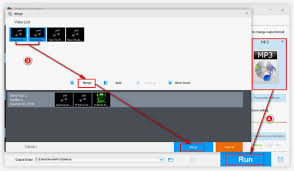
How to Join Mp3 Files: A Step-by-step Guide
Are you looking for a way to join multiple MP3 files into one single file? Look no further! In this article, we will guide you through the process of joining MP3 files using various software and online services.
Whether you’re a music enthusiast or just someone who likes to organize their audio files, joining MP3 files can be a convenient and useful skill to have. With so many different software options available, it’s easy to get overwhelmed. But don’t worry, we’ve got you covered!
Joining Mp3 Files With Vlc
VLC (VideoLAN Client) is a popular media player that also has the ability to join audio files. Here’s how to do it:
- Download And Install Vlc: If you haven’t already, download and install VLC on your computer.
- Open Vlc: Launch VLC and click on “Media” in the top menu bar.
- Select Multiple Mp3 Files: Choose the first MP3 file you want to join by clicking on it, then hold down the Ctrl key (Windows) or Command key (Mac) while selecting additional MP3 files.
- Click on “Convert/Save”: With all your selected MP3 files, click on the “Convert/Save” button.
- Choose The Output Format: In the conversion settings, select MP3 as the output format.
- Click on “Start”: Click on the “Start” button to begin the conversion process.
Joining Mp3 Files With Audacity
Audacity is a free audio editing software that can also join MP3 files. Here’s how to do it:
- Download And Install Audacity: If you haven’t already, download and install Audacity on your computer.
- Open Audacity: Launch Audacity and click on “File” in the top menu bar.
- Select Multiple Mp3 Files: Choose the first MP3 file you want to join by clicking on it, then hold down the Ctrl key (Windows) or Command key (Mac) while selecting additional MP3 files.
- Click on “Import”: With all your selected MP3 files, click on the “Import” button.
- Drag And Drop Files: Drag and drop the imported MP3 files into Audacity’s timeline.
- Export as a Single File: Click on “File” > “Export” to export the joined audio file.
Other Solutions
If you’re looking for other software options or online services, here are some alternatives:
Other Software Options
- Mp3 Cutter Pro: A free online service that allows you to join MP3 files.
- Filesmerge: A web-based service that enables you to merge multiple audio files into one.
Online Services
- 123Apps: A free online service that allows you to join and edit audio files.
- Clideo: A cloud-based platform that lets you join, cut, and mix audio files.
- Mp3 Audio Merger & Joiner (Android): A mobile app for Android devices that enables you to join MP3 files.
Joining Mp3 Files on Ios/ipados
If you’re using an iPhone or iPad, there are also some great options available:
Mobile Apps
- Hokusai Audio Editor: A free audio editing software available on the App Store.
- Mp3 Audio Merger & Joiner (iOS): A mobile app for iOS devices that enables you to join MP3 files.
Conclusion
Joining MP3 files is a straightforward process that can be achieved using various software options and online services. Whether you’re looking for free software or want to explore paid alternatives, we’ve got you covered!


