
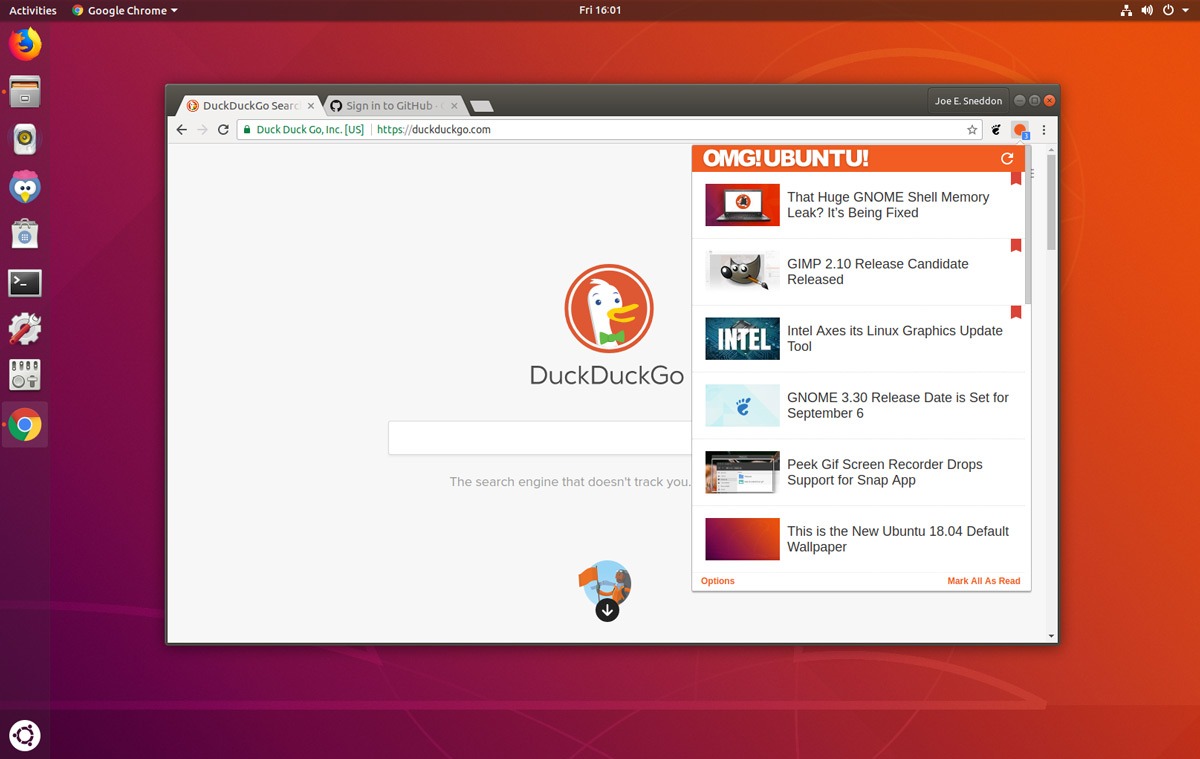
How to Install Google Chrome on Your Pc: A Step-by-step Guide
Are you tired of using your default browser on your PC? Do you want to experience the speed, security, and features that Google Chrome has to offer? Look no further! In this article, we will guide you through the process of installing Google Chrome on your PC, step by step.
Why Choose Google Chrome?
Google Chrome is one of the most popular browsers in the world, and for good reason. It is fast, secure, and packed with features that make browsing the internet a joy. With its intuitive interface, seamless syncing capabilities, and extensive library of extensions, Chrome is an excellent choice for anyone looking to upgrade their browsing experience.
System Requirements
Before we begin, make sure you meet the system requirements for Google Chrome:
- Operating System: Windows 7 or later
- Processor: 1 GHz or faster
- RAM: 2 GB or more
- Hard Disk Space: 3.6 GB or more
Step 1: Download Google Chrome
To start the installation process, you need to download the Google Chrome installer from the official website:
- Open your default browser and navigate to the Google Chrome download page.
- Click on the “Download Chrome” button.
- Select the correct version of Chrome for your operating system (32-bit or 64-bit).
- Wait for the download to complete.
Step 2: Install Google Chrome
Once the download is complete, follow these steps to install Google Chrome:
- Locate the downloaded file on your computer (usually in the Downloads folder).
- Double-click on the file to start the installation process.
- Follow the prompts to select the language and agree to the terms of service.
- Click “Next” to proceed with the installation.
- Wait for the installation to complete.
Step 3: Launch Google Chrome
After installation, you can launch Google Chrome by:
- Double-clicking on the Chrome icon on your desktop.
- Searching for Chrome in the Start menu.
- Using the shortcut key (Ctrl + Shift + B) to open Chrome.
Tips And Variations
- If you want to install a different version of Chrome, such as Beta or Canary, follow these steps:
- Go to the Google Chrome download page.
- Click on the “Download Chrome” button.
- Select the correct version (Beta or Canary) from the drop-down menu.
- Follow the same installation process as before.
Installing Chrome Without Internet
If you want to install Chrome on a PC without an internet connection, follow these steps:
- Download the Google Chrome installer on another device with an internet connection.
- Save the file on an external storage device (such as a USB drive).
- Insert the external storage device into the PC without internet.
- Run the installation process using the downloaded file.
Removing Google Chrome
If you want to remove Google Chrome from your PC, follow these steps:
- Go to the Control Panel (Windows 10) or Programs and Features (Windows 7).
- Click on the “Uninstall a program” button.
- Find and click on the Google Chrome entry.
- Follow the prompts to complete the uninstallation process.
Conclusion
Installing Google Chrome on your PC is a straightforward process that can be completed in just a few minutes. By following these steps, you’ll be able to enjoy the speed, security, and features that Chrome has to offer. Remember to always download software from official sources and follow best practices for online safety.
Faqs
- What Are The System Requirements For Google Chrome?
- Operating System: Windows 7 or later
- Processor: 1 GHz or faster
- RAM: 2 GB or more
- Hard Disk Space: 3.6 GB or more
- Can I Install a Different Version of Chrome, Such as Beta or Canary?
- Yes, you can download and install the Beta or Canary versions from the Google Chrome website.
- How do I Uninstall Google Chrome From my Pc?
- Go to the Control Panel (Windows 10) or Programs and Features (Windows 7), find and click on the Google Chrome entry, and follow the prompts to complete the uninstallation process.
- Can I Install Chrome Without an Internet Connection?
- Yes, you can download the Chrome installer on another device with an internet connection, save it on an external storage device, and then run the installation process on the PC without internet.
- How do I Sync my Google Chrome Data Across Devices?
- You can sync your Chrome data by signing in to your Google account from any device running Chrome.
- Can I Use Google Chrome With a Vpn?
- Yes, you can use Google Chrome with a VPN (Virtual Private Network) installed on your PC.
We hope this guide has helped you install and enjoy Google Chrome on your PC!


