
Lighting Your TV Without a Remote: A Step-by-step Guide
Are you tired of fiddling around with the buttons on your TV’s remote? Do you want to find an alternative way to control your television without having to shell out for a new remote? Look no further! In this article, we’ll show you how to light your TV without a remote using various methods.
Why Use an Alternative Method?
While remotes are convenient, they can be frustrating when they break or get lost. Using alternative methods to control your TV can save you money and reduce the hassle of having to replace your remote every time it malfunctions.
Method 1: Using Physical Buttons on Your TV
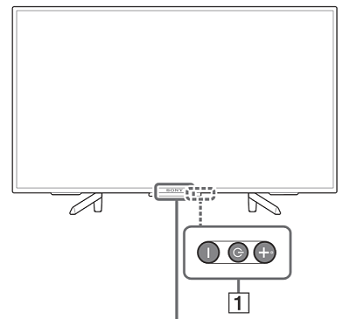
The most straightforward way to light your TV without a remote is by using the physical buttons on your television. These buttons are usually located at the back or bottom of your TV, and they can be used to turn it on and off, adjust the volume, and change channels.
Step 1: Locate The Physical Buttons
The first step is to locate the physical buttons on your TV. These buttons are usually marked with icons or labels that indicate their function. For example, you may see a button labeled “ON/OFF” or “VOL+” and “VOL-“.
Step 2: Press The On/off Button
Once you’ve located the ON/OFF button, simply press it to turn on your TV. If your TV is in standby mode, pressing this button will bring it back to life.
Method 2: Using an App to Control Your TV
Another way to light your TV without a remote is by using an app that allows you to control your television from your smartphone or tablet. There are many apps available that can turn your mobile device into a remote, and they usually work in conjunction with an infrared (IR) transmitter.
Step 1: Download The App
The first step is to download an app that supports IR transmission. Some popular options include Mi Remote Controller and Smartify: LG TV Remote. These apps are available for both Android and iOS devices.
Step 2: Connect Your Mobile Device to Your TV
Once you’ve downloaded the app, connect your mobile device to the same Wi-Fi network as your TV. This will enable communication between your phone or tablet and your television.
Step 3: Configure The App
Follow the instructions in the app to configure it for use with your TV. This usually involves selecting your TV brand and model from a list of options.
Method 3: Using a Universal Remote or Device
If you’re not comfortable using an app, you can also consider purchasing a universal remote or device that supports IR transmission. These devices are designed to work with multiple brands and models of TVs, and they usually come with a manual for easy setup.
Step 1: Choose The Right Device
When selecting a universal remote or device, make sure it’s compatible with your TV brand and model. You can check this information on the manufacturer’s website or by consulting a sales representative at an electronics store.
Step 2: Follow The Instructions in The Manual
Once you’ve purchased the device, follow the instructions in the manual to set it up for use with your TV. This usually involves pressing a series of buttons on the remote or device to configure it for use with your specific TV model.
Conclusion
Lighting your TV without a remote is easier than you think! By using alternative methods like physical buttons, apps, and universal remotes, you can save money and reduce hassle when controlling your television. Whether you’re in the market for a new TV or just looking to upgrade your viewing experience, these tips will come in handy.
Frequently Asked Questions
- Q: Can I Use an App to Control my TV if It’s Not Connected to Wi-fi?
A: No, most apps require an internet connection to function. - Q: Are Universal Remotes or Devices Expensive?
A: Prices vary depending on the brand and model, but they’re generally affordable and range from $10 to $50. - Q: Can I Use a Universal Remote or Device With my Smart Tv?
A: Yes, most universal remotes or devices are compatible with smart TVs. - Q: How do I Know if my TV is Compatible With a Particular App or Device?
A: Check the manufacturer’s website or consult a sales representative at an electronics store for information on compatibility. - Q: Can I Use Multiple Devices to Control my TV at Once?
A: Yes, some apps and devices allow you to connect multiple devices to your TV, enabling simultaneous control from multiple sources. - Q: Will Using an App or Device Affect The Performance of my Tv?
A: No, using alternative methods to control your TV should not affect its performance or functionality. - Q: Can I Use a Universal Remote or Device With an Older Model of Tv?
A: Yes, many universal remotes or devices are designed to work with older models of TVs. - Q: Are Apps And Devices Compatible With All Brands of Tvs?
A: Most apps and devices are compatible with popular brands like Samsung, LG, and Sony, but compatibility may vary depending on the model and manufacturer.
Recommended Reading
- How to Download and Install Apps on Android Devices
- A Beginner’s Guide to Using Smartphones as Remotes
- The Benefits of Using Universal Remotes or Devices
- Tips for Choosing the Right App or Device for Your TV


