
How to Add Music to a Photo: A Step-by-step Guide
Are you tired of seeing only photos on social media without any background music? Do you want to add a personal touch to your memories by incorporating songs that evoke emotions and create a sense of nostalgia? Look no further! In this article, we will guide you through the process of adding music to a photo on various platforms, including Instagram, Facebook, WhatsApp, and more.
Adding Music to a Photo on Instagram
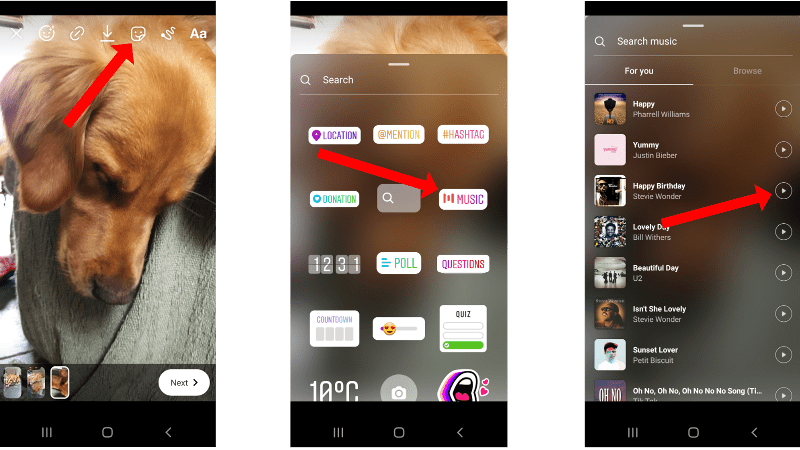
Instagram is one of the most popular social media platforms where users share their memories by posting photos and videos. But did you know that you can also add music to your photos? Yes, you read it right! With Instagram’s “Add music” feature, you can choose from millions of songs available in their library or use a song from your personal collection.
Here’s how to do it:
- Open The Instagram App on your smartphone and select the photo that you want to add music to.
- Tap on The “+” Icon located at the top right corner of the screen.
- Select The “Add Music” Option from the menu.
- Choose a Song from Instagram’s vast library or use one from your personal collection.
- Adjust The Volume And Duration of the song to fit your liking.
- Tap on The “Share” Button to post the photo with music.
Using Poststoriequik (Android/iOS/iPadOS)
If you want to add music to a photo on Instagram using a third-party app, then PostStorieQuik is an excellent option. This app allows you to create stunning slideshows with photos and videos set to your favorite music.
Here’s how to use it:
- Download The Poststoriequik App from the App Store or Google Play.
- Open The App and select the photo that you want to add music to.
- Tap on The “+” Icon located at the top right corner of the screen.
- Choose a Song from the app’s library or use one from your personal collection.
- Adjust The Volume And Duration of the song to fit your liking.
- Tap on The “Share” Button to post the photo with music.
Other Apps to Add Music to Photos
There are several other apps available that allow you to add music to photos, including:
- Magisto (Android/iOS/iPadOS)
- IMovie (iOS/iPadOS)
- Clips (iOS/iPadOS)
These apps offer a range of features and functionalities that can help you create stunning videos with music.
Adding Music to a Photo on Facebook
Facebook is another popular social media platform where users share their memories by posting photos and videos. Adding music to a photo on Facebook is also possible, and here’s how to do it:
- Open The Facebook App on your smartphone.
- Tap on The “+” Icon located at the top right corner of the screen.
- Select The “Create a Post” Option from the menu.
- Choose a Song from Facebook’s vast library or use one from your personal collection.
- Adjust The Volume And Duration of the song to fit your liking.
- Tap on The “Share” Button to post the photo with music.
Adding Music to a Photo on Whatsapp
WhatsApp is a popular messaging app where users share photos, videos, and messages with their contacts. Adding music to a photo on WhatsApp is also possible, and here’s how to do it:
- Open The Whatsapp App on your smartphone.
- Tap on The Camera Icon located at the top right corner of the screen.
- Select The Photo That You Want to Add Music to.
- Choose a Song from WhatsApp’s vast library or use one from your personal collection.
- Adjust The Volume And Duration of the song to fit your liking.
- Tap on The “Share” Button to post the photo with music.
Conclusion
Adding music to a photo is a great way to enhance its emotional value and create a sense of nostalgia. With the guides provided above, you can easily add music to your photos on various social media platforms, including Instagram, Facebook, WhatsApp, and more. Remember to choose songs that are relevant to the memory or emotion that you want to convey.
Frequently Asked Questions (FAQs)
Q: Can I use any song in my photo?
A: Yes, you can use any song from your personal collection or from a third-party app.
Q: How do I add music to a photo on Instagram?
A: You can add music to a photo on Instagram by tapping on the “+” icon and selecting the “Add music” option.
Q: Can I use multiple songs in my video?
A: Yes, you can use multiple songs in your video by tapping on the musical grade symbol and selecting a new song.
Q: How do I adjust the volume and duration of the song?
A: You can adjust the volume and duration of the song by tapping on the volume control icon and dragging it to your liking.
Q: Can I save my photo with music as a video?
A: Yes, you can save your photo with music as a video by tapping on the “Save” button and selecting the “Video” option.
Q: How do I share my photo with music on social media?
A: You can share your photo with music on social media by tapping on the “Share” button and selecting the platform that you want to post it on.


