
Blocking Touchpad on Portable Devices: A Comprehensive Guide
Are you tired of accidental cursor movements while typing on your portable device? Do you want to use a mouse with your laptop, but the touchpad keeps getting in the way? Look no further! In this article, we will guide you through the process of blocking the touchpad on your portable device, whether it’s running Windows or macOS.
Understanding Touchpad Blocking
Before we dive into the nitty-gritty, let’s understand why you might want to block the touchpad in the first place. The main reason is to prevent accidental cursor movements while typing or browsing on your laptop. This can be especially frustrating if you’re using a touchscreen laptop and accidentally trigger actions with your fingers.
Method 1: Using Function Keys
On most portable devices, there’s a function key that can disable or enable the touchpad. This key usually has an icon resembling a touchpad or a rectangle with two buttons below it. Look for this key on your keyboard, and press it to toggle the touchpad on or off.
Method 2: Using System Settings
If you’re running Windows 10 or macOS Ventura, you can easily disable the touchpad through system settings. Here’s how:
Windows 10
- Click on the Start button and select “Settings”.
- Click on “Devices” and then click on “Touchpad”.
- In the Touchpad section, toggle off the switch next to “Touchpad”.
Macos Ventura
- Click on the Apple logo in the top left corner of your screen.
- Select “System Preferences” from the dropdown menu.
- Click on “Accessibility” and then click on “Pointer Control”.
- Toggle off the switch next to “Ignore built-in trackpad when mouse is present”.
Method 3: Using Device Management
If you’re running Windows and can’t find a function key or system setting to disable the touchpad, don’t worry! You can use device management to inhibit the touchpad’s functionality.
- Press the Windows key + R to open the Run dialog box.
- Type “devmgmt.Msc” and press Enter to open Device Manager.
- In Device Manager, expand the section for “Mice and other pointing devices”.
- Find your touchpad in the list and click on it.
- Right-click on the touchpad and select “Disable device”.
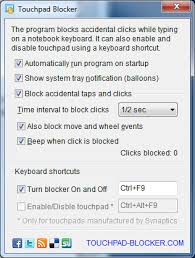
Method 4: Using Proprietary Software
Some portable devices come with proprietary software that allows you to manage the touchpad’s functionality. For example, if you’re using an ASUS laptop, you can use the ASUS Smart Gesture software to disable the touchpad when a mouse is connected.
- Download and install the proprietary software from your device manufacturer’s website.
- Follow the instructions provided by the software to disable or enable the touchpad.
Conclusion
Blocking the touchpad on portable devices is easier than you think! Whether you’re using Windows or macOS, there are various methods to prevent accidental cursor movements while typing or browsing on your laptop. Try out these methods and find what works best for you.
Frequently Asked Questions (FAQs)
- Q: Why do I Need to Block The Touchpad?
A: Blocking the touchpad prevents accidental cursor movements while typing or browsing on your laptop, making it easier to use a mouse. - Q: How do I Find The Function Key to Disable The Touchpad?
A: Look for an icon resembling a touchpad or a rectangle with two buttons below it on your keyboard. - Q: Can I Disable The Touchpad Permanently?
A: Yes, you can disable the touchpad through system settings or device management, but be aware that this might affect other functionality on your laptop. - Q: Will Blocking The Touchpad Affect my Touchscreen Experience?
A: No, blocking the touchpad will not affect your touchscreen experience; it’s designed to prevent accidental cursor movements while typing or browsing. - Q: Can I Use a Mouse And Still Have The Touchpad Enabled?
A: Yes, you can keep the touchpad enabled even when using a mouse, but be aware that accidental cursor movements might occur. - Q: Why Won’t my Windows Device Allow me to Disable The Touchpad?
A: If your Windows device doesn’t allow you to disable the touchpad through system settings, try using Device Manager or proprietary software. - Q: Can I Reactivate The Touchpad if I Accidentally Disabled It?
A: Yes, you can reactivate the touchpad by following the same steps used to disable it.
We hope this comprehensive guide has helped you understand how to block the touchpad on portable devices running Windows and macOS. Happy computing!


