
How to Connect Android Phone to Pc: A Step-by-step Guide
As a smartphone user, you might have wondered how to connect your Android phone to your PC without using cables. With the increasing use of smartphones, it’s essential to know how to transfer files, backup data, and even control your phone from your computer. In this article, we’ll explore various methods to connect your Android phone to your PC, including using a USB cable, Wi-Fi, Bluetooth, and more.
Why Connect Your Android Phone to Pc?
Before we dive into the methods, let’s understand why connecting your Android phone to your PC is useful:
- Transfer files: Share photos, videos, music, and documents between your phone and computer.
- Backup data: Safely store your phone’s data on your PC, ensuring it’s protected in case of loss or damage.
- Control your phone remotely: Use your computer to access and manage your phone’s settings, apps, and features.
Method 1: Using a Usb Cable
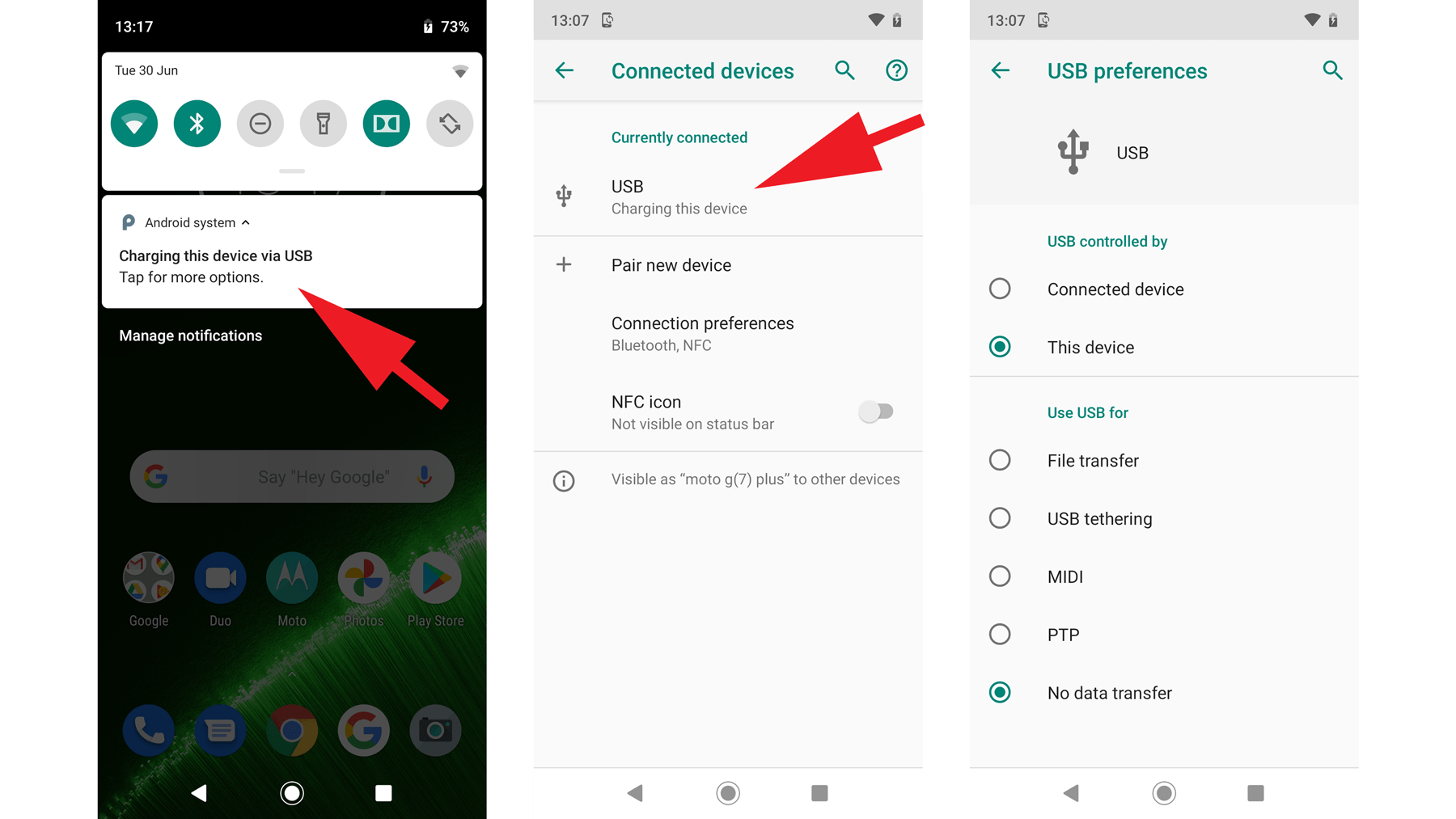
To connect your Android phone to your PC using a USB cable:
- Step 1: Use the provided USB cable to connect your phone to your computer.
- Step 2: On your phone, go to Settings > Notifications > Connected devices and select “USB connection.”
- Step 3: On your computer, open File Explorer (Windows) or Finder (Mac) and navigate to the connected device.
You can now transfer files between your phone and computer by dragging and dropping them into their respective folders.
Method 2: Exploring (Windows)
If you’re using a Windows PC:
- Step 1: Connect your Android phone to your computer using a USB cable.
- Step 2: Open File Explorer and navigate to “This PC” or “Computer.”
- Step 3: Click on the connected device, usually labeled as “Your Phone.”
You can now access your phone’s files and transfer them to your computer.
Method 3: Cession Rows (Android)
If you’re using a Mac:
- Step 1: Connect your Android phone to your computer using a USB cable.
- Step 2: Open the “Cession Rows” app on your phone and select “Connect.”
- Step 3: On your Mac, open the “Cession Rows” app and follow the prompts to complete the connection.
You can now access your phone’s files and transfer them to your Mac.
Method 4: Software From Manufacturers
Some manufacturers provide proprietary software for connecting their phones to PCs:
- Samsung: Use the “Smart Switch” application on your PC or download it from the manufacturer’s website.
- Huawei: Utilize the “HiSuite” application on your PC or download it from the manufacturer’s website.
Method 5: Link to Phone (Windows)
To connect your Android phone to your Windows PC using Wi-Fi:
- Step 1: Download and install the “Link to Windows” app on your phone.
- Step 2: Open the app on your phone and select “Connect.”
- Step 3: On your Windows PC, go to Settings > Bluetooth & devices > Link to phone and follow the prompts.
You can now access your phone’s files and transfer them to your computer.
Method 6: Airdroid
Another method to connect your Android phone to your PC using Wi-Fi:
- Step 1: Download and install the “AirDroid” app on your phone.
- Step 2: Open the app on your phone and select “Access.”
- Step 3: On your computer, open the “AirDroid” website or download the software.
You can now access your phone’s files and transfer them to your computer.
Other Solutions
If you’re looking for alternative methods:
- Snapdrop (Web): A service that allows file transfers between devices using a local network.
- Send Anywhere: A program that enables quick file transfers between devices using a system of codes.
- Pushbullet: A platform that allows you to access your phone’s notifications on your computer, exchange files, and answer SMS.
Connecting Android Phone to PC With Bluetooth
To connect your Android phone to your PC using Bluetooth:
- Step 1: Ensure your PC has Bluetooth capabilities or use an external adapter.
- Step 2: Pair your phone with your PC by following the prompts on both devices.
You can now transfer files and access your phone’s data from your computer.
In conclusion, connecting your Android phone to your PC is a straightforward process using various methods, including USB cables, Wi-Fi, Bluetooth, and more. By understanding these methods, you’ll be able to transfer files, backup data, control your phone remotely, and enjoy other benefits of connecting your devices.
Frequently Asked Questions (FAQs)
- Q: What are the advantages of connecting my Android phone to my PC?
- A: Transfer files, backup data, control your phone remotely, and more.
- Q: Which method is recommended for beginners?
- A: Using a USB cable is a straightforward and reliable method.
- Q: Can I use multiple methods simultaneously?
- A: Yes, you can use different methods to connect your devices.
- Q: What if my PC doesn’t have Bluetooth capabilities?
- A: Use an external adapter or consider upgrading your PC’s hardware.
By following this guide and understanding the various methods, you’ll be able to effortlessly connect your Android phone to your PC and enjoy a more seamless user experience.


