
How to Resize Icons on Your Desktop: A Step-by-step Guide
Are you tired of cluttered desktops with oversized icons? Do you want to know how to resize them easily and efficiently? Look no further! In this article, we will guide you through the process of resizing icons on various operating systems, including Windows 11, Windows 10, Windows 8, Windows 7, macOS, Ubuntu, Android, and iPhone/iPad.
Understanding The Problem
A cluttered desktop with oversized icons can be frustrating and unproductive. It’s essential to have a clean and organized workspace to boost your productivity and focus. Resizing icons is a simple solution that can make a significant difference in your work experience.
Windows 11: How to Resize Icons on Your Desktop
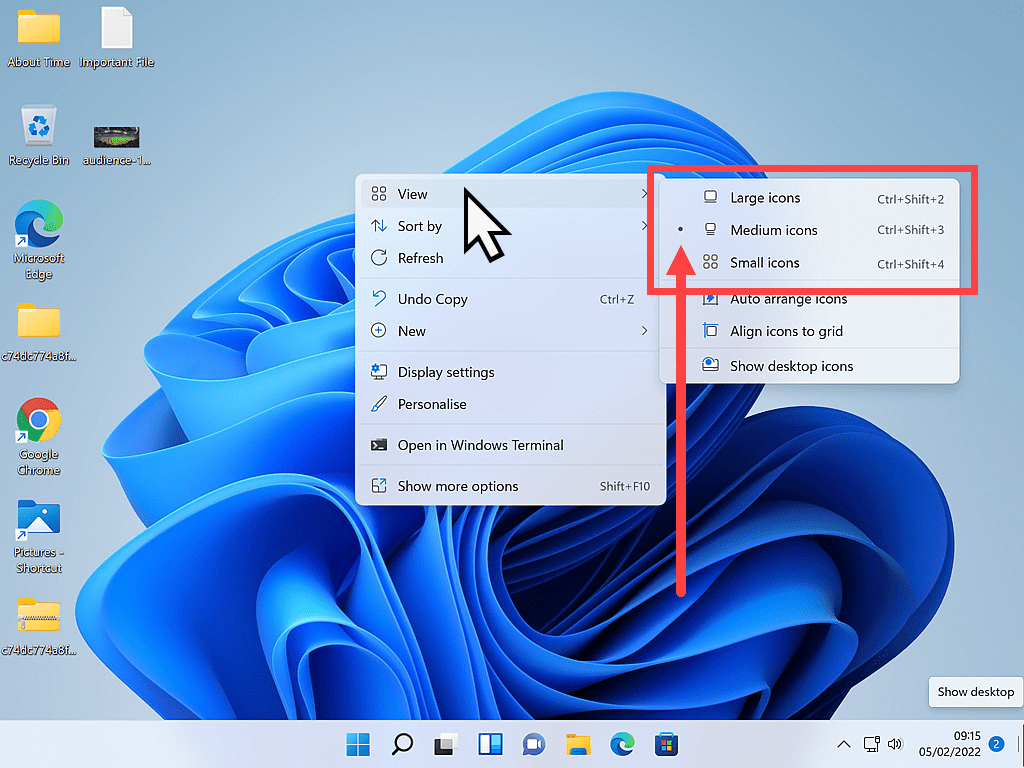
To resize icons on Windows 11, follow these steps:
- Right-click on an empty area of the desktop.
- Select “View” from the context menu.
- Choose “Small Icons” (32×32 Pixels) for small icons or “Medium Icons” (48×48 Pixels) for medium-sized icons.
- Alternatively, Use Keyboard Shortcuts:
- Ctrl + Shift + 4 for small icons
- Ctrl + Shift + 3 for medium icons
- Ctrl + Shift + 2 for large icons
Windows 10: How to Resize Icons on Your Desktop
The process is similar to Windows 11:
- Right-click on an empty area of the desktop.
- Select “View” from the context menu.
- Choose “Small Icons” (32×32 Pixels) for small icons or “Medium Icons” (48×48 Pixels) for medium-sized icons.
Windows 8 And Windows 7: How to Resize Icons on Your Desktop
The steps are identical to Windows 10:
- Right-click on an empty area of the desktop.
- Select “View” from the context menu.
- Choose “Small Icons” (32×32 Pixels) for small icons or “Medium Icons” (48×48 Pixels) for medium-sized icons.
Macos: How to Resize Icons on Your Desktop
To resize icons on macOS, follow these steps:
- Right-click on an empty area of the desktop.
- Select “Display Options” from the menu.
- Drag The “Icon Size” Slider to the left for small icons or to the right for larger icons.
Ubuntu: How to Resize Icons on Your Desktop
To resize icons on Ubuntu, follow these steps:
- Open The “Rows” Application.
- Select “Modify” from the menu.
- Choose “Preferences”.
- Select The “Level of Enlargement” Option and choose a value between 100% and 200%.
Android: How to Resize Icons on Your Home Screen
To resize icons on Android, follow these steps:
- Open The Settings App.
- Go to System > Display > Font Size And Style.
- Slide The “Font Size” Slider to adjust the icon size.
Iphone/ipad: How to Resize Icons on Your Home Screen
To resize icons on iPhone/iPad, follow these steps:
- Open Settings.
- Go to Accessibility > Zoom.
- Select “Standard” to restore the default zoom level.
- Restart Your Device for the changes to take effect.
Conclusion
Resizing icons is a simple process that can greatly improve your work experience. By following these step-by-step guides, you can easily resize icons on various operating systems, including Windows 11, Windows 10, Windows 8, Windows 7, macOS, Ubuntu, Android, and iPhone/iPad.
Frequently Asked Questions (FAQs)
- Q: How do I Reset The Icon Size to Its Default Value?
A: You can reset the icon size by following the steps provided in each operating system guide. - Q: Can I Resize Individual Icons on my Desktop?
A: Yes, you can resize individual icons on your desktop by right-clicking on the icon and selecting “Resize” or using keyboard shortcuts (e.G., Ctrl + Shift + 4 for small icons). - Q: How do I Make All Icons The Same Size?
A: You can make all icons the same size by following the steps provided in each operating system guide. - Q: Can I Change The Icon Size on my Android Device?
A: Yes, you can change the icon size on your Android device by adjusting the font size and style settings.
We hope this article has been helpful in providing a step-by-step guide to resizing icons on various operating systems. If you have any further questions or need more assistance, feel free to ask!


