
Creating Custom Cursors: A Step-by-step Guide
Are you tired of using the same old boring cursors on your computer? Do you want to personalize your mouse pointer to reflect your personality or style? Look no further! In this article, we will guide you through the process of creating custom cursors for your Windows PC.
Why Use Custom Cursors?
Using custom cursors can enhance your computing experience in several ways:
- Personalization: With a custom cursor, you can express yourself and showcase your personality.
- Convenience: A custom cursor can help you quickly identify what window or application is currently active.
- Style: A unique cursor can add some visual flair to your desktop.
Software Options
There are several software options available that allow you to create custom cursors for your Windows PC. Here are a few popular ones:
1. Realworld Cursor Editor
RealWorld Cursor Editor is a free program that allows you to create custom cursors from scratch or by modifying existing images. It’s user-friendly and produces great results.
How to Use Realworld Cursor Editor:
- Download the software from the official website.
- Follow the installation instructions.
- Launch the program and click on “Create” to start designing your cursor.
- Experiment with different shapes, colors, and effects until you’re satisfied with your design.
- Save your custom cursor as a file.
2. Cursorfx
CursorFX is another popular software option that allows you to create custom cursors for your Windows PC. It’s free to download and use, but there’s also a paid version that offers additional features.
How to Use Cursorfx:
- Download the software from the official website.
- Follow the installation instructions.
- Launch the program and click on “Create” to start designing your cursor.
- Experiment with different shapes, colors, and effects until you’re satisfied with your design.
- Save your custom cursor as a file.
3. Edit Cursor Online
Edit Cursor Online is an online tool that allows you to create custom cursors without having to download any software. It’s user-friendly and produces great results.
How to Use Edit Cursor Online:
- Visit the official website.
- Click on “Create” to start designing your cursor.
- Experiment with different shapes, colors, and effects until you’re satisfied with your design.
- Save your custom cursor as a file.
4. Other Solutions
If none of the above options appeal to you, there are other software solutions available that can help you create custom cursors for your Windows PC.
How to Apply Custom Cursors:
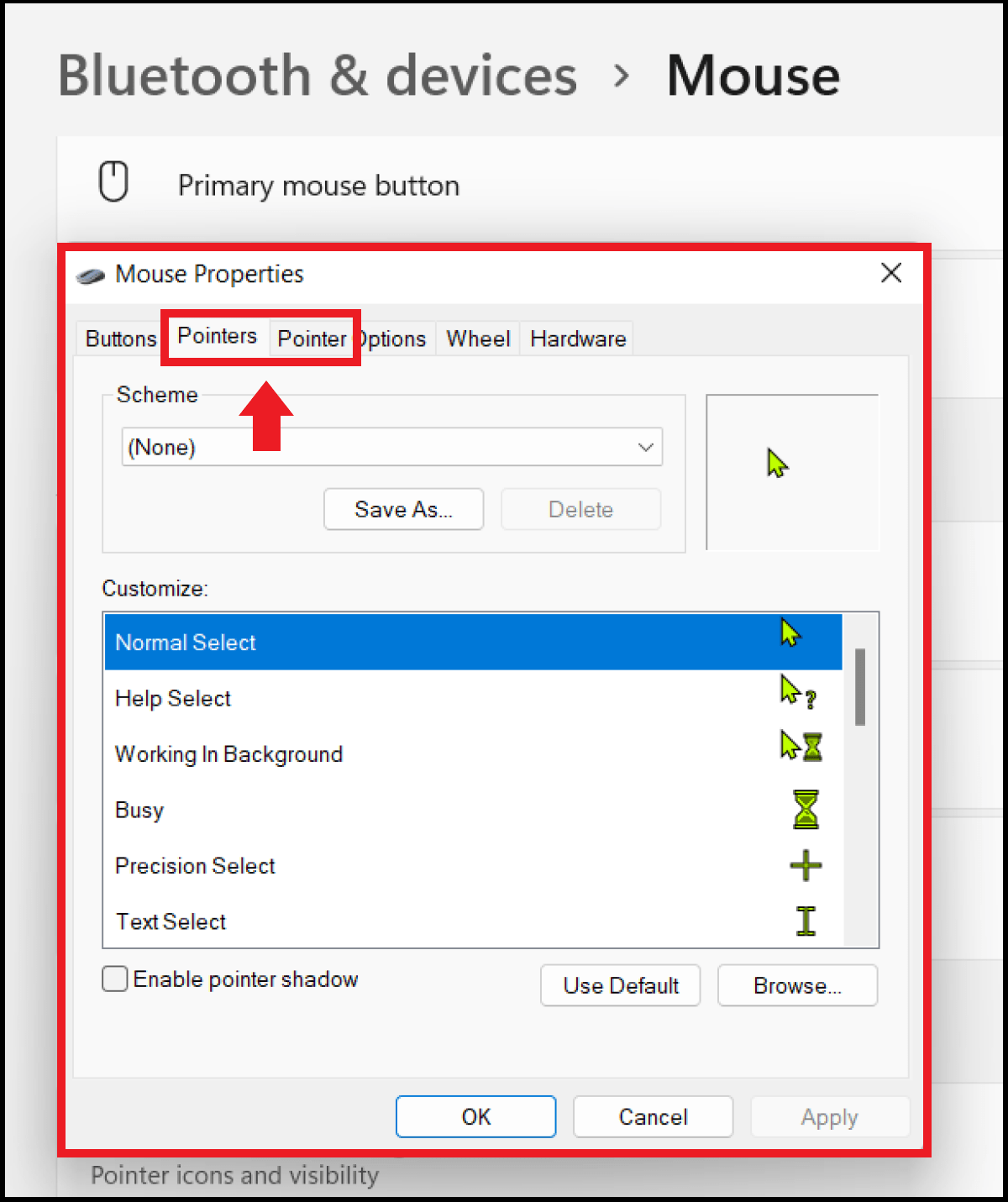
Once you’ve created your custom cursor using one of the above software options, here’s how to apply it:
- For Windows 7, 8/8.1, And 10:
- Go to Start > Hardware and Sounds > Mouse.
- Click on the “Pointers” tab.
- Select the type of cursor you want to use from the list.
- Browse for your custom cursor file and select it.
- Click OK to save the changes.
Tips And Variations
Here are some additional tips and variations to keep in mind when creating custom cursors:
- Use Images: You can use existing images as a starting point for your custom cursor design.
- Experiment With Effects: Don’t be afraid to try out different effects, such as shadows, glows, or textures.
- Keep it Simple: Remember that the cursor should be easy to see and understand.
By following these steps and tips, you can create a unique and personalized cursor for your Windows PC. Happy designing!
Conclusion
Creating custom cursors is a fun and creative way to personalize your computing experience. With so many software options available, it’s never been easier to make your mouse pointer truly one-of-a-kind. Whether you’re looking to express yourself, enhance convenience, or simply add some style to your desktop, a custom cursor is the perfect solution.
Frequently Asked Questions
Here are some frequently asked questions about creating custom cursors:
Q: Can I Use Any Image as a Custom Cursor?
A: While you can use existing images as a starting point for your custom cursor design, not all images will work well as cursors. The image should be small enough to fit in the cursor box and should be easy to see.
Q: How do I Apply my Custom Cursor?
A: To apply your custom cursor, go to Start > Hardware and Sounds > Mouse. Click on the “Pointers” tab, select the type of cursor you want to use from the list, browse for your custom cursor file, and click OK to save the changes.
Q: Can I Create a Custom Cursor With a Specific Effect?
A: Yes, many software options allow you to add effects to your custom cursor design. Some popular effects include shadows, glows, textures, and animations.
Q: Is Creating a Custom Cursor Difficult?
A: Creating a custom cursor is relatively easy and can be done by anyone with basic computer skills. The software options available make it simple to create and apply a unique cursor.
Q: How do I Get Started With Creating a Custom Cursor?
A: To get started, simply choose a software option that suits your needs and follow the instructions provided. You can also experiment with different shapes, colors, and effects to create a unique cursor design.
By following these steps and tips, you can create a custom cursor that reflects your personality or style. Don’t be afraid to experiment and try out new things – it’s all part of the creative process!


