
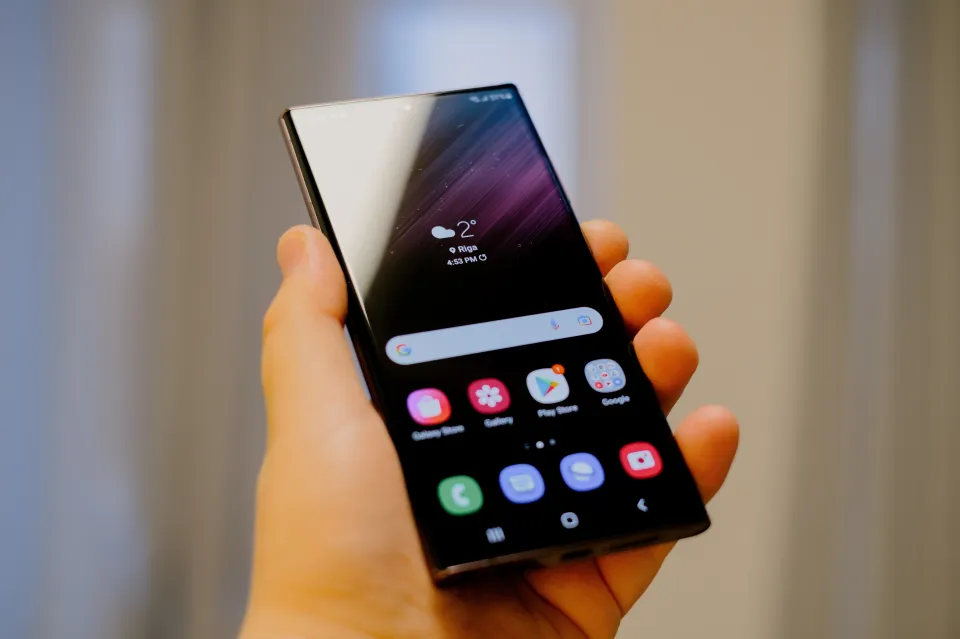
Concealing Apps on Samsung Devices: A Guide
Are you tired of lending your smartphone to others and worrying about them accessing sensitive apps? Look no further! Concealing apps on Samsung devices is a breeze, and we’re here to guide you through the process.
Why Hide Apps on Samsung Devices?
There are several reasons why you might want to conceal apps on your Samsung device. Perhaps you don’t want others to access certain social media or messaging apps when they use your phone. Maybe you have sensitive information stored in specific apps that you’d rather not be accessed by unauthorized individuals.
Whatever the reason, hiding apps on your Samsung device is a great way to maintain some level of privacy and security. In this article, we’ll show you how to do just that.
Understanding Personal Area
One of the most straightforward ways to conceal apps on your Samsung device is by using the “Personal Area” feature. This functionality creates a protected folder where you can store sensitive apps that you don’t want others to access.
To enable Personal Area:
- Open the Settings app.
- Scroll down and select “Safety and privacy.”
- Tap on “Personal Area.”
Follow the prompts to set up your personal area, including choosing a password or PIN for added security.
Adding Apps to Personal Area
Once you’ve set up Personal Area, it’s time to add apps that you want to conceal:
- Open the Personal Area app.
- Tap on the “+” icon in the top-right corner.
- Select the apps you want to add to your personal area.
You can also add files and other types of content to your personal area for added security.
Blocking Apps
If you’ve already installed a specific app, but want to conceal its icon from view:
- Open the Personal Area app.
- Tap on the “Block” button next to the app you want to hide.
- Confirm that you want to block the app.
Alternative Methods For Older Samsung Devices
Unfortunately, not all Samsung devices have the Personal Area feature enabled by default. If your device is older or doesn’t support this functionality, don’t worry! There are alternative methods to conceal apps on your Samsung device:
- Nova Launcher: This free launcher offers a “conceal” feature that allows you to hide app icons from view.
- Norton App Lock: This app provides an additional layer of security by locking sensitive apps with a PIN or password.
Additional Tips And Tricks
Here are some extra tips to help you keep your Samsung device secure:
- Always use a strong password or PIN for added protection.
- Regularly update your operating system and apps to ensure you have the latest security patches.
- Use a reputable antivirus app to protect against malware and other threats.
- Consider using a VPN (Virtual Private Network) when browsing public Wi-Fi networks.
Conclusion
Concealing apps on Samsung devices is easier than ever! With Personal Area, Nova Launcher, or Norton App Lock, you can maintain your privacy and security with just a few taps. Remember to always use strong passwords, update your software regularly, and stay informed about the latest mobile security trends.
Frequently Asked Questions
- Q: Can I Conceal Apps on my Samsung Device if It’s Older?
A: Yes, you can still conceal apps using alternative methods such as Nova Launcher or Norton App Lock. - Q: How do I Enable Personal Area on my Samsung Device?
A: To enable Personal Area, open the Settings app and select “Safety and privacy.” Then, tap on “Personal Area” to set it up. - Q: Can I Add Files to my Personal Area?
A: Yes! You can add various types of content, including files, to your personal area for added security. - Q: What if I Forget my Password or Pin?
A: Don’t worry! If you forget your password or PIN, you can use the “Forgot” feature within Personal Area to reset it. - Q: Are There Any Other Ways to Conceal Apps on Samsung Devices?
A: Yes! In addition to Personal Area and alternative launchers, consider using a reputable antivirus app or VPN for added security.
Hope this helps!


