
How to Delete Messages on Facebook: A Step-by-step Guide
Are you tired of cluttered conversations and unwanted messages on Facebook? Look no further! In this article, we’ll guide you through the process of deleting messages on Facebook, whether you’re using a smartphone, tablet, or computer.
Why Delete Messages on Facebook?
Before we dive into the nitty-gritty, let’s talk about why deleting messages on Facebook might be a good idea. Perhaps you’ve had a conversation that you’d rather forget, or maybe you just want to declutter your chat history. Whatever your reason, deleting messages on Facebook is a straightforward process that can help you keep your online presence tidy.
Deleting Messages on Facebook Using a Smartphone or Tablet
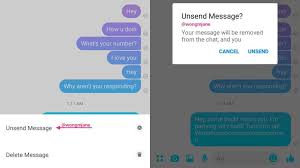
If you’re using a smartphone or tablet to access Facebook, follow these steps:
- Open The Messenger App: Locate the Messenger app on your device and open it.
- Select The Conversation: Choose the conversation that contains the messages you want to delete.
- Long Press on a Message: Select one of the messages from the conversation by long pressing on it.
- Tap on “Delete”: A pop-up menu will appear with options for deleting or reporting the message. Tap on “Delete”.
- Confirm Deletion: Confirm that you want to delete the message by tapping on “OK”.
Deleting Messages on Facebook Using a Computer
If you’re using a computer to access Facebook, follow these steps:
- Open Facebook in a Browser: Go to Facebook.Com and log in to your account.
- Click on The Messenger Icon: Click on the Messenger icon in the top right corner of the screen.
- Select The Conversation: Choose the conversation that contains the messages you want to delete.
- Hover Over a Message: Hover over one of the messages from the conversation and click on the three dots that appear.
- Click on “Delete”: A pop-up menu will appear with options for deleting or reporting the message. Click on “Delete”.
- Confirm Deletion: Confirm that you want to delete the message by clicking on “OK”.
Deleting All Messages in a Conversation
If you want to delete all messages from a conversation, follow these steps:
- Select The Conversation: Choose the conversation that contains the messages you want to delete.
- Click on The Three Dots: Click on the three dots at the top right corner of the screen.
- Select “Delete”: A pop-up menu will appear with options for deleting or reporting the message. Select “Delete”.
- Confirm Deletion: Confirm that you want to delete all messages from the conversation by clicking on “OK”.
Deleting Messages in a Vault
If you’ve already deleted conversations and want to recover them, follow these steps:
- Click on The Messenger Icon: Click on the Messenger icon in the top right corner of the screen.
- Select The Conversation: Choose the conversation that contains the messages you want to recover.
- Hover Over a Message: Hover over one of the messages from the conversation and click on the three dots that appear.
- Click on “Restore”: A pop-up menu will appear with options for deleting or reporting the message. Click on “Restore”.
- Confirm Recovery: Confirm that you want to recover all messages from the conversation by clicking on “OK”.
Disabling Email Notifications
If you’re tired of receiving email notifications from Facebook, follow these steps:
- Open Facebook in a Browser: Go to Facebook.Com and log in to your account.
- Click on The Settings Icon: Click on the settings icon in the top right corner of the screen.
- Select “Settings”: Select the “Settings” option from the drop-down menu.
- Scroll Down to Notifications: Scroll down to the notifications section.
- Disable Email Notifications: Disable email notifications by clicking on the toggle switch.
Conclusion
Deleting messages on Facebook is a straightforward process that can help you keep your online presence tidy. Whether you’re using a smartphone, tablet, or computer, follow these steps to delete messages and declutter your chat history.
Frequently Asked Questions (FAQs)
- Q: Can I Recover Deleted Messages?
A: Yes, you can recover deleted messages by following the steps outlined above. - Q: How do I Disable Email Notifications From Facebook?
A: To disable email notifications from Facebook, follow the steps outlined above. - Q: Can I Delete All Messages From a Conversation at Once?
A: Yes, you can delete all messages from a conversation at once by following the steps outlined above. - Q: How do I Report an Abusive Message on Facebook?
A: To report an abusive message on Facebook, follow these steps:- Select the message that contains the abusive content.
- Click on the three dots at the top right corner of the screen.
- Select “Report” from the drop-down menu.
- Q: Can I Delete Messages on Facebook Using a Computer?
A: Yes, you can delete messages on Facebook using a computer by following the steps outlined above.
I hope this article has helped you understand how to delete messages on Facebook. If you have any further questions or concerns, feel free to ask!


