
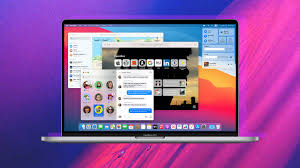
The Best Apps For Mac: A Comprehensive Guide
Are you looking for ways to get the most out of your Mac? With so many amazing apps available, it can be overwhelming to decide which ones are worth downloading. In this article, we’ll explore some of the best apps for Mac, covering a wide range of categories from photo editing and video production to productivity and utility tools.
Download And Install Apps on Your Mac
Before we dive into the best apps, let’s cover the basics. To download an app on your Mac, follow these steps:
- Go to the Mac App Store or visit a third-party website.
- Click on the “Get” button next to the app you want to download.
- Enter your Apple ID password to authenticate the download.
- Wait for the app to download and install.
- Once installed, click on the app’s icon in the Launchpad or Applications folder to launch it.
Best Apps For Mac
Photo Editing And Video Production
- Imovie: A free video editing app from Apple that’s perfect for beginners and professionals alike.
- Final Cut Pro: A professional-level video editing app with advanced features and a user-friendly interface.
- Vlc: A versatile media player that can play almost any file format, including audio and video files.
- Handbrake: A free converter app that can convert videos to various formats, including MP4 and MKV.
- Photoshop: The industry-standard photo editing software with a user-friendly interface and powerful tools.
Audio And Music
- Garageband: A free music composition app from Apple that’s perfect for beginners and professionals alike.
- Audacity: A free, open-source audio editor with advanced features and a user-friendly interface.
- Shazam: An app that can identify songs playing nearby, with a user-friendly interface and advanced features.
- Music Converter: A free converter app that can convert audio files to various formats.
Internet And Messaging
- Chrome: The popular web browser from Google with a user-friendly interface and advanced features.
- Edge: The web browser from Microsoft with a user-friendly interface and advanced features, including integration with Microsoft Office Online.
- Whatsapp Desktop: A free messaging app that allows you to chat with friends and family directly from your Mac desktop.
- Telegram: A free messaging app with advanced features, including group chats and file sharing.
Productivity
- Pages: A free word processing app from Apple that’s perfect for beginners and professionals alike.
- Numbers: A free spreadsheet app from Apple that’s perfect for beginners and professionals alike.
- Keynote: A free presentation app from Apple that’s perfect for beginners and professionals alike.
- Pdf Expert: A powerful PDF editor with advanced features, including annotation and editing tools.
Utility And Maintenance
- Cleanmymac X: A powerful cleaning app that can help remove unwanted files and applications.
- Onyx: A free maintenance app that can help optimize your Mac’s performance and fix issues.
- 1Password: A secure password manager with advanced features, including two-factor authentication and password generation.
- Gemini 2: The Duplicated Finder: A powerful duplicate finder app that can help remove unwanted files and free up space on your Mac.
Design
- Inkscape: A free vector graphics editor with advanced features, including support for various file formats.
- Krita: A free painting app with advanced features, including support for brushes and layers.
- Gimp: A free image editing app with advanced features, including support for layers and filters.
Note-taking
- Onenote: A free note-taking app from Microsoft that’s perfect for beginners and professionals alike.
- Evernote: A free note-taking app with advanced features, including support for sharing and collaboration.
- Notability: A free note-taking app with advanced features, including support for typing and handwriting recognition.
Removing Apps
If you need to remove an app from your Mac, follow these steps:
- Open the Launchpad or Applications folder.
- Click on the app’s icon and hold down the mouse button.
- Drag the app to the Trash icon in the Dock.
- Confirm that you want to delete the app.
Apps For Mac M1
If you have a Mac with an Apple Silicon M1 chip, be sure to check if the apps you download are optimized for this processor. You can find more information on this topic by visiting websites like Is Apple Silicon Ready, which provide lists of compatible apps and their level of support for the M1 chip.
Conclusion
In conclusion, these are some of the best apps for Mac that can help you get the most out of your device. Whether you’re a beginner or an advanced user, there’s something on this list for everyone. Be sure to check the compatibility of any app you download with your Mac’s processor and operating system.
Faqs
Q: How do I download and install apps on my Mac?
A: To download an app, visit the Mac App Store or a third-party website, click on the “Get” button next to the app, enter your Apple ID password, and wait for the app to download and install.
Q: What are some of the best apps for photo editing and video production?
A: Some of the best apps for photo editing and video production include iMovie, Final Cut Pro, VLC, HandBrake, and Photoshop.
Q: How do I remove an app from my Mac?
A: To remove an app, open the Launchpad or Applications folder, click on the app’s icon and hold down the mouse button, drag the app to the Trash icon in the Dock, and confirm that you want to delete the app.
Q: Are there any apps optimized for the Apple Silicon M1 chip?
A: Yes, many apps are optimized for the Apple Silicon M1 chip. You can find more information on this topic by visiting websites like Is Apple Silicon Ready.
Q: How do I protect my Mac from viruses and malware?
A: To protect your Mac from viruses and malware, use a reputable antivirus software, keep your operating system and apps up to date, and be cautious when downloading and installing apps.
Q: Can I run Windows on my Mac?
A: Yes, you can run Windows on your Mac using a virtual machine or boot camp. However, this may not be necessary if you have a Mac with an Apple Silicon M1 chip.
Q: What are some of the best productivity apps for Mac?
A: Some of the best productivity apps for Mac include Pages, Numbers, Keynote, and PDF Expert.
Q: How do I take notes on my Mac?
A: You can take notes on your Mac using apps like OneNote, Evernote, Notability, or Bear.


