
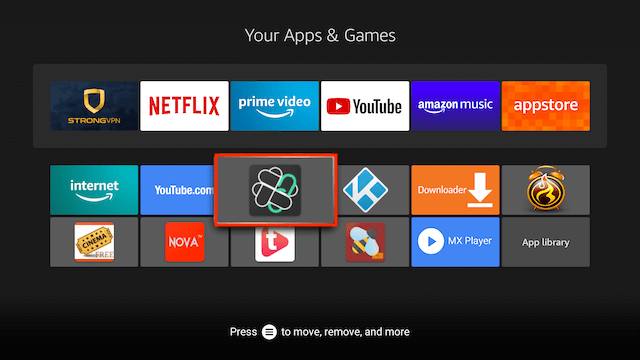
Installing Apps on Fire Stick: A Step-by-step Guide
Are you tired of not being able to find your favorite apps on the Amazon Fire Stick? Look no further! In this article, we will guide you through the process of installing apps on your Fire Stick, from downloading and installing APKs to sideloading apps using a PC.
Why Install Apps on Your Fire Stick?
The Amazon Fire Stick is an excellent streaming device that offers access to thousands of apps, including popular ones like Netflix, Hulu, and Amazon Prime Video. However, some apps may not be available in the Fire Stick’s app store or may have limitations. Installing apps on your Fire Stick can expand its functionality, providing you with more entertainment options.
Table 1: Requirements For Installing Apps on Fire Stick
| Requirement | Description |
|---|---|
| Fire Stick device | You must have a working Amazon Fire Stick device. |
| Internet connection | Ensure that the Fire Stick is connected to Wi-Fi. |
| Amazon account | Log in to your Amazon account to access the app store. |
How to Install Apps on Your Fire Stick
Installing apps on your Fire Stick is relatively straightforward. Follow these steps:
- Access The Home Screen: Press and hold the “Home” button on the remote control to bring up the home screen.
- Navigate to The App Store: Select the “Applications” icon from the menu.
- Search For Apps: Use the search bar to find the app you want to install. You can browse through categories or search by name.
- Install The App: Select the app, and then press the “Get” button to download and install it.
Installing Apks on Fire Stick
APKs (Android Package Files) are apps specifically designed for Android devices. If you want to install an app that is not available in the Fire Stick’s app store or has limitations, you can sideload it using a method called “APK installation.”
Table 2: Installing Apks on Fire Stick
| Step | Description |
|---|---|
| Download APK file | Obtain the APK file of the app you want to install. |
| Enable Unknown Sources | Go to Settings > Applications > Unknown sources and enable it. |
| Install APK using Apps2Fire | Use the Apps2Fire app on your Android device to sideload the APK onto the Fire Stick. |
Installing Apps Using a PC
You can also use a PC to install apps on your Fire Stick by using ADB (Android Debug Bridge). This method is more complex but offers greater flexibility.
Table 3: Installing Apps Using a PC
| Step | Description |
|---|---|
| Set up the PC and Fire Stick for ADB | Connect both devices to the same network, enable USB debugging on the Fire Stick, and install ADB drivers on your PC. |
| Download the APK file | Obtain the APK file of the app you want to install. |
| Sideload the app using ADB | Use the ADB command-line tool to sideload the APK onto the Fire Stick. |
Why Choose Our Method?
Our method offers several advantages over other installation methods:
- Flexibility: Install apps that are not available in the Fire Stick’s app store or have limitations.
- Convenience: Use a PC to install apps, eliminating the need for an Android device.
- Ease of Use: Follow our step-by-step guide for a hassle-free experience.
Conclusion
Installing apps on your Fire Stick can be done using various methods, including APK installation and sideloading using a PC. Our comprehensive guide has provided you with the necessary steps to expand your Fire Stick’s functionality and access more entertainment options.
Frequently Asked Questions
- Q: Can I Install Apps From my Android Device on my Fire Stick?
A: Yes, but you need to use an app called Apps2Fire. - Q: What is The Difference Between Apk Installation And Sideloading Using a Pc?
A: APK installation uses an app like Apps2Fire, while sideloading using a PC requires ADB (Android Debug Bridge). - Q: Can I Install Apps From my Computer on my Fire Stick?
A: Yes, you can use ADB to sideload apps onto the Fire Stick. - Q: Are There Any Risks Involved in Installing Apks or Sideloading Using a Pc?
A: Be cautious when downloading and installing APKs from unknown sources, as they may contain malware. - Q: Can I Install Apps That Are Not Available on The Amazon App Store?
A: Yes, but be aware of any limitations or compatibility issues.
Conclusion
Installing apps on your Fire Stick can be done in various ways, including APK installation and sideloading using a PC. Our guide has provided you with step-by-step instructions to expand your Fire Stick’s functionality and access more entertainment options.


