
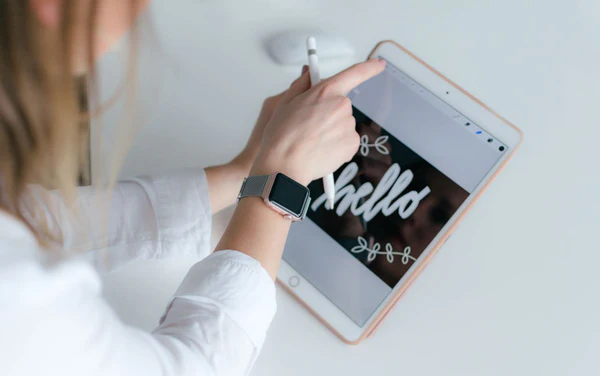
How to Use Apple Pencil: A Comprehensive Guide
As a content writer, I’m excited to share this article on how to use Apple Pencil with you.
Are you one of the many Apple users who has been wondering how to get the most out of your Apple Pencil? Do you want to learn more about its features and capabilities? Look no further! In this article, we’ll take a closer look at how to use Apple Pencil and provide you with all the information you need to become an expert.
What is Apple Pencil?
Apple Pencil is a digital stylus designed specifically for use with iPad. It’s a powerful tool that allows you to create, write, and draw directly on your iPad’s screen. With its precise tip and intuitive design, Apple Pencil makes it easy to express yourself in a variety of ways.
How to Match Apple Pencil to Your Ipad
Matching Apple Pencil to your iPad is a straightforward process. Here’s how:
- Unlock Your Ipad: Make sure your iPad is unlocked and ready for use.
- Go to Settings: Tap on the “Settings” app icon to access the settings menu.
- Tap on Bluetooth: Scroll down and tap on “Bluetooth.”
- Turn on Bluetooth: Toggle the switch next to “Bluetooth” to turn it on.
- Put Apple Pencil in Pairing Mode: Remove the cap from Apple Pencil, press and hold the tip for 10 seconds until the LED light flashes.
- Select Apple Pencil: In the list of available devices, select Apple Pencil.
How to Use Apple Pencil
Now that you’ve matched Apple Pencil to your iPad, it’s time to learn how to use it! Here are some tips and tricks:
- Write And Draw: Simply tap on the screen with Apple Pencil to write or draw.
- Use Gestures: Tap, swipe, and pinch to interact with your content.
- Create Art: Use Apple Pencil’s advanced features like palm rejection and pressure sensitivity to create stunning artwork.
How to Charge Apple Pencil
Apple Pencil is designed to be used on the go, but it still needs to be charged occasionally. Here’s how:
- Place Apple Pencil in Charging Case: Put Apple Pencil into its charging case, which comes with your iPad.
- Plug in Charging Case: Plug the charging case into a USB port or wall adapter.
- Wait For Charging: Wait until the LED light on Apple Pencil turns green, indicating it’s fully charged.
How to Replace Apple Pencil Tips
Over time, the tip of Apple Pencil may wear out due to frequent use. Here’s how to replace them:
- Purchase Replacement Tips: Buy replacement tips from Apple or a third-party supplier.
- Unscrew Old Tip: Remove the old tip by unscrewing it in an anti-clockwise direction.
- Screw on New Tip: Screw the new tip onto Apple Pencil, making sure it’s securely attached.
Troubleshooting: What to Do When You Encounter Problems
Are you experiencing issues with your Apple Pencil? Here are some troubleshooting tips:
- Restart Your Ipad: Try restarting your iPad to see if that resolves the issue.
- Check Battery Level: Make sure Apple Pencil is fully charged and functioning properly.
- Contact Apple Support: If none of these steps resolve the issue, contact Apple Support for further assistance.
Conclusion
In conclusion, Apple Pencil is an incredibly powerful tool that can help you express yourself in a variety of ways. With its precise tip, intuitive design, and advanced features, it’s perfect for artists, writers, and anyone looking to create something unique.
By following the steps outlined in this article, you’ll be able to master the use of Apple Pencil and take your creativity to the next level.
Frequently Asked Questions
Here are some frequently asked questions about Apple Pencil:
- Q: How do I Charge my Apple Pencil?
A: Apple Pencil comes with a charging case that plugs into a USB port or wall adapter. - Q: What Happens When I Run Out of Battery?
A: When you run out of battery, simply place Apple Pencil in its charging case and plug it in to charge. - Q: Can I Use Apple Pencil With Any Ipad Model?
A: Yes, Apple Pencil is compatible with all iPad models that support the Apple Pencil. - Q: How do I Replace The Tip of my Apple Pencil?
A: To replace the tip of your Apple Pencil, purchase a replacement tip from Apple or a third-party supplier and follow the steps outlined in this article.
Additional Resources
If you’re looking for more information on how to use Apple Pencil, here are some additional resources:
- Apple’s Official Support Site: Visit Apple’s official support site for detailed instructions on how to use Apple Pencil.
- Youtube Tutorials: Watch YouTube tutorials from experts and artists who share their experiences with Apple Pencil.
I hope this article has been helpful in teaching you how to use Apple Pencil!


