
How to Transfer Modifications to a File Pdf: A Step-by-step Guide
Are you tired of using costly professional solutions to modify your PDF files? Do you want to learn how to transfer modifications to a file PDF on your computer, online, or even on your mobile device? Look no further! In this article, we will guide you through the process of modifying a PDF file using various software and services.
Understanding The Basics
Before we dive into the specifics, let’s understand the basics. A PDF (Portable Document Format) is a file format that preserves the layout and formatting of a document, making it ideal for sharing and printing. However, modifying a PDF file can be tricky, especially if you don’t have the right tools.
Software Options
There are several software options available that allow you to transfer modifications to a file PDF on your computer. Here are some of the most popular ones:
Libreoffice (Windows/MacOS/Linux)
If you need to make significant changes to a PDF file, LibreOffice is an excellent choice. This free and open-source office suite allows you to edit text, add images, and modify other elements within the document.
To use LibreOffice, follow these steps:
- Download and install LibreOffice on your computer.
- Open the PDF file using the Draw application.
- Use the tools in the toolbar to make modifications to the document.
- Save the changes by clicking on the “Save” button or export the modified PDF by choosing the “Export” option.
Adobe Acrobat Reader (Windows/MacOS)
Another popular choice for modifying PDF files is Adobe Acrobat Reader. This software allows you to open, edit, and print PDF documents.
To use Adobe Acrobat Reader, follow these steps:
- Download and install the software on your computer.
- Open the PDF file using the Acrobat Reader application.
- Use the tools in the menu bar to make modifications to the document.
- Save the changes by clicking on the “Save” button or export the modified PDF by choosing the “Export” option.
Trailer (macOS)
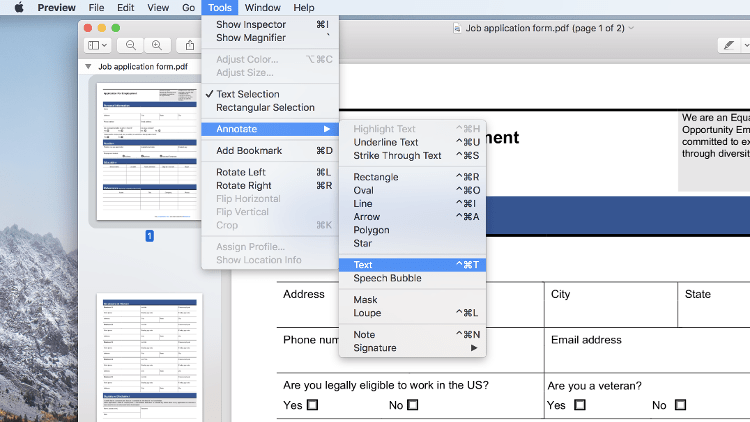
If you’re using a Mac, you can use the built-in Trailer application to modify PDF files. This software allows you to view and edit images and documents, including PDFs.
To use Trailer, follow these steps:
- Open the PDF file by double-clicking on its icon.
- Click on the “Open with” option in the contextual menu and select Trailer.
- Use the tools in the toolbar to make modifications to the document.
- Save the changes by clicking on the “Save” button or export the modified PDF by choosing the “Export” option.
Online Services
In addition to software options, there are also several online services that allow you to transfer modifications to a file PDF without having to download any software. Here are some of the most popular ones:
Pdfescape
One popular online service for modifying PDF files is PDFescape. This free service allows you to upload a PDF file and make modifications using various tools.
To use PDFescape, follow these steps:
- Upload your PDF file to the PDFescape website.
- Use the toolbar to make modifications to the document.
- Save the changes by clicking on the “Save” button or export the modified PDF by choosing the “Export” option.
Pdf Candy
Another online service for modifying PDF files is PDF Candy. This free service allows you to upload a PDF file and use various tools to modify it.
To use PDF Candy, follow these steps:
- Upload your PDF file to the PDF Candy website.
- Choose the tool you want to use to modify the document.
- Use the toolbar to make modifications to the document.
- Save the changes by clicking on the “Save” button or export the modified PDF by choosing the “Export” option.
Mobile Apps
Finally, there are also several mobile apps that allow you to transfer modifications to a file PDF on your smartphone or tablet. Here are some of the most popular ones:
Xodo Pdf (Android/iOS/iPadOS)
One popular mobile app for modifying PDF files is Xodo PDF. This free app allows you to add written text, signatures, and other elements to a PDF document.
To use Xodo PDF, follow these steps:
- Download and install the app on your device.
- Open the PDF file using the app.
- Use the tools in the toolbar to make modifications to the document.
- Save the changes by clicking on the “Save” button or export the modified PDF by choosing the “Export” option.
Rows (iOS/iPadOS)
Another mobile app for modifying PDF files is Rows. This free app allows you to edit and organize your PDF documents, as well as add new files.
To use Rows, follow these steps:
- Download and install the app on your device.
- Open the PDF file using the app.
- Use the tools in the toolbar to make modifications to the document.
- Save the changes by clicking on the “Save” button or export the modified PDF by choosing the “Export” option.
Conclusion
In conclusion, modifying a PDF file is easier than you think! With these software options, online services, and mobile apps, you can transfer modifications to a file PDF with ease. Whether you’re using LibreOffice, Adobe Acrobat Reader, Trailer, PDFescape, or Xodo PDF, you’ll be able to make the necessary changes to your document.


