
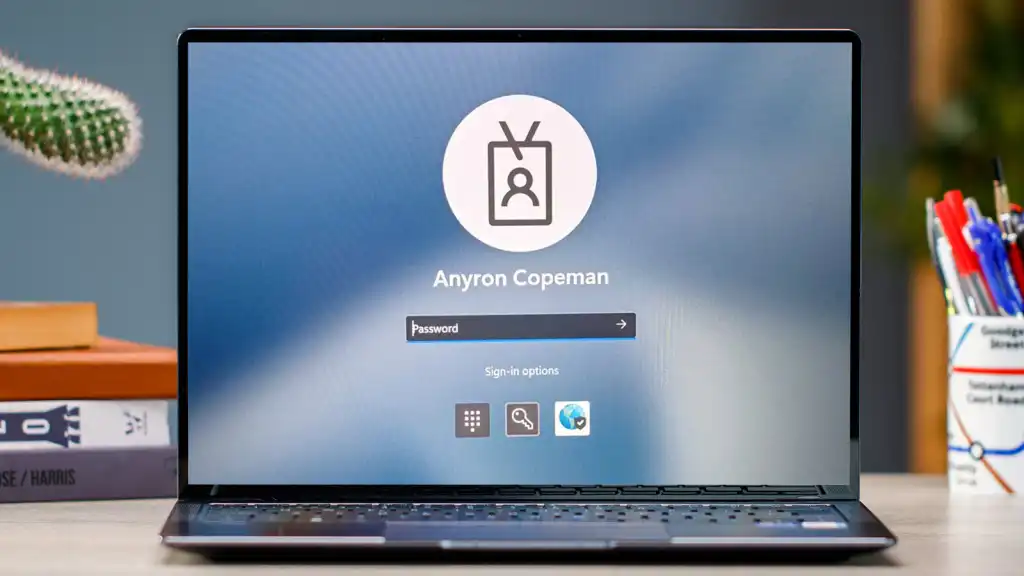
How to Contact The Password to Your Pc: A Step-by-step Guide
Are you tired of forgetting your password or having trouble accessing your computer? Look no further! In this article, we will guide you through the process of contacting the password to your PC on various operating systems, including Windows 11, Windows 10, and macOS.
Why Do I Need to Contact My Password?
Contacting your password is essential for securing your computer and protecting your data. A strong password helps prevent unauthorized access and keeps your files safe from cyber threats.
Windows 11: How to Contact The Password
If you’re using Windows 11, follow these steps to contact the password:
- Click on the Start button (the window icon in the bottom left corner) and select Settings.
- In the Settings window, click on the “Accounts” option from the menu on the left.
- Select “Sign-in options” from the sub-menu.
- Under “Password,” click on the “Add” button.
- Enter a new password for two vaults and follow the prompts to create a strong password.
Windows 10: How to Contact The Password
If you’re using Windows 10, follow these steps to contact the password:
- Click on the Start button (the window icon in the bottom left corner) and select Settings.
- In the Settings window, click on the “Accounts” option from the menu on the left.
- Select “Sign-in options” from the sub-menu.
- Under “Password,” click on the “Add” button.
- Enter a new password for two vaults and follow the prompts to create a strong password.
Macos: How to Contact The Password
If you’re using macOS, follow these steps to contact the password:
- Click on the Apple logo in the top left corner and select System Preferences.
- In the System Preferences window, click on Users & Groups.
- Select your user account from the list on the left.
- Click on the “Login” tab at the top of the window.
- Under “Password,” uncheck the box that says “Show password” if you want to change or reset your password.
Alternative Solutions
In addition to contacting your password, there are alternative solutions available for Windows 11 and Windows 10 users:
- Face Recognition: Use the facial recognition feature to unlock your PC with a simple smile.
- Digital Footprint: Use the digital footprint reader to scan your fingerprint and unlock your PC.
- Pin Code: Create a PIN code to quickly access your PC.
- Key of Safety: Use a physical token to authenticate yourself before accessing your PC.
Windows 7: How to Contact The Password
If you’re using Windows 7, follow these steps to contact the password:
- Click on the Start button (the window icon in the bottom left corner) and select Control Panel.
- In the Control Panel window, click on User Accounts.
- Select “Create a password” from the sub-menu.
- Enter a new password for two vaults and follow the prompts to create a strong password.
Tips And Reminders
- Use a strong password that is at least 12 characters long and includes uppercase letters, numbers, and special characters.
- Avoid using easily guessable information such as your name, birthdate, or common words.
- Consider using two-factor authentication (2FA) to add an extra layer of security to your account.
Conclusion
Contacting the password to your PC is a straightforward process that requires minimal technical expertise. By following these steps and tips, you can secure your computer and protect your data from cyber threats.
Frequently Asked Questions
Q: Why do I need to contact my password?
A: You need to contact your password to ensure the security of your computer and protect your data from unauthorized access.
Q: How do I change or reset my password?
A: To change or reset your password, follow the steps outlined in this article for your specific operating system.
Q: What are alternative solutions to contacting a password?
A: Alternative solutions include face recognition, digital footprint, PIN code, and key of safety.
Q: Can I use two-factor authentication (2FA) with my password?
A: Yes, you can use 2FA in addition to a password to add an extra layer of security to your account.
Q: Why is it important to use a strong password?
A: Using a strong password helps prevent unauthorized access and keeps your files safe from cyber threats.
Q: Can I contact my password on multiple devices?
A: Yes, you can contact your password on multiple devices by following the steps outlined in this article for each device.
Q: What if I forget my password?
A: If you forget your password, follow the steps outlined in this article to reset or change it.


