
How to Capsize Your Spotify Account: A Step-by-step Guide
Are you tired of dealing with issues on your Spotify account? Do you want to create a new one, but don’t know where to start? Look no further! In this article, we will guide you through the process of capsizing your Spotify account on various devices, including Android and iPhone, computer, Alexa, and Google Home.
Why Capsize Your Spotify Account?
Before we dive into the step-by-step guide, let’s briefly discuss why you might want to capsize your Spotify account. Perhaps you’re experiencing issues with your current account, or maybe you’ve created a new one and want to switch to it. Whatever the reason, capsizing your Spotify account is a straightforward process that can be completed on various devices.
Capsizing Your Spotify Account on Android And Iphone
To capsize your Spotify account on Android and iPhone, follow these steps:
- Initiate The Spotify App: Open the Spotify app on your device.
- Logout of The Current Account: Tap on the three horizontal lines in the top right corner of the screen and select “Settings.” Then, tap on “Log out” twice to logout of the current account.
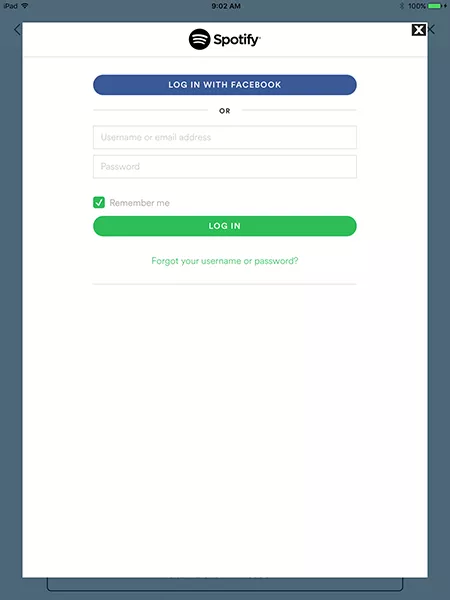
- Access With The New Account: Tap on the login button and enter your new account credentials to access Spotify with the new account.
Capsizing Your Spotify Account on Computer
To capsize your Spotify account on computer, follow these steps:
- Open The Spotify Web Version or Client: Open the Spotify web version or client on your computer.
- Logout of The Current Account: Click on your name in the top right corner of the screen and select “Log out” to logout of the current account.
- Access With The New Account: Enter your new account credentials to access Spotify with the new account.
Capsizing Your Spotify Account on Alexa
To capsize your Spotify account on Alexa, follow these steps:
- Open The Amazon Alexa App: Open the Amazon Alexa app on your device.
- Go to Settings: Tap on the three horizontal lines in the top right corner of the screen and select “Settings.”
- Disassociate The Current Account: Select “Spotify” from the list of services and tap on the “Disable” button to disassociate the current account.
- Associate The New Account: Tap on the “Link” button and enter your new Spotify account credentials to associate the new account with Alexa.
Capsizing Your Spotify Account on Google Home
To capsize your Spotify account on Google Home, follow these steps:
- Open The Google Home App: Open the Google Home app on your device.
- Go to Settings: Tap on the three horizontal lines in the top right corner of the screen and select “Settings.”
- Disassociate The Current Account: Select “Spotify” from the list of services and tap on the “Unlink” button to disassociate the current account.
- Associate The New Account: Tap on the “Link” button and enter your new Spotify account credentials to associate the new account with Google Home.
Frequently Asked Questions
- What is Capsizing my Spotify Account?
Capsizing your Spotify account means logging out of your current account and accessing Spotify with a new one. - Why do I Need to Capsize my Spotify Account?
You may want to capsize your Spotify account if you’re experiencing issues with your current account or if you’ve created a new one and want to switch to it. - How do I Capsize my Spotify Account on Various Devices?
To capsize your Spotify account, follow the step-by-step guides provided for Android and iPhone, computer, Alexa, and Google Home. - Will Capsizing my Spotify Account Delete my Music Library?
No, capsizing your Spotify account will not delete your music library. Your music will remain associated with your new account.
Conclusion
Capsizing your Spotify account is a simple process that can be completed on various devices. By following the step-by-step guides provided in this article, you can easily switch to a new Spotify account and avoid any issues with your current one.


