
Are you tired of receiving calls on your phone without knowing who is calling? Do you want to personalize your WhatsApp experience by changing the ringtone for specific contacts or messages? Look no further! In this article, we will guide you through the simple process of changing your WhatsApp ringtone on both Android and iPhone devices.
Why Change Your Whatsapp Ringtone?
Changing your WhatsApp ringtone can be a great way to enhance your messaging experience. With a custom ringtone for specific contacts or messages, you’ll never have to worry about missing important calls or notifications again. Plus, it’s a fun way to personalize your phone and make it stand out from the crowd.
Changing Whatsapp Ringtone on Android
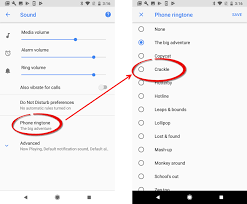
If you’re using an Android device, changing your WhatsApp ringtone is a breeze. Here’s how:
- Open the WhatsApp app on your Android device.
- Tap on the three vertical dots in the top-right corner of the screen and select “Settings.”
- In the settings menu, scroll down and tap on “Notifications.”
- Choose a ringtone from your device’s media storage or select an existing one.
- Save your changes by tapping on the “OK” button.
Changing Whatsapp Ringtone For Specific Contacts on Android
If you want to change the ringtone for specific contacts, follow these steps:
- Open the WhatsApp app and tap on a contact or group that you want to assign a custom ringtone to.
- Tap on their name at the top of the screen.
- In the menu, select “Notifications” and then choose a custom ringtone.
- Save your changes by tapping on the “OK” button.
Changing Whatsapp Ringtone For Messages on Android
If you want to change the sound of notification for messages, follow these steps:
- Open the WhatsApp app and tap on a contact or group that you want to assign a custom ringtone to.
- Go to Settings by tapping on the three vertical dots in the top-right corner of the screen.
- In the settings menu, scroll down and tap on “Notifications.”
- Choose a ringtone from your device’s media storage or select an existing one.
- Save your changes by tapping on the “OK” button.
Changing Whatsapp Ringtone on Iphone
If you’re using an iPhone, changing your WhatsApp ringtone is a bit more complicated. Here’s how:
- Open the Contacts app and select a contact that you want to assign a custom ringtone to.
- Tap on their name at the top of the screen.
- Select “Edit” from the menu.
- Choose a ringtone from your device’s media storage or select an existing one.
- Save your changes by tapping on the “Done” button.
Changing Whatsapp Ringtone For Specific Contacts on Iphone
Unfortunately, it’s not possible to change the ringtone for specific contacts directly within the WhatsApp app on iPhone. However, you can use a workaround by changing the ringtone for each contact in the Contacts app.
- Open the Contacts app and select a contact.
- Tap on their name at the top of the screen.
- Select “Edit” from the menu.
- Choose a ringtone from your device’s media storage or select an existing one.
- Save your changes by tapping on the “Done” button.
Conclusion
Changing your WhatsApp ringtone is a simple and fun way to personalize your messaging experience. Whether you’re using an Android or iPhone device, follow these steps to change your WhatsApp ringtone for specific contacts or messages. Happy changing!


