
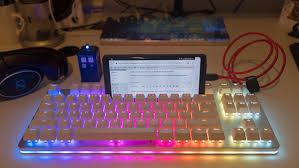
How to Connect a Keyboard to Your Smartphone: A Step-by-step Guide
Are you tired of typing on your smartphone’s virtual keyboard? Do you wish you had a physical keyboard to make typing easier and more efficient? Look no further! In this article, we will guide you through the process of connecting a keyboard to your Android or iPhone smartphone.
Preliminary Information:
Before we dive into the instructions, there are a few things you need to know:
- Make sure your smartphone’s operating system is updated to the latest version. This will ensure that you have access to the necessary features and functionality.
- If you’re using an Android device, ensure that it supports USB OTG (On-The-Go) technology.
Connecting a Keyboard to Your Android Smartphone:
If you have an Android device, connecting a keyboard is relatively straightforward:
- Update Your Operating System: Go to Settings > System > Informazioni on the phone > Advanced > Update of system and follow the prompts to install any available updates.
- Prepare Your Keyboard: Make sure your keyboard is ready for use. If it’s a wireless keyboard, pair it with your smartphone using the Bluetooth settings.
- Connect Your Keyboard: Use a USB OTG adapter to connect your keyboard to your Android device.
Recommended Usb Otg Adapters:
Here are some popular USB OTG adapters that you can use:
- Rankie Cable OTG Adapter
- Perixx PERIBOARD-409H Mini Keyboard with 2 Doors #USB 2.0
Connecting a Keyboard to Your Iphone Smartphone:
If you have an iPhone, connecting a keyboard is also relatively straightforward:
- Update Your Operating System: Go to Settings > General > Software Update and follow the prompts to install any available updates.
- Prepare Your Keyboard: Make sure your keyboard is ready for use. If it’s a wireless keyboard, pair it with your iPhone using the Bluetooth settings.
- Connect Your Keyboard: Use an Apple-approved adapter to connect your keyboard to your iPhone.
Recommended Adapters:
Here are some popular adapters that you can use:
- Apple Adapter fotocamere of Lightning to #USB 3
Tips And Tricks:
- Make sure to follow the instructions carefully to avoid any compatibility issues.
- If you’re using a wireless keyboard, ensure that it’s paired with your smartphone before attempting to connect.
- If you encounter any issues during the connection process, try restarting your device or re-pairing your keyboard.
Conclusion:
Connecting a keyboard to your smartphone can greatly enhance your typing experience. By following these simple steps, you can enjoy a more efficient and comfortable way of typing on your Android or iPhone device.
Frequently Asked Questions (FAQs):
- What Type of Keyboards Can I Connect to my Smartphone?
- You can connect wireless or wired keyboards to your Android or iPhone smartphone.
- Do I Need Any Adapters to Connect a Keyboard to my Smartphone?
- Yes, you may need an adapter depending on the type of keyboard and your device.
- How do I Update my Operating System?
- Go to Settings > System > Informazioni on the phone > Advanced > Update of system (Android) or Settings > General > Software Update (iPhone).
- What if I Encounter Any Issues During The Connection Process?
- Try restarting your device, re-pairing your keyboard, or seeking assistance from a professional.
- Can I Use Any Type of Keyboard With my Smartphone?
- No, you need to ensure that your keyboard is compatible with your device and operating system.
- Do I Need to Configure Anything After Connecting my Keyboard?
- No, most keyboards are plug-and-play and do not require additional configuration.
Conclusion:
Connecting a keyboard to your smartphone can greatly enhance your typing experience. By following these simple steps and tips, you can enjoy a more efficient and comfortable way of typing on your Android or iPhone device.


