
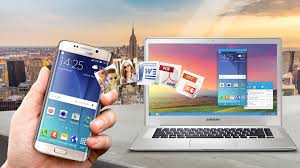
Seeing The Monitor of Your Mobile on Your Pc: A Comprehensive Guide
As a tech enthusiast, have you ever wanted to see your mobile phone’s monitor on your computer? Perhaps you’ve tried to download some apps from your device’s store that promise to make this possible, but ended up disappointed. Don’t worry; we’ve got you covered! In this article, we’ll explore three different solutions that will allow you to see your mobile phone’s monitor on your PC.
Solution 1: Using The Complement of Your Phone App
One way to achieve this is by using the Complement of Your Phone app available on both Android and iOS devices. This app allows you to interact with your smartphone directly from your computer, without the need for any cables or complicated setup.
To get started, download the Complement of Your Phone app from the Play Store on your Android device. Once installed, open the app and follow the prompts to connect it to your PC. On your computer, go to the Start menu and select Settings > Bluetooth and devices > Your phone. From here, click on the “Open your phone” option and follow the instructions to complete the setup.
Step-by-step Instructions For Complement of Your Phone App
- Download the Complement of Your Phone app from the Play Store.
- Open the app and select the “Colleague the phone and the PC” option.
- On your computer, go to Settings > Bluetooth and devices > Your phone.
- Click on the “Open your phone” option and follow the instructions to complete the setup.
Solution 2: Using Airdroid
Another solution is to use AirDroid, an app that allows you to control your Android device from your PC or Mac. With AirDroid, you can view your mobile phone’s monitor on your computer and interact with it as if you were using a touch screen.
To get started, download the AirDroid app on your Android device and install the AirMirror app on your PC or Mac. Once installed, open the AirDroid app on your device and follow the prompts to connect it to your computer. On your computer, open an internet browser and go to the AirDroid website, where you’ll find a QR code that you need to scan with your mobile phone.
Step-by-step Instructions For Airdroid
- Download the AirDroid app on your Android device.
- Install the AirMirror app on your PC or Mac.
- Open the AirDroid app on your device and follow the prompts to connect it to your computer.
- On your computer, go to the AirDroid website and scan the QR code with your mobile phone.
Solution 3: Using Teamviewer
If you have a Windows or Mac PC, another option is to use TeamViewer, an app that allows you to remotely control your device from your computer. With TeamViewer, you can view your mobile phone’s monitor on your computer and interact with it as if you were using a touch screen.
To get started, download the TeamViewer Quick Support app on your Android or iOS device. On your PC or Mac, download the TeamViewer client software from the official website and follow the prompts to install it. Once installed, open the TeamViewer app on your mobile phone and follow the instructions to connect it to your computer.
Step-by-step Instructions For Teamviewer
- Download the TeamViewer Quick Support app on your Android or iOS device.
- On your PC or Mac, download the TeamViewer client software from the official website.
- Install the TeamViewer software and follow the prompts to complete the setup.
- Open the TeamViewer app on your mobile phone and follow the instructions to connect it to your computer.
Huawei Share: A Solution For Huawei Device Users
If you have a HUAWEI device, there’s also a built-in solution called HUAWEI Share that allows you to view your mobile phone’s monitor on your PC or Mac. With HUAWEI Share, you can control your device remotely and interact with it as if you were using a touch screen.
To get started, open the HUAWEI PC Manager app on your PC or Mac and select the HUAWEI Share option from the menu. On your mobile phone, go to the notifications panel and toggle on the Bluetooth and HUAWEI Share options. Once connected, you’ll be able to view your mobile phone’s monitor on your computer.
Troubleshooting a Broken Mobile Phone Monitor
What if your mobile phone’s monitor is broken? Don’t worry; there are still some solutions available. If the display of your smartphone is completely broken, unfortunately, it won’t be possible to see its monitor on your PC or Mac. However, you can try using an OTG adapter to connect a mouse to your device and navigate it remotely.
If only the touch screen is not working, but the display is still visible, you can use the Complement of Your Phone app to interact with your device from your computer.
Conclusion
In this article, we’ve explored three different solutions that allow you to see your mobile phone’s monitor on your PC or Mac. Whether you’re using an Android or iOS device, there’s a solution available that suits your needs. By following the step-by-step instructions for each solution, you’ll be able to view and interact with your mobile phone’s monitor from your computer.
Frequently Asked Questions
Q: What are some of the solutions that allow me to see my mobile phone’s monitor on my PC or Mac?
A: The three main solutions discussed in this article are the Complement of Your Phone app, AirDroid, and TeamViewer.
Q: Which solution is best for HUAWEI device users?
A: If you have a HUAWEI device, the built-in solution called HUAWEI Share is available on both your PC or Mac and mobile phone.
Q: Can I still see my mobile phone’s monitor on my PC if its display is broken?
A: Unfortunately, no. If the display of your smartphone is completely broken, it won’t be possible to see its monitor on your PC or Mac.


