
The Ultimate Guide to Reading Epub Files: A Comprehensive Tutorial
As a seasoned content writer, I’m excited to share this comprehensive tutorial on reading ePub files, tailored to cater to various operating systems and devices.
What is an Epub File?
An ePub file is an electronic book format that utilizes an open standard based on XML. Unlike traditional e-book formats like PDF or MOBI, ePub allows for a more dynamic reading experience, with features such as adjustable font sizes, customizable layouts, and interactive elements.
Why Read Epub Files?
Reading ePub files offers numerous benefits, including:
- Accessibility: EPub files can be easily read on various devices, from smartphones to e-readers.
- Customization: Adjust font sizes, colors, and layouts to suit your reading preferences.
- Interactivity: Engage with interactive elements like videos, audio clips, and links within the e-book.
Solution 1: Calibre (Windows/MacOS/Linux)
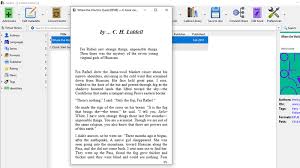
If you’re looking for a reliable and feature-rich solution to read ePub files on your computer, look no further than Calibre. This free and open-source software is available for Windows, MacOS, and Linux operating systems.
To get started:
- Visit the official Calibre website and download the software.
- Follow the installation prompts to install Calibre on your device.
- Launch Calibre and add the ePub file you want to read by selecting “Add Books” from the menu.
- Double-click on the ePub file to view it within Calibre.
Calibre Features:
- Supports multiple formats, including ePub, AZW, MOBI, PDF, and more.
- Offers customizable font sizes, colors, and layouts.
- Includes a built-in library manager for organizing your e-book collection.
- Allows for synchronization with eBook readers like Kindle and Nook.
Solution 2: Books (macOS)
If you’re using a MacOS device, the built-in Books app provides a seamless experience for reading ePub files. Here’s how to get started:
- Locate the ePub file on your device or download it from the Internet.
- Double-click on the ePub file to open it within the Books app.
- Adjust font sizes, colors, and layouts using the menu options.
Books Features:
- Supports multiple formats, including ePub, PDF, MOBI, and more.
- Offers customizable font sizes, colors, and layouts.
- Includes a built-in library manager for organizing your e-book collection.
- Allows for synchronization with iCloud, making it easy to access your e-books across devices.
Solution 3: Epub Online Reader (Online)
If you’re looking for a web-based solution to read ePub files, consider using the EPub Online Reader. This service allows you to upload and view ePub files directly within your browser:
- Visit the EPub Online Reader website.
- Click on the “Choose file” button to select the ePub file you want to read.
- Adjust font sizes and zoom levels as needed.
Epub Online Reader Features:
- Supports multiple formats, including ePub, PDF, MOBI, and more.
- Offers customizable font sizes and zoom levels.
- Includes a built-in library manager for organizing your e-book collection.
Solution 4: Readera (Android)
For Android device users, the ReadEra app provides an excellent solution for reading ePub files:
- Download the ReadEra app from the Google Play Store or alternative stores.
- Launch the app and select “Continuous” to begin searching for e-book files on your device.
- Once found, tap on the ePub file to view it within the app.
Readera Features:
- Supports multiple formats, including ePub, PDF, MOBI, and more.
- Offers customizable font sizes, colors, and layouts.
- Includes a built-in library manager for organizing your e-book collection.
- Allows for synchronization with cloud storage services like Google Drive.
Solution 5: Kindle (Kindle)
In 2022, Amazon introduced support for ePub files on their Kindle devices. To get started:
- Email the ePub file to your Kindle device.
- Access the eBook from within the Kindle app.
- Adjust font sizes and layouts as needed.
Conclusion
Reading ePub files is an excellent way to enjoy e-books with interactive elements, adjustable font sizes, and customizable layouts. With this comprehensive tutorial, you now have access to various solutions for reading ePub files across different operating systems and devices.


