
Best Video Editing Software: A Comprehensive Guide
Are you looking for the best video editing software to enhance your movie or presentation? Look no further! In this article, we’ll explore the top video editing software available in the market, including both free and paid options.
What is Video Editing Software?
Video editing software is a program that allows you to manipulate digital video files on your computer. It enables you to trim, cut, join, and arrange clips, add transitions, effects, music, and text to create a final product.
Top 8 Video Editing Software For PC And Mac
Here are the top 8 video editing software for PC and Mac:
1. Icecream Video Editor (Windows)
Icecream Video Editor is an excellent video editing software that’s free to download and use. It supports all Windows versions, including Windows 7. The interface is user-friendly, and it offers a wide range of features, such as video trimming, cutting, joining, and adding transitions, effects, and audio.
To use Icecream Video Editor, follow these steps:
- Download the software from its official website.
- Install the software by running the .Exe file.
- Launch the software and click on “New Project.”
- Import your video files by clicking on “Add Rows” or dragging them to the timeline.
- Use the various instruments and commands to modify your video, such as cutting, trimming, adding transitions, effects, and audio.
- Click on “Export Video” to save your final product.
2. Easeus Video Editor (Windows)
EaseUS Video Editor is another popular video editing software that’s free to download and use. It supports all Windows versions and offers a user-friendly interface. The software allows you to trim, cut, join, and arrange clips, add transitions, effects, music, and text.
To use EaseUS Video Editor, follow these steps:
- Download the software from its official website.
- Install the software by running the .Exe file.
- Launch the software and click on “New Project.”
- Import your video files by clicking on “Add Rows” or dragging them to the timeline.
- Use the various instruments and commands to modify your video, such as cutting, trimming, adding transitions, effects, music, and text.
- Click on “Export Video” to save your final product.
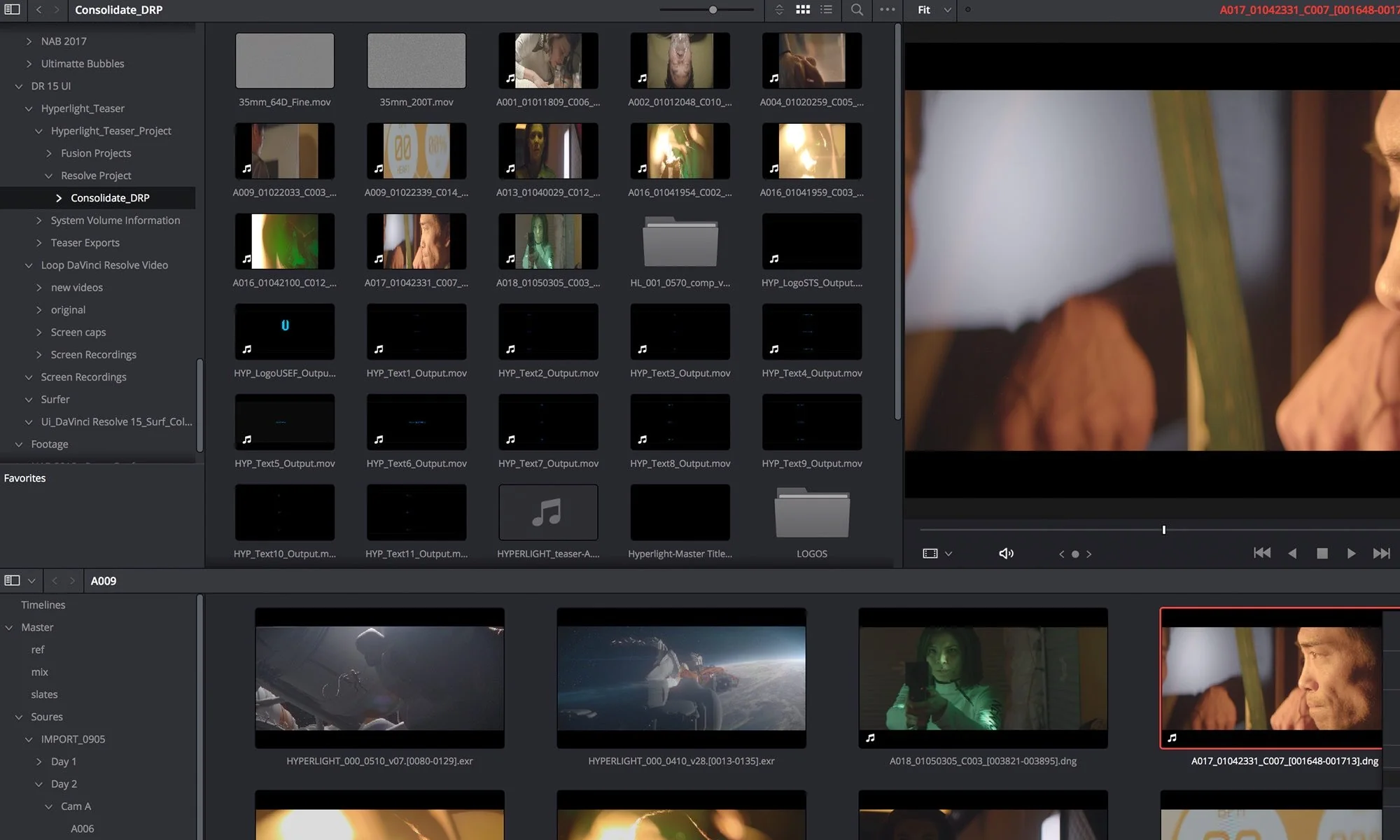
3. Davinci Resolve (Windows/Mac/Linux)
DaVinci Resolve is a professional-grade video editing software that’s free to download and use. It supports all Windows versions, macOS, and Linux. The software offers advanced features, such as 8K support, color correction, and audio editing.
To use DaVinci Resolve, follow these steps:
- Download the software from its official website.
- Install the software by running the .Exe file.
- Launch the software and click on “New Project.”
- Import your video files by clicking on “Add Rows” or dragging them to the timeline.
- Use the various instruments and commands to modify your video, such as cutting, trimming, adding transitions, effects, music, and text.
- Click on “Export Video” to save your final product.
Wondershare Filmora is a user-friendly video editing software that’s free to download and use. It supports all Windows versions and macOS. The software allows you to trim, cut, join, and arrange clips, add transitions, effects, music, and text.
To use Wondershare Filmora, follow these steps:
- Download the software from its official website.
- Install the software by running the .Exe file.
- Launch the software and click on “New Project.”
- Import your video files by clicking on “Add Rows” or dragging them to the timeline.
- Use the various instruments and commands to modify your video, such as cutting, trimming, adding transitions, effects, music, and text.
- Click on “Export Video” to save your final product.
5. Clipchamp (Windows)
Clipchamp is a free video editing software that’s pre-installed on Windows 10 and later versions. It allows you to trim, cut, join, and arrange clips, add transitions, effects, music, and text.
To use Clipchamp, follow these steps:
- Launch the software from the Start menu.
- Click on “Create a new video” and select the type of video you want to create.
- Import your video files by clicking on “Add Rows” or dragging them to the timeline.
- Use the various instruments and commands to modify your video, such as cutting, trimming, adding transitions, effects, music, and text.
- Click on “Export Video” to save your final product.
6. Imovie (macOS)
IMovie is a free video editing software that comes pre-installed on macOS devices. It allows you to trim, cut, join, and arrange clips, add transitions, effects, music, and text.
To use iMovie, follow these steps:
- Launch the software from the Applications folder.
- Click on “Create a new project” and select the type of video you want to create.
- Import your video files by clicking on “Add Rows” or dragging them to the timeline.
- Use the various instruments and commands to modify your video, such as cutting, trimming, adding transitions, effects, music, and text.
- Click on “Export Video” to save your final product.
7. Final Cut Pro (macOS)
Final Cut Pro is a professional-grade video editing software that’s available for macOS devices only. It offers advanced features, such as color correction, audio editing, and visual effects.
To use Final Cut Pro, follow these steps:
- Download the software from its official website.
- Install the software by running the .Exe file.
- Launch the software and click on “New Project.”
- Import your video files by clicking on “Add Rows” or dragging them to the timeline.
- Use the various instruments and commands to modify your video, such as cutting, trimming, adding transitions, effects, music, and text.
- Click on “Export Video” to save your final product.
8. Online Video Editors
If you don’t want to install any software on your device, there are several online video editors available that allow you to edit videos directly in your browser. Some popular options include:
- Video Candy: A free online video editor that allows you to trim, cut, join, and arrange clips, add transitions, effects, music, and text.
- VEED.IO: A cloud-based video editing software that offers advanced features, such as color correction, audio editing, and visual effects.
Tips And Tricks
Here are some tips and tricks to help you get the most out of your video editing software:
- Experiment with different transitions and effects to add a personal touch to your video.
- Use music and sound effects to enhance the mood and atmosphere of your video.
- Take advantage of color correction and audio editing features to improve the overall quality of your video.
Conclusion
In conclusion, there are many great video editing software options available for PC and Mac devices. Whether you’re a professional editor or a beginner, there’s a software out there that suits your needs and skill level. Don’t be afraid to experiment with different tools and features to find what works best for you.
Frequently Asked Questions
Here are some frequently asked questions about video editing software:
- Q: What is the best video editing software?
A: The best video editing software depends on your specific needs and preferences. - Q: How much does video editing software cost?
A: Some video editing software is free, while others require a subscription or one-time payment. - Q: Can I use video editing software online?
A: Yes, there are several online video editors available that allow you to edit videos directly in your browser.
References
Here are some references for further reading:
- Icecream Video Editor official website
- EaseUS Video Editor official website
- DaVinci Resolve official website
- Wondershare Filmora official website
- Clipchamp official website
- IMovie official website
- Final Cut Pro official website


