
Creating a Link on Zoom: A Step-by-step Guide
Are you new to Zoom, the popular video conferencing platform? If so, you’re not alone! Many companies have adopted Zoom for their remote meetings, and it’s easy to see why. Not only is it user-friendly, but it’s also free to use for basic meetings.
However, if you’ve never created a link on Zoom before, you might be wondering how to do it. Fear not, dear reader! In this article, we’ll guide you through the process of creating a link on Zoom using both your computer and smartphone/tablet.
Creating an Account
Before you can start using Zoom, you need to create an account. This is a straightforward process that requires just a few minutes of your time.
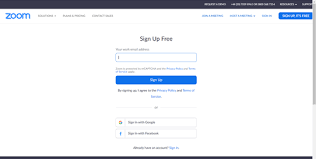
To create an account on Zoom:
- Go to the Zoom website (www.Zoom.Us) and click on the “Sign up” button.
- Fill out the registration form with your name, email address, and password.
- Verify your email address by clicking on the link sent to you by Zoom.
Creating a Link on Your Computer
Once you have created an account, you can start creating links for your meetings.
To create a link on your computer:
- Download the Zoom Desktop Client from the Zoom website (www.Zoom.Us).
- Launch the client and click on the “New Meeting” button.
- Select the meeting options, including the video and audio settings.
- Click on the “Join Meeting” button to generate a link.
Creating a Link on Your Smartphone/tablet
If you prefer to use your smartphone or tablet to create links for your meetings, don’t worry! The process is similar to creating a link on your computer.
To create a link on your smartphone/tablet:
- Download the Zoom app from the App Store (for iOS devices) or Google Play Store (for Android devices).
- Launch the app and click on the “New Meeting” button.
- Select the meeting options, including the video and audio settings.
- Click on the “Join Meeting” button to generate a link.
How to Share Your Link
Once you have generated a link for your meeting, it’s time to share it with others.
To share your link:
- Go back to the Zoom client or app and click on the “Participants” tab.
- Click on the “Invite” button to forward the link to your contacts via email or message.
- Alternatively, you can copy the link and paste it into a messaging app or social media platform.
Tips For Creating Links
Here are some additional tips to keep in mind when creating links for your meetings:
- Make sure to set up your video and audio settings before generating a link.
- Use the “Personal Meeting ID” (PMI) option to create a unique link for each meeting.
- Consider using the “Calendar” feature to schedule recurring meetings.
Conclusion
Creating a link on Zoom is a straightforward process that requires just a few minutes of your time. Whether you’re using your computer or smartphone/tablet, follow these simple steps to generate a link for your next meeting. Happy conferencing!
Frequently Asked Questions (FAQs)
- Q: How do I Create an Account on Zoom?
A: To create an account on Zoom, go to the Zoom website (www.Zoom.Us) and click on the “Sign up” button. - Q: What is a Personal Meeting ID (PMI)?
A: A PMI is a unique identifier that you can use to generate a link for each meeting. - Q: Can I Share my Link With Others?
A: Yes, you can share your link with others by forwarding it via email or message. - Q: How do I Schedule Recurring Meetings on Zoom?
A: To schedule recurring meetings on Zoom, use the “Calendar” feature to set up a meeting that repeats at regular intervals. - Q: Can I Record my Meetings on Zoom?
A: Yes, you can record your meetings on Zoom using the built-in recording feature. - Q: How do I Access my Recorded Meetings on Zoom?
A: To access your recorded meetings on Zoom, go to the Zoom website (www.Zoom.Us) and click on the “Recorded Meetings” tab. - Q: Can I Use Zoom For Free?
A: Yes, you can use Zoom for free for basic meetings. However, if you need more features or longer meeting times, you may need to upgrade to a paid plan. - Q: How do I Troubleshoot Common Issues With my Zoom Link?
A: If you’re experiencing issues with your Zoom link, try checking the following:- Make sure you have a stable internet connection.
- Ensure that you have the latest version of the Zoom client or app installed on your device.
- Try restarting the Zoom client or app.


