
Seeing Facebook on Smart Tv: A Step-by-step Guide
Are you tired of watching Facebook videos on your smartphone or computer? Do you want to enjoy them on a bigger screen? Look no further! In this article, we will show you how to see Facebook on Smart TV.
Why See Facebook on Smart Tv?
Watching Facebook videos on Smart TV can be a more enjoyable experience than on smartphones or computers. The larger screen and better sound quality make it perfect for relaxing and socializing with friends and family.
Installing Facebook on Smart TV
To install Facebook on your Smart TV, you need to follow these steps:
- Connect Your Smart TV to The Internet: Before installing Facebook, ensure that your Smart TV is connected to the internet. You can do this by going to Settings > Network > Wi-Fi or Ethernet.
- Download And Install Facebook Watch: Once connected to the internet, go to the app store on your Smart TV and download the Facebook Watch app.
- Launch Facebook Watch: After installation, launch the Facebook Watch app and follow the instructions to set up your account.
How to Access Facebook on Smart TV
To access Facebook on your Smart TV, follow these steps:
- Open Facebook Watch: Launch the Facebook Watch app on your Smart TV.
- Sign in With Your Account: If you have a Facebook account, sign in using your username and password.
- Browse Videos: Browse through the available videos on Facebook Watch.
Alternative Ways to Access Facebook on Smart TV
If you don’t want to use the Facebook Watch app or can’t connect to Wi-Fi, there are other ways to access Facebook on your Smart TV:
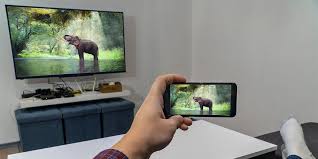
- Screen Mirroring: Use screen mirroring technology like Miracast to display your smartphone or tablet’s screen on your Smart TV.
- Chromecast: Connect a Chromecast device to your Smart TV and use it to stream videos from your phone or computer to the TV.
- Fire TV Stick: Use a Fire TV Stick device to access Facebook on your Smart TV.
Tips And Tricks
- Make sure your Smart TV is updated with the latest software version for smooth performance.
- If you encounter any issues, refer to the user manual or contact customer support.
- You can also use a third-party streaming service like YouTube or Netflix to watch videos on your Smart TV.
Conclusion
Watching Facebook on Smart TV is now easier than ever! With these simple steps and alternative methods, you can enjoy your favorite videos on a bigger screen. Remember to keep your Smart TV updated and have fun exploring the world of social media on your TV!
Frequently Asked Questions (FAQs)
- Q: Do I Need a Wi-fi Connection to Watch Facebook on my Smart Tv?
A: Yes, you need an internet connection to watch Facebook videos on your Smart TV. - Q: Can I Use Screen Mirroring Technology Like Miracast to Access Facebook on my Smart Tv?
A: Yes, you can use Miracast or other screen mirroring technologies to display your phone’s screen on your Smart TV. - Q: Do I Need a Separate Device Like Chromecast or Fire TV Stick to Watch Facebook Videos?
A: No, you don’t necessarily need a separate device, but it can be helpful for smooth performance and convenience. - Q: Can I Access Facebook on my Smart TV Using my Smartphone or Tablet?
A: Yes, you can use your phone or tablet’s screen mirroring feature to display Facebook videos on your Smart TV. - Q: Is There a Specific App That I Need to Download to Watch Facebook on my Smart Tv?
A: You may need to download the Facebook Watch app, but it depends on your Smart TV model and operating system.
Recommended Reading


