
How to Save Whatsapp Photos in Gallery: A Step-by-step Guide
Are you tired of saving your favorite WhatsApp photos to the app’s default album, only to find them cluttering up your device’s storage? Look no further! In this article, we’ll show you how to save WhatsApp photos directly to your phone’s gallery, making it easier to access and share your favorite moments.
Why Save Whatsapp Photos in Gallery?
Saving WhatsApp photos in the gallery offers several benefits:
- Easy access: Your saved photos will be available in the app gallery, making it easy to find and view them.
- Storage space: Saving photos in the gallery can help free up storage space on your device.
- Sharing: You’ll be able to share your favorite moments with friends and family directly from the gallery.
Saving Whatsapp Photos in Gallery (Android)
To save WhatsApp photos in the gallery on Android, follow these steps:
Step 1: Open Whatsapp Settings
Open WhatsApp and go to Settings. Tap on “Chats” and then tap on “Chat settings.”
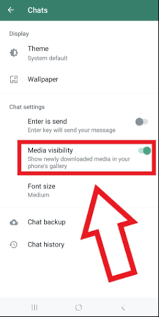
Step 2: Enable Media Visibility
Enable the “Media visibility” option. This will allow you to save photos directly to the gallery.
Step 3: Choose When to Save Photos
Choose when you want to save photos automatically:
- When connected to Wi-Fi
- When using mobile data
- When roaming
You can choose one or all of these options, depending on your preferences.
Step 4: Save Photos Manually
To save a photo manually, open the conversation where the photo was sent, tap and hold on the image, and select “Save” from the menu.
Saving Whatsapp Photos in Gallery (iPhone)
To save WhatsApp photos in the gallery on iPhone, follow these steps:
Step 1: Open Whatsapp Settings
Open WhatsApp and go to Settings. Tap on “Chats” and then tap on “Chat settings.”
Step 2: Enable Save Original Media
Enable the “Save original media” option.
Step 3: Choose When to Save Photos
Choose when you want to save photos automatically:
- When connected to Wi-Fi
- When using mobile data
- When roaming
You can choose one or all of these options, depending on your preferences.
Step 4: Save Photos Manually
To save a photo manually, open the conversation where the photo was sent, tap and hold on the image, and select “Save” from the menu.
Saving Whatsapp Photos on Computer
WhatsApp is available on both Windows and macOS. To save WhatsApp photos on your computer:
Step 1: Open Whatsapp Web or Desktop App
Open WhatsApp Web or the desktop app on your computer.
Step 2: Go to The Conversation
Go to the conversation where the photo was sent.
Step 3: Save Photos Manually
To save a photo manually, tap and hold on the image, and select “Download” from the menu. If using the desktop app, right-click on the image and select “Save as.”
Conclusion
Saving WhatsApp photos in gallery is a simple process that can be completed on both Android and iPhone devices. By following these steps, you’ll be able to save your favorite moments directly to your phone’s gallery, making it easier to access and share them.
Frequently Asked Questions (FAQs)
Q: How do I enable media visibility in WhatsApp?
A: To enable media visibility in WhatsApp, go to Settings > Chats > Chat settings > Media visibility.
Q: Can I save photos automatically on both Android and iPhone devices?
A: Yes, you can choose when to save photos automatically on both Android and iPhone devices. Choose from Wi-Fi, mobile data, or roaming options.
Q: How do I save a photo manually in WhatsApp?
A: To save a photo manually in WhatsApp, open the conversation where the photo was sent, tap and hold on the image, and select “Save” from the menu.
Q: Can I save photos directly to my computer’s gallery?
A: Yes, you can save WhatsApp photos directly to your computer’s gallery by using WhatsApp Web or the desktop app.
Q: How do I access saved photos in my phone’s gallery?
A: Saved photos will be available in your phone’s gallery. You can access them by opening the gallery app and navigating to the WhatsApp album.
Important Notes
- Always save your important files on a backup storage device, like an external hard drive or cloud service.
- Make sure to enable media visibility and save original media options to ensure that photos are saved in high quality.
- If you’re experiencing issues with saving photos, restart your app or device.
Stay connected and keep your memories safe!


