
How to Vectorialize an Image: A Step-by-step Guide
Are you looking for a way to convert your favorite image into a vectorial file that can be zoomed in without losing quality? Look no further! In this article, we will guide you through the process of vectorializing an image using various software and online services.
What is Vectorialization?
Vectorialization is the process of converting a raster image (such as a JPEG or PNG) into a vectorial file (such as SVG). This allows for infinite zooming without losing quality, making it ideal for graphic designers, web developers, and anyone who wants to create high-quality graphics.
Software Options
There are several software options available that can help you vectorialize an image. Let’s take a look at some of the most popular ones:
Inkscape
Inkscape is a free and open-source vector editor that can be used for vectorialization. To start, simply launch Inkscape and select the “Bitmap” option from the “Path” menu. Choose your image file and adjust the settings as needed.
- Step-by-step Guide: How to Vectorialize an Image with Inkscape
- Tips And Tricks: Make sure to choose the correct settings for your image, such as resolution and color depth.
Gimp
GIMP is a free and open-source raster graphics editor that can also be used for vectorialization. However, keep in mind that GIMP does not directly support saving images as SVG files. To work around this limitation, you will need to edit the image using GIMP’s built-in tools and then use an online service or other software to convert it to a vectorial file.
- Step-by-step Guide: How to Vectorialize an Image with GIMP
- Tips And Tricks: Be careful when selecting the image area, as small mistakes can result in incorrect conversions.
Adobe Illustrator
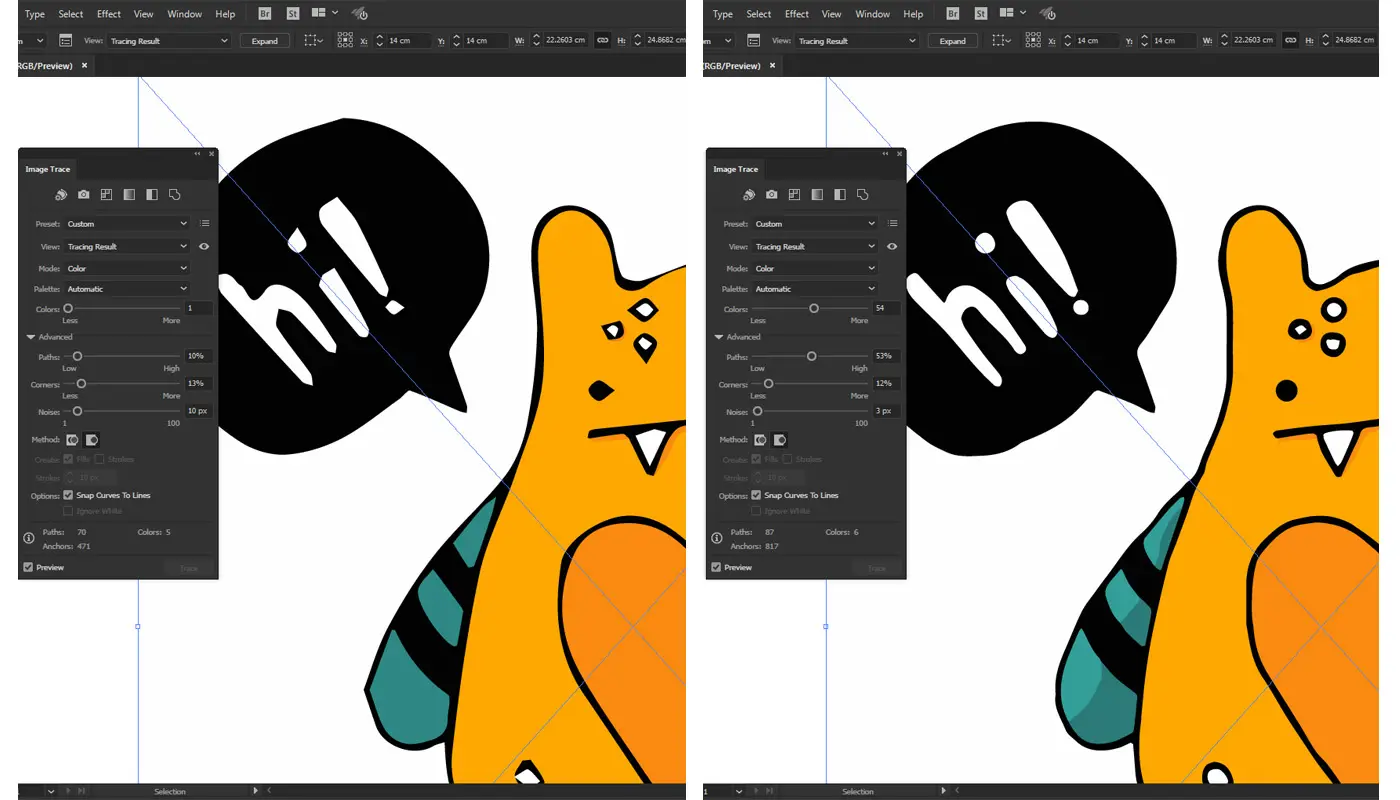
Adobe Illustrator is a powerful vector graphics editor that is widely used by professional designers. To vectorialize an image using Illustrator, simply open the program, select “Pixel” from the “Unit of Measure” menu, and create a new document with the desired settings. Then, import your image and adjust it as needed.
- Step-by-step Guide: How to Vectorialize an Image with Adobe Illustrator
- Tips And Tricks: Pay attention to color mode when converting images between programs.
Photoshop
If you’re already familiar with Photoshop, you can use it to vectorialize an image. However, keep in mind that Photoshop is primarily a raster graphics editor, so some additional steps will be required.
- Step-by-step Guide: How to Vectorialize an Image with Photoshop
- Tips And Tricks: Consider converting images to grayscale before attempting vectorialization for best results.
Online Services
If you’re not comfortable using software or prefer a hassle-free experience, there are several online services that can help you vectorialize an image. Some popular options include:
Vectorizer
Vectorizer is an online service specifically designed for vectorialization. To use it, simply drag and drop your image file into the browser window, select the desired settings, and click the download button.
- Step-by-step Guide: How to Vectorialize an Image with Vectorizer
- Tips And Tricks: Be mindful of file size limits when using online services.
Mac Users
If you’re a Mac user, don’t worry! The process of vectorializing an image is identical to the one described above. Simply choose your preferred software or online service and follow the steps outlined in this guide.
Conclusion
Vectorialization can seem intimidating at first, but with the right tools and knowledge, it’s definitely achievable. Whether you’re a seasoned designer or a beginner looking to improve your graphic skills, this article has provided a comprehensive guide to help you get started.
Faqs
- Q: What is vectorialization?
A: Vectorialization is the process of converting raster images into vectorial files. - Q: Why should I vectorialize an image?
A: Vectorializing an image allows for infinite zooming without losing quality, making it ideal for graphic designers and web developers. - Q: Can I use Photoshop to vectorialize an image?
A: Yes, but keep in mind that Photoshop is primarily a raster graphics editor, so some additional steps will be required.


