
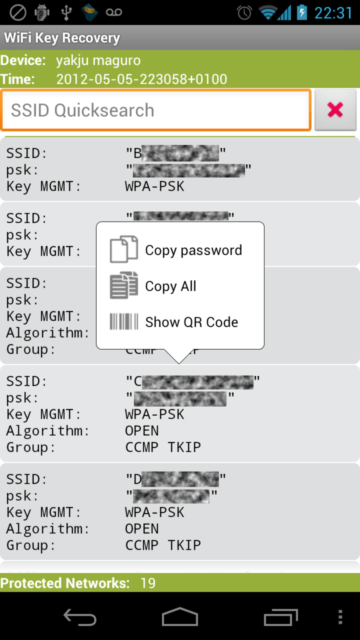
How to Recover Password Wifi on Android: A Step-by-step Guide
Are you struggling to remember your WiFi password on your Android device? Do you want to share the password with another device, but can’t find it anywhere? You’re not alone! In this article, we’ll show you how to recover your WiFi password on Android and make sharing it with other devices a breeze.
Why Can’t I Find My Wifi Password on Android?
If you’ve saved your WiFi password on your Android device, you might be wondering why you can’t find it. The reason is that Android doesn’t store passwords in plain text, but rather as encrypted codes. This is done for security reasons to protect your personal data.
How to Recover Your Wifi Password on Android
Fortunately, there’s a simple way to recover your WiFi password on Android without having to resort to using other devices or software. You can use the built-in feature called “Share” to generate a QR code that contains the password. Here’s how:
- Open The Settings App: Go to your device’s Settings app and navigate to the “Connections” section.
- Select Wifi: Tap on the WiFi option, then select the network you want to recover the password for.
- Tap on Share: You’ll see a “Share” button next to the network name. Tap on it.
- Authenticate With Fingerprint or Pin: You may be prompted to authenticate using your fingerprint or PIN.
- Scan The QR Code: Use another device’s camera app to scan the QR code generated by your Android device.
How to Share Your Wifi Password With Other Devices
If you want to share your WiFi password with other devices, follow these steps:
- Open The Settings App: Go to your device’s Settings app and navigate to the “Connections” section.
- Select Wifi: Tap on the WiFi option, then select the network you want to share the password for.
- Tap on Share: You’ll see a “Share” button next to the network name. Tap on it.
- Authenticate With Fingerprint or Pin: You may be prompted to authenticate using your fingerprint or PIN.
- Scan The QR Code: Use another device’s camera app to scan the QR code generated by your Android device.
Recovering Your Wifi Password on Samsung, Huawei, Xiaomi, And Oppo Devices
The process of recovering your WiFi password is similar for devices from other manufacturers, such as Samsung, Huawei, Xiaomi, and OPPO. However, you may need to navigate slightly differently within the Settings app.
- On Samsung Devices: Go to Settings > Connections > Wi-Fi > Advanced > Show password.
- On Huawei Devices: Go to Settings > Wireless & networks > Wi-Fi > Advanced > Show password.
- On Xiaomi Devices: Go to Settings > Additional settings > Backup and reset > WiFi password.
- On Oppo Devices: Go to Settings > Connections > Wi-Fi > Advanced > Show password.
Conclusion
Recovering your WiFi password on Android is a straightforward process that can be completed in just a few minutes. By using the built-in “Share” feature, you can easily generate a QR code that contains the password and share it with other devices. We hope this article has helped you resolve any issues related to WiFi passwords on your Android device.
Frequently Asked Questions (FAQs)
- Q: Why Can’t I Find my Wifi Password on my Android Device?
A: Your WiFi password is stored as an encrypted code for security reasons. - Q: How do I Recover my Wifi Password on Android?
A: You can use the “Share” feature to generate a QR code that contains the password. - Q: Can I Share my Wifi Password With Other Devices Using This Method?
A: Yes, you can use the generated QR code to share your WiFi password with other devices. - Q: Is it Possible to Recover my Wifi Password on Devices From Other Manufacturers?
A: Yes, the process is similar for Samsung, Huawei, Xiaomi, and OPPO devices, but may require slightly different navigation within the Settings app.


