
How to Disable Mcafee: A Step-by-step Guide
Are you tired of McAfee’s intrusive pop-ups and scanning features? Do you want to temporarily disable the antivirus software without uninstalling it entirely? Look no further! In this article, we’ll guide you through the process of disabling McAfee on various platforms, including Windows, Mac, browser extensions, Android, and iOS/iPadOS.
Why Disable Mcafee?
Before we dive into the steps, let’s quickly discuss why you might want to disable McAfee:
- You’re experiencing performance issues due to McAfee’s resource-intensive features.
- You need to perform a system update or software installation that requires McAfee to be disabled.
- You’re using a different antivirus software and want to switch.
Disabling Mcafee on Windows
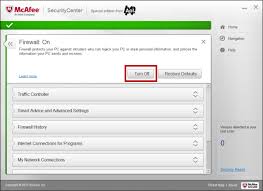
To disable McAfee on Windows, follow these steps:
- Locate The Mcafee Icon: Find the McAfee icon on your desktop or in the system tray (next to the clock).
- Open Mcafee: Double-click the icon to open the McAfee software.
- Access The Protection Settings: Click on the “Protection” tab and then select “Scanning” from the dropdown menu.
- Disable Scanning: Toggle the switch next to “Enable Scanning” to disable it.
Disabling Mcafee on Mac
To disable McAfee on a Mac, follow these steps:
- Launch Mcafee: Find the McAfee icon in the Launchpad and click on it to open the software.
- Access The Protection Settings: Click on the “Protection” tab and then select “Scanning” from the dropdown menu.
- Disable Scanning: Toggle the switch next to “Enable Scanning” to disable it.
Disabling Mcafee Browser Extensions
To disable McAfee browser extensions, follow these steps:
- Chrome: Go to Chrome’s extensions page (chrome://Extensions/), find the McAfee extension, and toggle the switch next to “Enabled” to disable it.
- Edge: Go to Edge’s extensions page (edge://Extensions/), find the McAfee extension, and toggle the switch next to “Enabled” to disable it.
- Safari: Open Safari’s preferences (Safari > Preferences) and click on the “Extensions” tab. Find the McAfee extension and toggle the switch next to “Enabled” to disable it.
Disabling Mcafee on Android
To disable McAfee on an Android device, follow these steps:
- Open Mcafee: Launch the McAfee app.
- Access The Settings: Tap on the menu icon (three horizontal lines) and select “Settings.”
- Disable Scanning: Toggle the switch next to “Enable Scanning” to disable it.
Disabling Mcafee on Ios/ipados
To disable McAfee on an iOS or iPadOS device, follow these steps:
- Open Mcafee: Launch the McAfee app.
- Access The Settings: Tap on the menu icon (three horizontal lines) and select “Settings.”
- Disable Wi-fi Scanning: Toggle the switch next to “Enable Wi-Fi Scanning” to disable it.
By following these steps, you can temporarily disable McAfee’s features without uninstalling the software entirely. If you need further assistance or have any questions, feel free to ask!
Common Questions And Answers
- Q: What Happens if I Disable Mcafee?
A: Disabling McAfee will prevent it from running in the background, scanning files, and providing real-time protection. - Q: Will Disabling Mcafee Affect my Device’s Security?
A: No, disabling McAfee will not compromise your device’s security. You can still use other antivirus software or rely on your device’s built-in security features. - Q: Can I Re-enable Mcafee if Needed?
A: Yes, you can easily re-enable McAfee by following the same steps as above.
We hope this guide has helped you understand how to disable McAfee. If you have any further questions or concerns, please don’t hesitate to reach out!


