
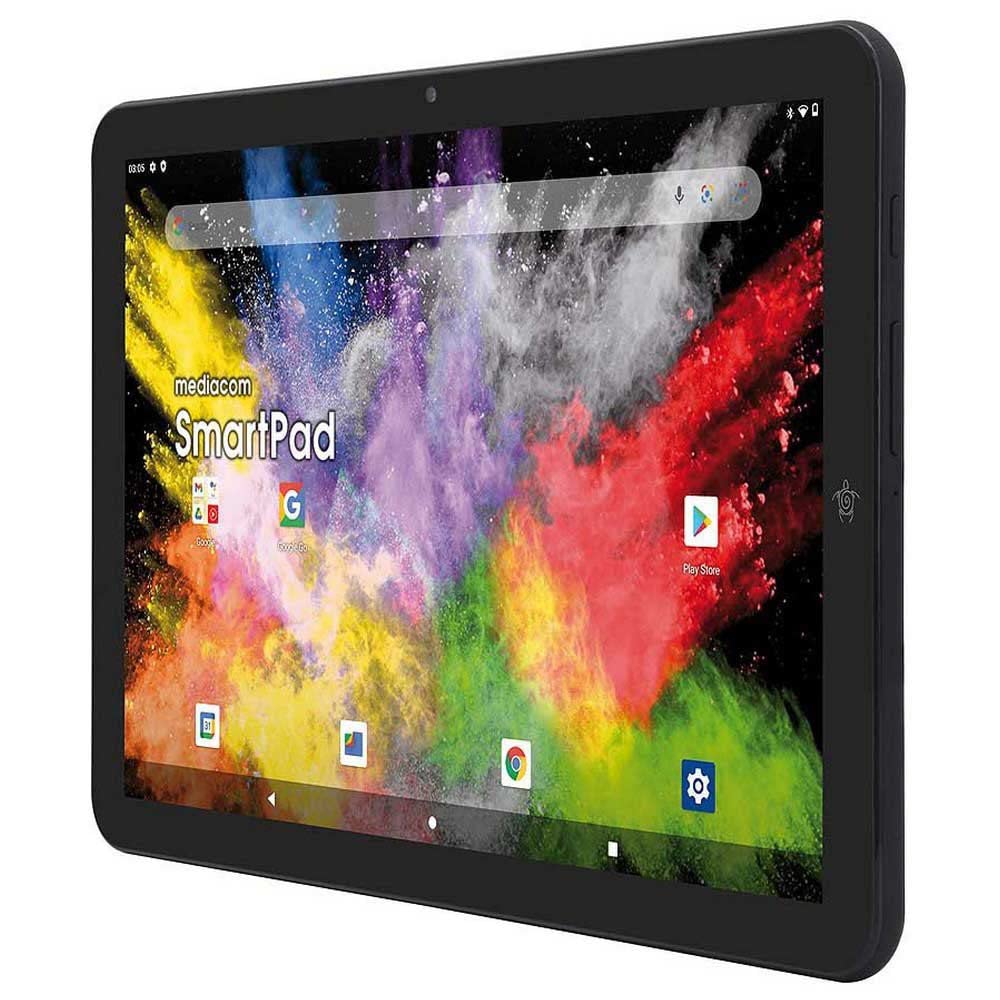
Installing Google Play Store on Mediacom Tablet: A Step-by-step Guide
Are you struggling to install Google Play Store on your Mediacom tablet? Look no further! This comprehensive guide will walk you through the process, ensuring a smooth and hassle-free experience.
Understanding The Issue
Before we dive into the solution, it’s essential to understand why the Google Play Store is not available on some devices. The reason lies in the certification process required by Google for Android devices. Mediacom tablets, being budget-friendly options, often lack this certification, making it challenging to access the Play Store.
Preliminary Operations
To install the Google Play Store on your Mediacom tablet, you need to perform some preliminary operations:
- Backup Your Data: Create a backup of your current data, including photos, videos, contacts, and other essential content. This will ensure that you can recover everything in case something goes wrong during the installation process.
- Check For Unknown Origins Support: Verify that your device has support for installing apps from unknown sources. If it doesn’t, enable this option to proceed with the installation.
Procedure 1: Installing Google Play Store Using Apks
There are two primary methods to install the Google Play Store on a Mediacom tablet:
- Method 1: Downloading Individual Apks
- Method 2: Using an App Like Open Gapps
We’ll explore both procedures in detail.
Procedure 1: Installing Google Play Store Using Apks
To begin, you’ll need to download the necessary APK files and install them on your device:
- Download Link2sd: This app helps manage apps on external storage, which is crucial for installing the Google Play Store.
- Go to APKMirror and download the latest version of Link2SD.
- Tap on the “Open” button to open the downloaded APK file.
- Select “Install” and then tap “Finish”.
- Download Files by Google: This app manages files on your device, which is necessary for installing the Google Play Store.
- Go to APKMirror and download the latest version of Files by Google.
- Tap on the “Open” button to open the downloaded APK file.
- Select “Install” and then tap “Finish”.
- Download Google Play Services: This app provides essential services for the Google Play Store to function.
- Go to APKMirror and download the latest version of Google Play Services.
- Tap on the “Open” button to open the downloaded APK file.
- Select “Install” and then tap “Finish”.
- Download Google Play Store: This is the final step, where you’ll install the Google Play Store itself.
- Go to APKMirror and download the latest version of the Google Play Store.
- Tap on the “Open” button to open the downloaded APK file.
- Select “Install” and then tap “Finish”.
Procedure 2: Installing Google Play Store Using Open Gapps
Alternatively, you can use an app called Open GApps to simplify the process:
- Download Open Gapps: This app helps install the Google Play Store and its dependencies automatically.
- Go to APKMirror and download the latest version of Open GApps.
- Tap on the “Open” button to open the downloaded APK file.
- Select “Install” and then tap “Finish”.
- Follow The Instructions: Open GApps will guide you through the installation process, which includes downloading and installing the Google Play Store.
Alternative Options
If you’re unable to install the Google Play Store using the above methods, consider exploring alternative app stores:
- Amazon Appstore
- Apkmirror
- Appbrain
- Torrapk
Please note that while these alternatives may provide access to apps, they might not offer the same level of security and functionality as the Google Play Store.
Conclusion
Installing the Google Play Store on a Mediacom tablet requires some technical know-how, but with this guide, you’re well-equipped to tackle the challenge. Remember to backup your data, check for unknown origins support, and follow the procedures carefully to ensure a smooth experience.
Frequently Asked Questions (FAQs)
- Q: Why is The Google Play Store Not Available on my Mediacom Tablet?
A: The Google Play Store is not certified for Mediacom tablets, making it unavailable by default. - Q: Can I Install The Google Play Store Using Apks?
A: Yes, you can download and install individual APK files to access the Google Play Store. - Q: What Are The Necessary Apk Files to Install The Google Play Store?
A: You’ll need to download Link2SD, Files by Google, Google Play Services, and the Google Play Store itself. - Q: Can I Use an App Like Open Gapps to Simplify The Process?
A: Yes, Open GApps can help you install the Google Play Store and its dependencies automatically. - Q: Are There Alternative App Stores Available For Android Devices?
A: Yes, consider exploring Amazon AppStore, APKMirror, AppBrain, or TorrApk as alternatives. - Q: What if I’m Unable to Install The Google Play Store Using The Above Methods?
A: Reach out to your device manufacturer’s support team or consult online forums for assistance. - Q: Will Installing The Google Play Store Void my Warranty?
A: It’s essential to check with your device manufacturer before attempting to install the Google Play Store, as it may void your warranty. - Q: Can I Recover my Data in Case Something Goes Wrong During The Installation Process?
A: Yes, backing up your data before proceeding will ensure you can recover everything in case of any issues.


