
How to Number Pages in Microsoft Excel
Are you tired of manually numbering pages in your Microsoft Excel documents? Look no further! In this article, we will guide you through a step-by-step process on how to number pages in Microsoft Excel.
What You Need to Know
Before we dive into the instructions, here are some essential things to know:
- This guide is applicable only for Microsoft Excel 2010 and later versions.
- The procedure described below works for both Windows and macOS versions of Microsoft Excel.
Step-by-step Instructions
To number pages in Microsoft Excel, follow these simple steps:
- Open Your Document: Open the Microsoft Excel document that you want to add page numbers to.
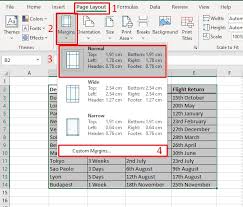
- Select The Page Layout Tab: Go to the “Page Layout” tab in the ribbon and click on it.
- Click on The Header & Footer Section: In the “Page Setup” group, click on the “Header & Footer” button.
- Add a Header or Footer: A new dialog box will appear. Click on the “Header” or “Footer” tab to add a header or footer to your page.
- Select The Page Number Option: In the “Header & Footer” section, click on the “Page Number” dropdown menu and select the option that suits your needs (e.G., Page 1, Page 1 of X, etc.).
- Choose The Alignment: Select the alignment for the page number (left, center, or right) by clicking on the corresponding button.
- Add a Prefix or Suffix: If desired, add a prefix or suffix to your page number by typing it in the “Prefix” or “Suffix” field.
- Click OK: Click “OK” to save the changes.
Alternative Solutions
If you don’t have Microsoft Excel or prefer not to use it, there are alternative solutions available:
- Libreoffice Calc: LibreOffice Calc is a free and open-source spreadsheet software that can also be used to number pages.
- Numbers For Mac: Numbers is a spreadsheet software specifically designed for macOS users. It offers automatic page numbering as well.
How to Number Pages in Libreoffice Calc
To number pages in LibreOffice Calc, follow these steps:
- Open your document in LibreOffice Calc.
- Go to the “Insert” menu and select “Header & Footer”.
- In the “Header & Footer” section, click on the “Page Number” dropdown menu and select the option that suits your needs (e.G., Page 1, Page 1 of X, etc.).
- Choose the alignment for the page number by clicking on the corresponding button.
- Add a prefix or suffix to your page number if desired.
- Click OK to save the changes.
How to Number Pages in Numbers
To number pages in Numbers, follow these steps:
- Open your document in Numbers.
- Go to the “Rows” menu and select “Page Setup”.
- In the “Page Setup” section, click on the “Header & Footer” button.
- Select the page number option that suits your needs (e.G., Page 1, Page 1 of X, etc.).
- Choose the alignment for the page number by clicking on the corresponding button.
- Add a prefix or suffix to your page number if desired.
- Click OK to save the changes.
How to Number Pages in Google Docs
To number pages in Google Docs, follow these steps:
- Open your document in Google Docs.
- Go to the “Insert” menu and select “Header & Footer”.
- In the “Header & Footer” section, click on the “Page Number” dropdown menu and select the option that suits your needs (e.G., Page 1, Page 1 of X, etc.).
- Choose the alignment for the page number by clicking on the corresponding button.
- Add a prefix or suffix to your page number if desired.
- Click OK to save the changes.
Conclusion
Numbering pages in Microsoft Excel is a straightforward process that can be completed with just a few clicks. If you don’t have Microsoft Excel, there are alternative solutions available such as LibreOffice Calc, Numbers for Mac, and Google Docs. By following these simple steps, you can easily add page numbers to your documents.
Frequently Asked Questions
- What Version of Microsoft Excel is This Guide Applicable To?
- This guide is applicable only to Microsoft Excel 2010 and later versions.
- Can I Use This Method in Other Spreadsheet Software?
- Yes, the methods described above can be applied to other spreadsheet software such as LibreOffice Calc, Numbers for Mac, and Google Docs.
- How do I Remove Page Numbers From my Document?
- To remove page numbers from your document, simply go back to the “Header & Footer” section and click on the “Clear All” button.
- Can I Add a Custom Prefix or Suffix to my Page Number?
- Yes, you can add a custom prefix or suffix to your page number by typing it in the corresponding field.
- How do I Change The Alignment of my Page Numbers?
- To change the alignment of your page numbers, simply click on the corresponding button in the “Header & Footer” section.
- Can I Use This Method For Other Types of Documents?
- Yes, you can use this method for any type of document that requires numbering pages, such as reports, presentations, and more.
- Is There a Limit to The Number of Page Numbers I Can Add?
- No, there is no limit to the number of page numbers you can add to your document.
- Can I Use This Method For Documents With Multiple Sections?
- Yes, you can use this method for documents with multiple sections by adding a prefix or suffix to each section’s page numbers.


