
How to Enhance Your Ps4 Gaming Experience With Better Dns Servers
Are you tired of laggy online gaming experiences on your PlayStation 4? Do you want to take your gaming experience to the next level? Look no further! In this article, we’ll explore how modifying your PS4’s DNS server can improve your gaming performance and provide a step-by-step guide on how to do it.
What Are Dns Servers?
Before we dive into the nitty-gritty of DNS servers, let’s first understand what they are. A DNS (Domain Name System) server is essentially an intermediary between your device and the internet. It translates textual addresses (e.G., Google.It) into numerical addresses (IP addresses) that devices can understand.
Think of it like a phonebook: Just as you look up a person’s name to find their phone number, a DNS server helps your device locate the IP address of a website or online service. This process happens in the background, so you don’t notice it, but it’s essential for smooth online experiences.
Why Use Better Dns Servers on Ps4?
Using better DNS servers can significantly improve your gaming experience by:
- Reducing Lag: Faster DNS resolution times mean that your device can quickly connect to online services and start playing games without delays.
- Enhancing Multiplayer Experience: By reducing lag, you’ll have a more seamless multiplayer experience with friends or other players worldwide.
- Accessing Blocked Content: Some DNS servers can bypass regional restrictions on websites or online content, allowing you to access blocked resources.
Top Dns Servers For Ps4
After researching and testing various DNS servers, we’ve shortlisted the best ones for your PS4:
1. Google Dns
Google’s public DNS server is one of the most popular choices among gamers. It provides fast resolution times and excellent performance.
- Primary/Preferred: 8.8.8.8
- Secondary/Alternative: 8.8.4.4
2. Cloudflare Dns
Cloudflare’s DNS server offers impressive speeds and reliability, making it a top choice for gaming enthusiasts.
- Primary/Preferred: 1.1.1.1
- Secondary/Alternative: 1.0.0.1
3. Opendns
OpenDNS provides fast resolution times and has a reputation for blocking malicious websites and domains associated with phishing and other online threats.
- Primary/Preferred: 208.67.222.222
- Secondary/Alternative: 208.67.220.220
4. Opendns With Familyshield
If you’re concerned about protecting your family from mature content, this variant of OpenDNS can block access to adult and potentially harmful websites.
- Primary/Preferred: 208.67.222.123
- Secondary/Alternative: 208.67.220.123
How to Set Up Better Dns Servers on Ps4
Now that we’ve covered the best DNS servers for your PS4, let’s walk through the steps to set them up:
Step 1: Assign a Static IP Address to Your Ps4
Access the PS4 settings by going to Settings > Network. Select Configure Connection Internet and choose Manual.
- Note down your current PS4 address (IP) and router address (gateway).
- Set your desired static IP address for your PS4 (typically within the 192.168.X.X range).
Step 2: Update Your Dns Servers
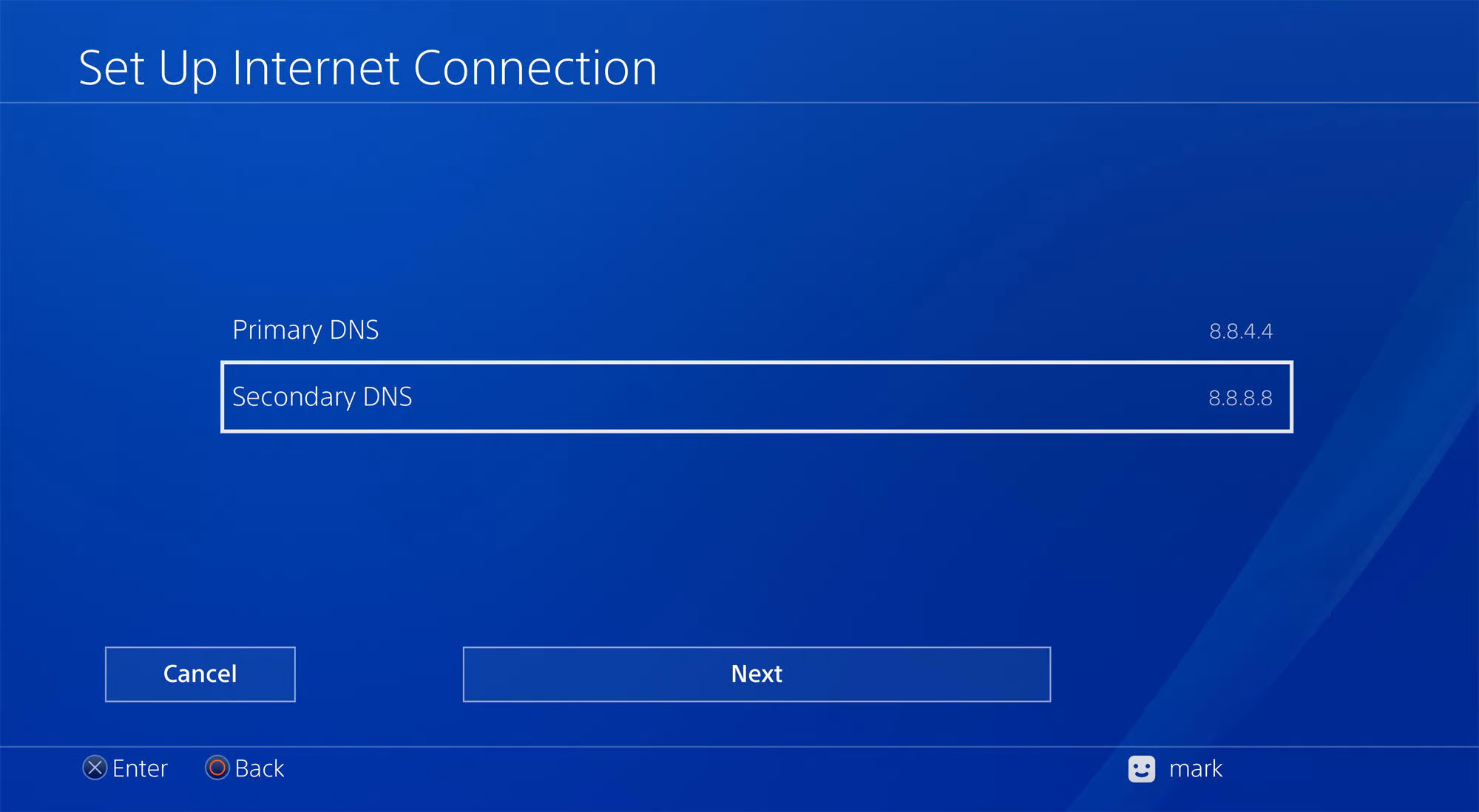
In the same settings menu, select Personalized and enter your chosen DNS servers’ addresses:
- Primary/Preferred: [Insert preferred DNS server’s primary address]
- Secondary/Alternative: [Insert preferred DNS server’s secondary address]
Step 3: Confirm Your Connection Settings
Make sure to check that you’ve updated the correct settings by going to Settings > Network > Check Connection Internet.
If everything is set up correctly, your PS4 should be using the new DNS servers. If not, follow these steps again or consult your router’s documentation for more assistance.
Troubleshooting Tips
If your gaming experience doesn’t improve after setting up a better DNS server, consider troubleshooting by:
- Switching to Cable Internet: Try switching from Wi-Fi to cable internet to reduce lag.
- Adjusting Nat Type: Check your PS4’s NAT type and adjust it if necessary (this might require consulting other guides).
- Contacting Your Isp: Reach out to your internet service provider for help resolving connectivity issues.
Conclusion
By following these simple steps and choosing the right DNS servers, you can enhance your gaming experience on PS4 and reduce laggy connections. Happy gaming!
How to Take Advantage of Enhanced Dns Performance
To get the most out of your improved DNS setup:
- Regularly check for software updates to ensure you have the latest features.
- Experiment with different DNS servers to find the best fit for your needs.
- Consider using a VPN (Virtual Private Network) for added security and anonymity.


