
Locating a Mobile Phone With Google: A Step-by-step Guide
In today’s digital age, losing your mobile phone can be a frustrating experience. However, with the help of Google, you can easily locate your device using various methods. In this article, we will guide you through the process of locating a mobile phone with Google.
Why Use Google to Locate Your Phone?
Google offers a range of tools and services that make it easy to locate your lost or misplaced phone. By using these tools, you can avoid the hassle and expense of replacing your device. Moreover, Google’s services provide an added layer of security, allowing you to remotely lock or wipe your data if needed.
Requirements For Locating Your Phone With Google
Before we dive into the process, make sure that your mobile phone has been configured with a Google account. You should also ensure that:
- The device is running on Android 3.0 (Honeycomb) or later.
- The Google Play Services and Google Framework are installed and active on the device.
- The “Find My Device” system is enabled.
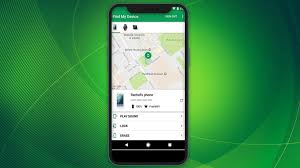
Method 1: Locating Your Phone With Google’s Find My Device Service
If you have a Google account configured on your phone, you can use the “Find My Device” service to locate it. Here’s how:
- Open the Google Settings app on another Android device.
- Select the option “Find my device.”
- Enter the email address and password associated with your Google account.
- If multiple devices are linked to your account, select the one you want to locate.
Once completed, you will be able to see the location of your phone on a map. You can also use this service to remotely lock or wipe your device if needed.
Method 2: Locating Your Phone With Google Maps
You can also use Google Maps to locate your phone. Here’s how:
- Open the Google Maps app on another Android device.
- Select the option “Your location” and then choose “Find my device.”
- Enter the email address and password associated with your Google account.
- If multiple devices are linked to your account, select the one you want to locate.
Google Maps will show you the last known location of your phone on a map. You can also use this service to get directions to your phone’s location.
Method 3: Locating Your Phone With Google Search
You can also search for your phone’s number on Google to see if anyone has left any information about its location. Simply type the phone number into the search bar and press enter. If someone has shared information about the device, you may be able to find it.
Method 4: Locating Your Phone With Icloud (for Iphone Users)
If you have an iPhone configured with a Google account, you can use iCloud to locate your device. Here’s how:
- Go to the iCloud website on a computer or another Android device.
- Sign in with your Apple ID and password.
- Select the option “Find My” and then choose “All Devices.”
- Enter the email address and password associated with your Google account.
ICloud will show you the last known location of your iPhone on a map. You can also use this service to remotely lock or wipe your device if needed.
Conclusion
Locating your mobile phone with Google is a straightforward process that requires minimal technical expertise. By following the steps outlined in this article, you can easily find your device using various methods. Whether you’re looking to locate your phone for personal or professional reasons, these tools will help you get back up and running quickly.
Faqs
Here are some frequently asked questions about locating a mobile phone with Google:
- What Are The Requirements For Using Google’s Find My Device Service?
The device must be configured with a Google account, and the “Find My Device” system must be enabled. - Can I Use Google Maps to Locate my Iphone?
No, you cannot use Google Maps to locate an iPhone. You can use iCloud or another method outlined in this article instead. - How do I Locate a Phone if It’s Not Connected to The Internet?
If your phone is not connected to the internet, you may not be able to locate it using Google’s Find My Device service. However, you can try contacting your carrier for assistance or attempting to connect the device to Wi-Fi. - Can I Remotely Lock my Phone if Someone Finds It?
Yes, you can use Google’s Find My Device service to remotely lock your device if needed. This will help prevent unauthorized access to your data.
Table of Contents


