
How to Change Your Facebook Profile Picture Without Disturbing Your Friends
Are you tired of using the same old profile picture on Facebook, but don’t want to disturb your friends with a new update? Look no further! In this article, we’ll guide you through the simple process of changing your Facebook profile picture without making it seem like a big deal.
Why Change Your Profile Picture?
Before we dive into the nitty-gritty of changing your profile picture, let’s talk about why you might want to do so in the first place. Maybe you’ve got a new haircut or a fresh tan, and you want to show off your improved looks on Facebook. Or perhaps you’re just feeling like a change, and you want to mix things up a bit.
Whatever your reason for wanting to change your profile picture, we’re here to help. And the best part? It’s incredibly easy!
How to Change Your Profile Picture on Facebook
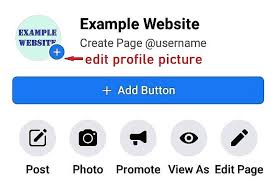
Changing your profile picture on Facebook is a breeze, whether you’re using a smartphone or a computer. Here’s how to do it:
Smartphone And Tablet:
- Open the Facebook app on your smartphone or tablet.
- Tap on your profile picture in the top right corner of the screen.
- Choose “Update Profile Picture” from the menu.
- Select a new photo from your gallery or take a new one using your device’s camera.
- Crop and edit your photo as needed.
- Save your changes.
Pc:
- Open Facebook on your computer and log in to your account.
- Click on your profile picture at the top right corner of the screen.
- Choose “Update Profile Picture” from the menu.
- Select a new photo from your gallery or take a new one using your device’s camera.
- Crop and edit your photo as needed.
- Save your changes.
How to Change Your Profile Picture Without Making it Seem Like a Big Deal
Now that we’ve covered how to change your profile picture, let’s talk about how to do so without making it seem like a big deal. The last thing you want is for all your friends to see a new profile picture and think, “Wow, [Your Name] has changed their profile picture again!”
Here are a few tips on how to make changing your profile picture less noticeable:
- Don’t Share an Update with your change. If you don’t share an update with your change, it won’t show up in the news feed of your friends.
- Only Share With Close Friends if you must. If you have a few close friends who might be interested in seeing your new profile picture, consider sharing it with them individually.
Why You Might Want to Change Your Profile Picture
As we mentioned earlier, there are plenty of reasons why you might want to change your Facebook profile picture. Here are just a few:
- New Hairstyle or Makeup – If you’ve got a fresh new look, why not show it off on Facebook?
- Special Occasion – Maybe you’re celebrating a birthday, anniversary, or other special occasion, and you want to commemorate the event with a new profile picture.
- Just For Fun – Let’s face it: Changing your profile picture is just plain fun!
Conclusion
Changing your Facebook profile picture is easy peasy, whether you’re using a smartphone or computer. And by following our tips on how to change your profile picture without making it seem like a big deal, you can make the process even less stressful.
So go ahead and give your Facebook profile picture a fresh new look – your friends will barely even notice!
Frequently Asked Questions (FAQs)
- Q: How do I Change my Facebook Profile Picture?
A: Changing your Facebook profile picture is easy! Just follow the steps outlined above. - Q: Can I Change my Profile Picture Without Sharing an Update With my Friends?
A: Yes, you can! By not sharing an update with your change, it won’t show up in the news feed of your friends. - Q: Why Should I Change my Facebook Profile Picture?
A: There are plenty of reasons why you might want to change your Facebook profile picture – new hairstyle or makeup, special occasion, just for fun! - Q: How do I Make Changing my Profile Picture Less Noticeable?
A: By not sharing an update with your change and only sharing it with close friends if necessary. - Q: Can I Use a Old Profile Picture on Facebook?
A: Yes, you can! You can reuse a previous profile picture by selecting it from the “Images” album.


