
How to Capsize Pin Sim on Iphone: A Step-by-step Guide
Are you tired of struggling to remember your PIN SIM on iPhone? Do you find it difficult to agree with the code, especially when you have so many passwords and codes to keep track of? Well, you’re in luck! Today, we’ll show you how to capsize the PIN SIM on your iPhone with ease.
Why Modify The Pin Sim on Your Iphone?
Modifying the PIN SIM on your iPhone is a simple way to avoid unnecessary losses of time when trying to agree with it. By changing the code to one that’s easier for you to remember, you’ll save yourself from frustration and wasted minutes searching for the correct combination.
How to Capsize The Pin Sim on Your Iphone
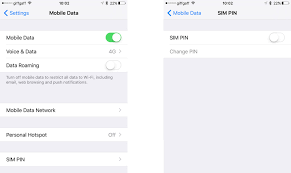
To capsize the PIN SIM on your iPhone, follow these easy steps:
- Access The Settings App: First, take your iPhone and access the Settings app.
- Tap on Cellular Voice: Scroll down and tap on the “Cellular” voice (or “Phone” if you’re using an older version of iOS).
- Select Pin Sim: Tap on the option that says “PIN SIM”.
- Capsize Pin: Tap on “Capsize PIN”, then enter your current PIN and tap on “Fine”.
- Enter New Pin: Enter the new code you want to use as your PIN SIM, and tap on “Fine” again.
That’s it! You’ve successfully modified your PIN SIM on your iPhone.
How to Disable The Pin Sim on Your Iphone
If you don’t want to capsize the PIN SIM but instead disable its use on your iPhone and SIM card, follow these steps:
- Access Settings: Access the Settings app on your iPhone.
- Tap on Cellular Voice: Scroll down and tap on the “Cellular” voice (or “Phone” if you’re using an older version of iOS).
- Select Pin Sim: Tap on the option that says “PIN SIM”.
- Disable Pin Sim: Swipe left on the toggle next to “PIN SIM”, then tap on “Disable”.
How to Recover Your Pin Sim on Iphone
If you’ve forgotten your PIN SIM and can’t recover it, don’t worry! Here are a few steps you can take:
- Check The Packaging: Check the packaging of your SIM card for the default PIN code.
- Contact Your Service Provider: Contact your service provider’s customer support team to see if they can help you recover your PIN SIM.
Alternative Methods to The Code Pin on Iphone
If you’re looking for alternative methods to protect your iPhone, consider using a biometric unlock method like Face ID or Touch ID. This will make it even easier to access your device without needing to remember a code.
How to Disable Face ID or Touch ID on Your Iphone
To disable Face ID or Touch ID on your iPhone, follow these steps:
- Access Settings: Access the Settings app on your iPhone.
- Tap on Face ID & Code (or Touch ID & Passcode): Scroll down and tap on the option that says “Face ID & Code” (or “Touch ID & Passcode”).
- Disable Face ID or Touch ID: Swipe left on the toggle next to “Face ID” (or “Touch ID”), then tap on “Disable”.
How to Recover Your Iphone With a Puk
If you’ve entered an incorrect PIN SIM three times and your device has become locked, don’t worry! You can try to recover it using a PUK code.
- Find The Puk Code: Check your packaging or online account for the default PUK code.
- Insert The Puk Code: Enter the PUK code on your iPhone and follow the prompts to unlock your device.
What to Do If Your Iphone is Definitely Locked?
If none of the above steps work, and you’re unable to recover your PIN SIM or unlock your iPhone, it’s likely that your device has become permanently locked. In this case, your only option may be to visit an Apple Store for assistance.
By following these simple steps, you’ll be able to capsize, disable, or recover your PIN SIM on your iPhone with ease.


