
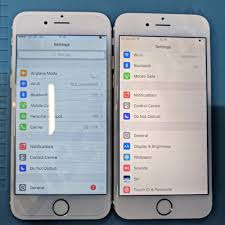
How to Duplicate Your Iphone’s Monitor on a Computer or TV
Are you tired of having to physically switch between your iPhone and computer to work on presentations, watch videos, or show off new apps? Do you want to be able to project your iPhone’s screen onto a larger display, like a TV or computer monitor? Look no further! In this article, we’ll guide you through the various ways to duplicate your iPhone’s monitor on a computer or TV.
Why Duplicate Your Iphone’s Monitor?
There are many reasons why you might want to duplicate your iPhone’s monitor. Perhaps you’re working on a presentation and want to show off some cool new features of an app, but don’t have time to physically switch between devices. Or maybe you just want to be able to watch videos or TV shows on a larger screen without having to get up from the couch.
Method 1: Teamviewer
TeamViewer is a popular remote desktop software that allows you to control and view another device’s screen remotely. And it just so happens that TeamViewer has an app for iPhone! Here’s how to use it:
- Download the TeamViewer app on your iPhone
- Download the full client version of TeamViewer on your computer (available for Windows or Mac)
- Launch TeamViewer on your computer and enter the ID code displayed on your iPhone
- On your iPhone, launch the QuickSupport app and tap “Connect”
- Enter the password displayed on your computer screen to authorize the connection
Voilà! Your iPhone’s monitor should now be duplicated on your computer. To end the session, simply click “End Session” in TeamViewer.
Method 2: Reflector
Reflector is a program that turns your computer into an AirPlay receiver, allowing you to mirror your iPhone or iPad screen onto a larger display. Here’s how to use it:
- Download Reflector on your computer (available for Windows or Mac)
- Launch Reflector and select the “Try” option to get started
- On your iPhone, go to Settings > AirPlay & Handoff and select “Reflector”
- Select your computer from the list of available devices
- Enter the password displayed on your computer screen to authorize the connection
Your iPhone’s monitor should now be duplicated on your computer. To end the session, simply click “Stop” in Reflector.
Method 3: Airplay
If you have a Mac equipped with macOS 12 Monterey or later, and an iPhone running iOS 14 or later, you can use AirPlay to duplicate your iPhone’s monitor onto your Mac. Here’s how:
- Make sure both devices are connected to the same Wi-Fi network
- Go to Settings > Control Center on your iPhone and select “Screen Mirroring”
- Select your Mac from the list of available devices
- Enter the password displayed on your Mac screen to authorize the connection
Your iPhone’s monitor should now be duplicated on your Mac.
Method 4: Quicktime Player
If you have a Mac, you can also use QuickTime Player to record or view your iPhone’s screen. Here’s how:
- Connect your iPhone to your Mac using a Lightning cable
- Launch QuickTime Player and select “File” > “New Movie Recording”
- Select your iPhone as the camera source and start recording
Your iPhone’s monitor should now be duplicated on your Mac, allowing you to record or view it.
Method 5: Chromecast
If you have a Chromecast device connected to your TV, you can use it to duplicate your iPhone’s screen onto a larger display. Here’s how:
- Download the Retort app on your iPhone (available for free from the App Store)
- Launch Retort and select “Screen Mirroring”
- Select your Chromecast device from the list of available devices
- Enter the password displayed on your TV screen to authorize the connection
Your iPhone’s monitor should now be duplicated on your TV. To end the session, simply click “Stop” in Retort.
Method 6: Hdmi Cable
If you prefer a more traditional approach, you can use an HDMI cable to connect your iPhone directly to your TV or computer monitor. Here’s how:
- Purchase an Apple Lightning Digital AV Adapter
- Connect your iPhone to the adapter using a Lightning cable
- Connect the other end of the adapter to an HDMI cable
- Plug the other end of the HDMI cable into your TV or computer monitor
Your iPhone’s monitor should now be duplicated on your larger display.
Conclusion
Duplicating your iPhone’s monitor onto a computer or TV is easier than you think! With TeamViewer, Reflector, AirPlay, QuickTime Player, Chromecast, and an HDMI cable as options, you can choose the method that best suits your needs. Whether you’re working on presentations, watching videos, or just want to show off some cool new features of an app, duplicating your iPhone’s monitor is a great way to enhance your viewing experience.
Frequently Asked Questions (FAQs)
Q: What are the system requirements for TeamViewer?
A: TeamViewer requires a computer with Windows 10 or macOS High Sierra or later, as well as an iPhone running iOS 11 or later.
Q: Can I use Reflector on both Windows and Mac computers?
A: Yes! Reflector is available for both Windows and Mac computers.
Q: Do I need to have a Mac to use AirPlay?
A: No! As long as your iPhone is connected to the same Wi-Fi network, you can use AirPlay to duplicate your iPhone’s monitor onto any device running macOS 12 Monterey or later.
Q: Can I record my iPhone’s screen using QuickTime Player?
A: Yes! QuickTime Player allows you to record your iPhone’s screen for up to an hour at a time.
Q: Is Chromecast compatible with iOS devices?
A: No, unfortunately not. However, you can use the Retort app (available for free from the App Store) to duplicate your iPhone’s monitor onto a larger display using Chromecast.
Q: Can I connect my iPhone directly to my TV or computer monitor using an HDMI cable?
A: Yes! Using an Apple Lightning Digital AV Adapter and an HDMI cable, you can connect your iPhone directly to your TV or computer monitor.


