
How to Erase Chronology Google Chrome Automatically
Are you concerned about your online privacy? Do you want to ensure that someone can’t access your computer activity without your knowledge? If so, this article is for you. Here’s a step-by-step guide on how to erase chronology Google Chrome automatically.
Understanding The Basics of Google Chrome’s Incognito Mode
Google Chrome’s incognito mode allows users to browse privately by deleting all browsing history, cookies, and other data after each session. This means that no one can access your browsing activity without your permission. To activate incognito mode on a computer, click on the three dots in the top-right corner of the browser window and select “New incognito window.”
Erasing Chronology Google Chrome Automatically
There are two ways to erase chronology Google Chrome automatically:
- Using Incognito Mode: As mentioned earlier, using incognito mode will delete all browsing history, cookies, and other data after each session.
- Configuring Browser Settings: You can also configure your browser settings to automatically clear browsing history, cookies, and other data at the end of each session.
Step-by-step Guide: Erasing Chronology Google Chrome Automatically
Here’s a step-by-step guide on how to erase chronology Google Chrome automatically using both methods:
Method 1: Using Incognito Mode
To use incognito mode, follow these steps:
- Open Google Chrome on your computer or mobile device.
- Click on the three dots in the top-right corner of the browser window and select “New incognito window.”
- The incognito window will open with a dark-colored theme to indicate that it’s private browsing.
Method 2: Configuring Browser Settings
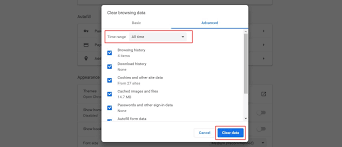
To configure your browser settings to automatically clear browsing history, cookies, and other data at the end of each session, follow these steps:
- Open Google Chrome on your computer or mobile device.
- Click on the three dots in the top-right corner of the browser window and select “Settings.”
- Scroll down to the “Advanced” section and click on it.
- Look for the “Clear browsing data on exit” option and toggle it on.
Additional Tips
Here are some additional tips to help you maintain your online privacy:
- Use a Vpn: Consider using a virtual private network (VPN) to encrypt your internet traffic and protect your online activity from hackers.
- Update Your Browser: Regularly update your browser to ensure that you have the latest security patches and features.
- Be Cautious With Cookies: Be mindful of cookies, which can track your browsing history. Use a cookie manager or block cookies altogether if you’re concerned about privacy.
Conclusion
Erasing chronology Google Chrome automatically is an effective way to protect your online privacy. By using incognito mode or configuring browser settings, you can ensure that no one can access your browsing activity without your permission. Remember to stay vigilant and take additional measures to maintain your online security.
Frequently Asked Questions (FAQs)
Here are some frequently asked questions about erasing chronology Google Chrome automatically:
- Q: What is Incognito Mode?
A: Incognito mode allows users to browse privately by deleting all browsing history, cookies, and other data after each session. - Q: How do I Use Incognito Mode on Google Chrome?
A: To use incognito mode, click on the three dots in the top-right corner of the browser window and select “New incognito window.” - Q: Can I Configure my Browser Settings to Automatically Clear Browsing History, Cookies, And Other Data at The End of Each Session?
A: Yes, you can configure your browser settings to automatically clear browsing history, cookies, and other data at the end of each session. - Q: What Are Some Additional Tips For Maintaining Online Privacy?
A: Consider using a VPN, updating your browser regularly, and being cautious with cookies.
Bonus Information
Here’s some bonus information on how to use Google Chrome’s incognito mode:
- To close an incognito window, simply click the “X” button in the top-right corner of the window.
- If you’re using multiple incognito windows, you can quickly switch between them by clicking the incognito icon in the browser toolbar.
Sources
If you’d like to learn more about online privacy and security, here are some reputable sources:
- Google Chrome’s Privacy Policy: Learn more about Google Chrome’s commitment to user privacy.
- The Official Google Blog: Stay up-to-date on the latest news and developments from Google.
- Wikipedia’s Article on Incognito Mode: Get a comprehensive overview of incognito mode and its features.


