
How to Hibernate Windows 7: A Comprehensive Guide
In today’s world, energy efficiency is a crucial concern for individuals and businesses alike. With the increasing demand for power, it’s essential to find ways to reduce our carbon footprint. One effective way to achieve this is by hibernating your computer, specifically Windows 7. In this article, we’ll explore what hibernation means, how it works, and provide a step-by-step guide on how to enable and disable this feature.
What is Hibernation?
Hibernation, also known as suspend-to-disk or S3, is a power-saving mode that allows your computer to conserve energy by freezing its activity and storing the current state in memory. When you put your computer in hibernate mode, it saves the contents of RAM (Random Access Memory) to the hard disk, turns off unnecessary components, and enters a low-power state. This way, when you restart your computer, it will resume from the exact point where you left off.
Benefits of Hibernation
Hibernation offers several benefits, including:
- Reduced energy consumption
- Increased battery life (for laptops)
- Improved system performance
- Simplified data recovery
How to Hibernate Windows 7
To hibernate Windows 7, follow these steps:
- Click on the Start button and select “Control Panel.”
- Choose “System and Safety” from the menu.
- Select “Power Options” and click on “Change Plan Settings.”
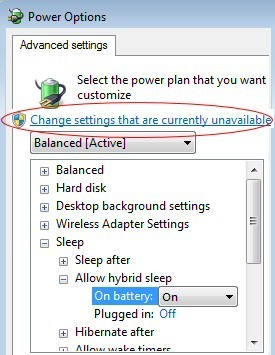
- In the Power Options window, click on “Change Advanced Power Settings.”
- Under “Sleep,” select “Allow hybrid sleep” and set the time to 0 minutes.
- Click “Apply” and then “OK” to save your changes.
Disabling Hibernation
If you need to disable hibernation for any reason, follow these steps:
- Open the Power Options window (as described above).
- Under “Sleep,” uncheck the box next to “Allow hybrid sleep.”
- Click “Apply” and then “OK” to save your changes.
Conclusion
Hibernating your Windows 7 computer is a simple yet effective way to reduce energy consumption and prolong battery life. By following these steps, you can enable or disable hibernate mode as needed. Remember to always check the Power Options window for any changes made to the system’s power settings.
Frequently Asked Questions (FAQs)
-
What is The Difference Between Sleep And Hibernation?
Sleep mode puts your computer in a low-power state, while hibernation saves the contents of RAM to the hard disk.
2. Can I Use Both Sleep And Hibernate Modes Together?Yes, Windows 7 allows you to enable both sleep and hibernate modes simultaneously.
3. How do I Wake up my Computer From Hibernation?To wake up your computer from hibernation, simply press the power button or any other key on your keyboard.
4. Can I Schedule Hibernation to Occur at a Specific Time?Yes, you can set Windows 7 to hibernate at a specific time by using the “Scheduled Tasks” feature in the Control Panel.
Conclusion
In conclusion, hibernating your Windows 7 computer is a simple and effective way to reduce energy consumption. By following these steps, you can enable or disable hibernate mode as needed. Remember to always check the Power Options window for any changes made to the system’s power settings.


