
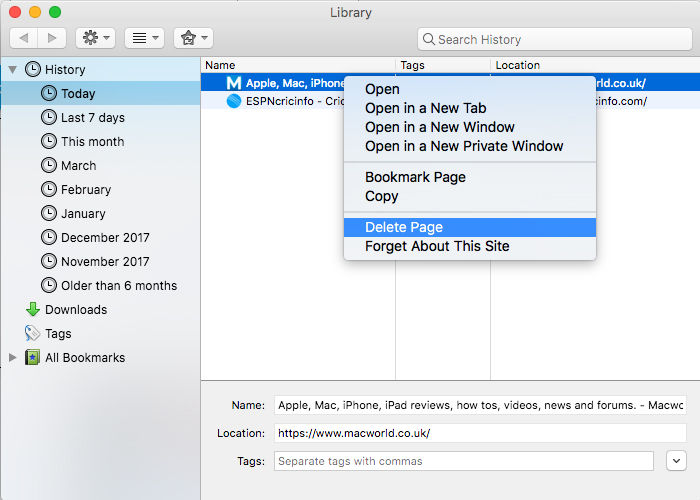
How to Delete Browsing History on Different Web Browsers
Are you tired of having your browsing history stored on your computer or mobile device? Do you want to keep your online activities private? Look no further! In this article, we will guide you through the process of deleting browsing history on different web browsers.
Understanding Browsing History
Before we dive into the step-by-step instructions, it’s essential to understand what browsing history is. Browsing history refers to the list of websites you have visited on your computer or mobile device. This information can be stored on your device, making it accessible to anyone who uses your device.
Why Delete Browsing History?
There are several reasons why you might want to delete your browsing history:
- Privacy: You might not want others to know what websites you’ve visited.
- Space: Storing browsing history can take up valuable space on your device.
- Security: Deleting browsing history can help protect against malware and other online threats.
Deleting Browsing History on Google Chrome
Google Chrome is one of the most popular web browsers, and deleting its browsing history is a straightforward process:
- Open Google Chrome on your computer or mobile device.
- Click on the three dots in the top right corner of the browser window.
- Select “Settings” from the drop-down menu.
- Scroll down to the “Advanced” section and click on “Clear browsing data.”
- Choose the types of data you want to delete, such as browsing history, cookies, and cached images and files.
- Select the time range for which you want to delete the data (e.G., Last hour, last day, etc.).
- Click on “Clear data” to confirm.
Deleting Browsing History on Mozilla Firefox
Mozilla Firefox is another popular web browser that allows users to delete their browsing history:
- Open Mozilla Firefox on your computer or mobile device.
- Click on the three horizontal lines in the top right corner of the browser window.
- Select “Options” from the drop-down menu.
- Scroll down to the “Advanced” section and click on “Clear recent history.”
- Choose the types of data you want to delete, such as browsing history, cookies, and cached images and files.
- Select the time range for which you want to delete the data (e.G., Last hour, last day, etc.).
- Click on “Clear Now” to confirm.
Deleting Browsing History on Safari
Safari is a popular web browser for Mac users:
- Open Safari on your Mac.
- Click on the “Safari” menu at the top of the screen.
- Select “Preferences” from the drop-down menu.
- Click on the “Advanced” tab.
- Scroll down to the bottom of the page and click on “Show Develop menu in menu bar.”
- Click on the “Develop” menu at the top of the screen.
- Select “Empty Caches” from the drop-down menu.
Deleting Browsing History on Mobile Devices
Deleting browsing history on mobile devices is a similar process:
- Open your web browser (e.G., Google Chrome, Mozilla Firefox, etc.) On your mobile device.
- Tap on the three dots in the top right corner of the screen.
- Select “Settings” from the drop-down menu.
- Scroll down to the “Advanced” section and click on “Clear browsing data.”
- Choose the types of data you want to delete, such as browsing history, cookies, and cached images and files.
- Select the time range for which you want to delete the data (e.G., Last hour, last day, etc.).
- Click on “Clear data” to confirm.
Conclusion
Deleting browsing history is a simple process that can help protect your online privacy and security. Whether you use Google Chrome, Mozilla Firefox, Safari, or another web browser, following these step-by-step instructions will guide you through the process of deleting your browsing history.
Frequently Asked Questions
- Q: Why do I Need to Delete my Browsing History?
A: Deleting your browsing history can help protect your online privacy and security. - Q: How Often Should I Delete my Browsing History?
A: You can delete your browsing history as frequently or infrequently as you like, depending on your needs. - Q: Can I Delete Specific Websites From my Browsing History?
A: Yes, most web browsers allow you to delete specific websites from your browsing history. - Q: Will Deleting my Browsing History Affect Any of my Online Accounts?
A: Deleting your browsing history should not affect any of your online accounts or login credentials.


