
Protecting Your Files: A Comprehensive Guide
As a computer user, you often find yourself in situations where you need to share sensitive information with others. However, sharing files can also pose a risk of data compromise if not done properly. In this article, we will explore various ways to protect your Word documents from unauthorized modifications and visualizations.
Why Protect Your Files?
Protecting your files is essential to prevent unwanted access or modification by unauthorized individuals. This is especially true when dealing with sensitive information such as business proposals, financial reports, or confidential communications.
Microsoft Word: The First Line of Defense
When it comes to protecting your Word documents, Microsoft Word offers a robust feature set that allows you to safeguard your files from unauthorized modifications and visualizations.
Step-by-step Guide to Protecting Your Word Documents With Microsoft Word
- Open The File: Open the Word document you wish to protect.
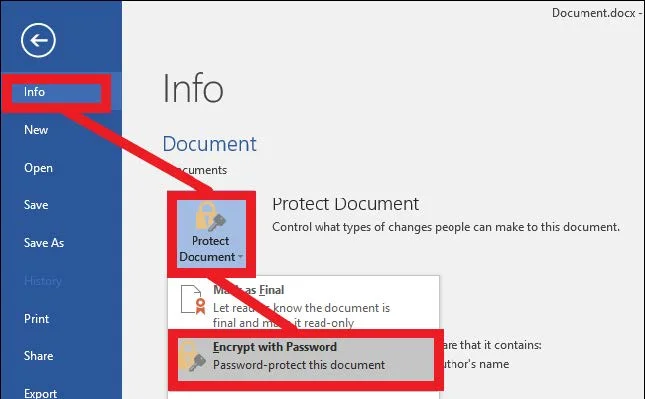
- Go to The “File” Tab: Click on the “File” tab in the top left corner of the screen.
- Click on “Protect Document”: In the menu that appears, click on “Protect Document”.
- Choose a Protection Option: Select either “Encrypt with Password” or “Restrict Access” to protect your file.
Other Software Options For Protecting Word Documents
While Microsoft Word offers robust protection features, other software options can also be used to safeguard your files.
- Libreoffice: This free and open-source office suite allows you to add a password to protect your Word documents.
- Pages: Apple’s Pages app on macOS and iOS devices enables you to set a password to lock your document.
- Documents Google: Google’s cloud-based service allows you to share files with others while controlling access permissions.
Protecting Files With Libreoffice
To protect a Word document using LibreOffice:
- Open The File: Open the Word document in LibreOffice Writer.
- Go to “File” > “Save As”: Click on “File” and then select “Save As”.
- Choose a Location: Save the file in a secure location.
- Add a Password: Add a password to protect the file.
Protecting Files With Pages
To protect a Word document using Pages:
- Open The File: Open the Word document in Pages.
- Click on “File” > “Lock”: Click on “File” and then select “Lock”.
- Add a Password: Add a password to lock the file.
Protecting Files With Google Documents
To protect a Word document using Google Documents:
- Open The File: Open the Word document in Google Documents.
- Click on “File” > “Share”: Click on “File” and then select “Share”.
- Choose Access Permissions: Select who can access the file.
Conclusion
Protecting your files is essential to prevent unauthorized modifications or visualizations. By following these steps using Microsoft Word, LibreOffice, Pages, and Google Documents, you can safeguard your sensitive information from unwanted access.
Frequently Asked Questions (FAQs)
- Q: Why do I Need to Protect my Files?
A: Protecting your files is essential to prevent unauthorized modifications or visualizations of sensitive information. - Q: How do I Protect a Word Document With Microsoft Word?
A: To protect a Word document using Microsoft Word, go to the “File” tab and click on “Protect Document”. - Q: Can I Use Other Software Options to Protect my Files?
A: Yes, you can use LibreOffice, Pages, and Google Documents to protect your files. - Q: How do I Add a Password to Protect my File With Microsoft Word?
A: To add a password using Microsoft Word, go to the “File” tab and click on “Protect Document”, then select “Encrypt with Password”. - Q: Can I Limit Modifications to Specific Parts of my Document?
A: Yes, you can use the “Limit modification” feature in Microsoft Word to restrict changes to certain areas of your document. - Q: How do I Protect a File From Unauthorized Access Using Google Documents?
A: To protect a file using Google Documents, go to the “File” tab and click on “Share”, then select who can access the file. - Q: Can I Use Mobile Devices to Protect my Files?
A: Yes, you can use mobile apps such as Microsoft Word, LibreOffice Collaborate Office, Pages, and Google Documents to protect your files. - Q: How do I Remove Protection From a File Once It’s Been Locked?
A: To remove protection from a file using Microsoft Word, go to the “File” tab and click on “Protect Document”, then select “Remove Protection”.


