
How to Block Unwanted Facebook Applications
Are you tired of receiving notifications from unwanted Facebook applications on your phone or computer? Do you want to revoke access to external services connected to your Facebook account? Look no further! In this guide, we will walk you through the steps to block unwanted Facebook applications and protect your personal information.
Why Block Unwanted Facebook Applications?
Blocking unwanted Facebook applications is essential for several reasons:
- Protect Your Personal Information: By blocking unwanted applications, you prevent them from accessing your personal data on Facebook.
- Reduce Notifications: Blocking notifications from unwanted applications will help declutter your newsfeed and reduce distractions.
- Enhance Security: Revoking access to external services connected to your Facebook account ensures that your information is not shared with unauthorized parties.
How to Block Unwanted Facebook Applications on Your Smartphone or Tablet
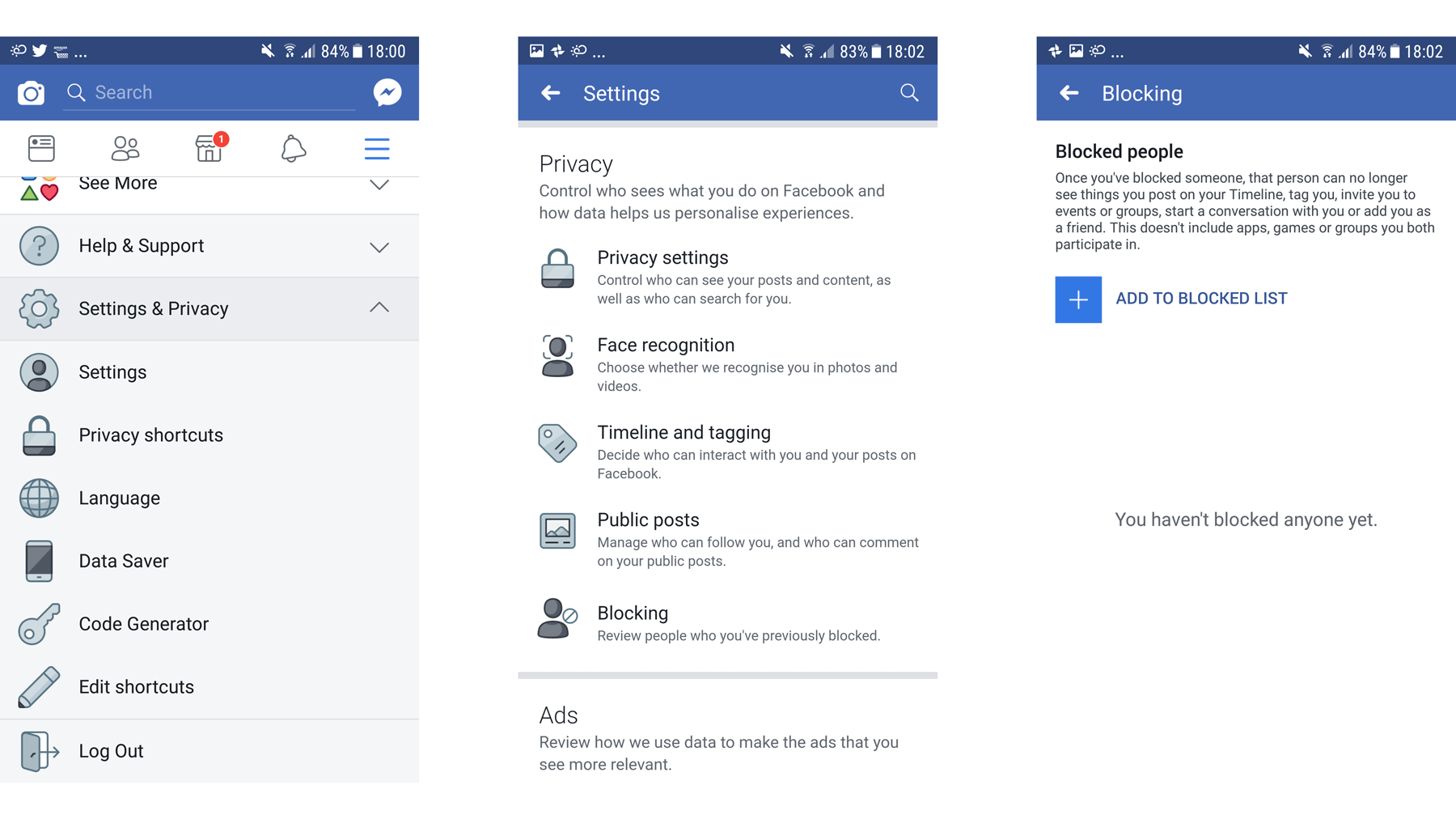
To block unwanted Facebook applications on your smartphone or tablet:
- Open the Facebook app and tap on the Menu button (represented by three horizontal lines) at the top right corner of the screen.
- Select “Settings” from the menu options.
- Tap on “Account Settings” and then select “App and Websites.”
- Review the list of applications connected to your Facebook account. You can choose to block specific apps or disable notifications from all apps.
How to Block Unwanted Facebook Applications on Your Computer
To block unwanted Facebook applications on your computer:
- Log in to your Facebook account using a web browser.
- Click on your profile picture at the top right corner of the screen and select “Settings.”
- From the menu options, click on “Account Settings” and then select “App and Websites.”
- Review the list of applications connected to your Facebook account. You can choose to block specific apps or disable notifications from all apps.
Understanding The Authorization Process
When you connect an app or website to your Facebook account, it requires authorization to access certain information, such as:
- Your personal details
- Friends’ lists
- Contact information
If you want to revoke access, select “Remove” in the respective section. Be aware that this may impact any existing integrations with those apps.
Revoking Authorization
To completely remove an app or website’s access to your Facebook account:
- Navigate to the “App and Websites” page.
- Locate the specific app or website you want to revoke access for.
- Click on the three dots beside it and select “Remove.”
- Confirm the removal by clicking “Remove” again.
Temporary Vs. Permanent Removal
The difference between temporary and permanent removal lies in the duration of deactivation:
- Temporary removal only blocks notifications from specific apps, but does not revoke overall access.
- Permanent removal revokes access to the app or website entirely.
Revoking Access For All Apps
If you want to completely remove all app and website access from your Facebook account, follow these steps:
- Navigate to the “App and Websites” page.
- Click on the three dots beside the “Remove” button.
- Select “Revoke all apps.”
Can I Re-enable Access Later?
Yes, you can re-enable access later by following similar steps as above.
Security Tips And Best Practices
- Regularly review your app and website connections to ensure they align with your preferences.
- Consider using third-party browser extensions or apps that help monitor and control data sharing.
By following this guide, you’ll be able to protect yourself from unwanted Facebook applications and maintain a safe online environment.


