
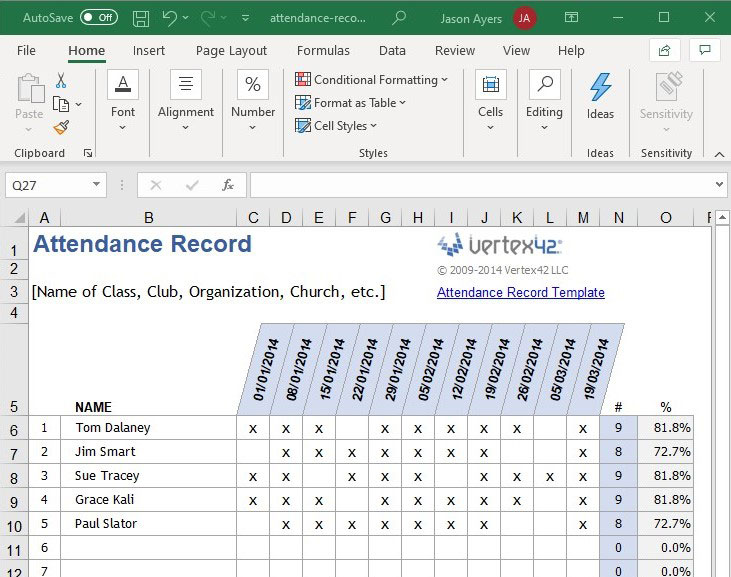
Creating a Book Soci With Excel: A Comprehensive Guide
As an association leader, managing the details of your members can be a daunting task. From keeping track of their information to ensuring compliance with regulations, it’s essential to have a clear and organized system in place. In this article, we’ll explore how to create a Book Soci with Excel, a powerful tool that can help you streamline your member management process.
What is a Book Soci?
A Book Soci, also known as a membership book or register, is a document that contains essential information about each member of an association. This includes details such as name, surname, date and place of birth, address, fiscal code, role, and dates of annual quota payments and registration.
Why Create a Book Soci With Excel?
Using Excel to create a Book Soci offers several advantages:
- Efficient Data Management: With Excel’s powerful filtering and sorting capabilities, you can quickly find specific information or track changes.
- Customization: You can tailor the format and layout of your Book Soci to meet your association’s unique needs.
- Easy Sharing And Collaboration: Share your Book Soci with other members of your association or stakeholders using Excel’s built-in sharing features.
Getting Started With Creating a Book Soci in Excel
To create a Book Soci in Excel, follow these steps:
- Download And Install Excel: If you haven’t already done so, download and install the latest version of Excel from Microsoft’s website.
- Open Excel And Create a New File: Launch Excel and click on “File” > “New” to create a new blank workbook.
- Set up The Header Rows: In the first row, enter the column headers for each member’s information, such as name, surname, date and place of birth, address, fiscal code, role, dates of annual quota payments and registration.
- Add Columns For Quotas And Other Relevant Data: Include columns for tracking quotas, membership status, and any other relevant information specific to your association.
- Format The Cells: Use Excel’s formatting options to make the data more readable and visually appealing.
Creating a Book Soci With Excel Online
If you don’t have access to a desktop computer or prefer working online, you can create a Book Soci using Excel Online:
- Log in to Your Microsoft Account: Access Excel Online by signing in to your Microsoft account.
- Create a New Workbook: Click on “File” > “New” to start a new blank workbook.
- Set up The Header Rows And Columns: Follow the same steps as above to create the header rows and add relevant columns.
- Save And Download The File: Once you’ve completed your Book Soci, save it and download a copy for future reference.
Creating a Book Soci on Smartphone And Tablet
If you prefer working on-the-go, you can use the Excel app on your smartphone or tablet to create a Book Soci:
- Download And Install The Excel App: Get the Excel app from the App Store (for iOS devices) or Google Play Store (for Android devices).
- Launch The App And Create a New File: Open the app and tap “File” > “New” to start a new blank workbook.
- Set up The Header Rows And Columns: Follow the same steps as above to create the header rows and add relevant columns.
- Save And Export The File: Once you’ve completed your Book Soci, save it and export a copy for future reference.
Tips And Variations
- To make your Book Soci more comprehensive, consider adding sections for member activities, events, or meeting minutes.
- Use Excel’s conditional formatting features to highlight important information or indicate changes in membership status.
- If you have a large number of members, consider using Excel’s pivot table feature to summarize and analyze the data.
Conclusion
Creating a Book Soci with Excel is an efficient and effective way to manage your association’s member information. By following these steps and tips, you can create a comprehensive and organized system that meets your unique needs. Whether working on a desktop computer or smartphone, using Excel will help you streamline your member management process and ensure compliance with regulations.
Frequently Asked Questions (FAQs)
- Q: What is The Purpose of a Book Soci?
A: A Book Soci serves as a comprehensive document that contains essential information about each member of an association. - Q: Why Use Excel to Create a Book Soci?
A: Using Excel offers efficient data management, customization, and easy sharing and collaboration features. - Q: How do I Get Started With Creating a Book Soci in Excel?
A: Download and install Excel, open a new file, set up header rows, add columns for quotas and other relevant data, format cells, and save the file. - Q: Can I Create a Book Soci Using Excel Online?
A: Yes, log in to your Microsoft account, create a new workbook, set up header rows and columns, and save and download the file. - Q: How do I Create a Book Soci on Smartphone or Tablet?
A: Download and install the Excel app, launch it, create a new file, set up header rows and columns, and save and export the file.
I hope this helps! If you have any other questions or need further clarification, feel free to ask.


