
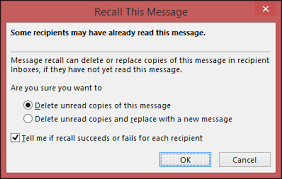
Erasing a Mail Forwarded: A Step-by-step Guide
Are you tired of accidentally sending emails that contain errors or unwanted messages? Do you wish there was a way to erase those pesky forwarded emails that seem to plague your inbox? Look no further! In this article, we’ll explore the various ways to cancel a mail forwarded on popular email services like Gmail, Outlook, Mail, and Yahoo.
Why Erase a Mail Forwarded?
Before we dive into the nitty-gritty of erasing a mail forwarded, let’s quickly discuss why it’s essential to do so. When you forward an email, it can contain errors or unwanted messages that can damage your reputation or relationships. Erasing a mail forwarded is like hitting the reset button – it allows you to start fresh and avoid any potential harm.
Erasing a Mail Forwarded on Gmail
Gmail offers a simple way to cancel a mail forwarded using its built-in features. Here’s how:
- Step 1: Log in to your Gmail account using a computer or mobile device.
- Step 2: Navigate to the settings menu by clicking on the gear icon at the top right corner of the screen.
- Step 3: Select “General” and then click on “Chronology of cancellation of the forward.”
- Step 4: Choose the time frame for cancellation (5-30 seconds) and save your changes.
- Step 5: The next time you try to forward an email, a cancel button will appear. Click on it to erase the mail forwarded.
Erasing a Mail Forwarded on Outlook
Outlook also offers a similar feature to cancel a mail forwarded. Here’s how:
- Step 1: Log in to your Outlook account using a computer or mobile device.
- Step 2: Navigate to the settings menu by clicking on the gear icon at the top right corner of the screen.
- Step 3: Select “Visualize all settings” and then click on “Compose and answer.”
- Step 4: Scroll down and select the “Cancel forward” option, choosing the time frame for cancellation (5-10 seconds).
- Step 5: Save your changes.
Erasing a Mail Forwarded on Mail
Mail offers an even more straightforward way to cancel a mail forwarded. Here’s how:
- Step 1: Open your Mail account using a Mac or iOS device.
- Step 2: Navigate to the settings menu by clicking on “Mail” and then selecting “Preferences.”
- Step 3: Select “General” and choose the time frame for cancellation (5-10 seconds).
- Step 4: The next time you try to forward an email, a cancel button will appear. Click on it to erase the mail forwarded.
Erasing a Mail Forwarded on Yahoo
Yahoo also offers a feature to cancel a mail forwarded, but it’s only available on smartphones and tablets using the Yahoo Mail app:
- Step 1: Open your Yahoo Mail account using an Android or iOS device.
- Step 2: Navigate to the settings menu by tapping on the “gear” icon at the top right corner of the screen.
- Step 3: Select “Cancel forward” and choose the time frame for cancellation (3 seconds).
- Step 4: The next time you try to forward an email, a cancel button will appear. Tap on it to erase the mail forwarded.
Conclusion
Erasing a mail forwarded is like hitting the reset button – it allows you to start fresh and avoid any potential harm. With these step-by-step guides, you can easily cancel a mail forwarded on popular email services like Gmail, Outlook, Mail, and Yahoo. Remember, prevention is key! Take control of your emails and erase those pesky forwarded messages today!
Frequently Asked Questions
-
Q: Can I Erase a Mail Forwarded on All Email Services?
A: Yes, most email services offer some form of cancellation feature for forwarded emails. -
Q: How do I Cancel a Mail Forwarded Using The Gmail App?
A: To cancel a mail forwarded on Gmail, follow these steps:- Step 1: Log in to your Gmail account.
- Step 2: Navigate to the settings menu.
- Step 3: Select “General” and choose the time frame for cancellation (5-30 seconds).
- Step 4: Save your changes.
-
Q: Can I Cancel a Mail Forwarded Using Outlook?
A: Yes, you can cancel a mail forwarded on Outlook by following these steps:- Step 1: Log in to your Outlook account.
- Step 2: Navigate to the settings menu.
- Step 3: Select “Visualize all settings” and then click on “Compose and answer.”
- Step 4: Scroll down and select the “Cancel forward” option.
-
Q: How do I Cancel a Mail Forwarded Using Mail?
A: To cancel a mail forwarded on Mail, follow these steps:- Step 1: Open your Mail account.
- Step 2: Navigate to the settings menu.
- Step 3: Select “General” and choose the time frame for cancellation (5-10 seconds).
- Step 4: Save your changes.
-
Q: Can I Cancel a Mail Forwarded Using Yahoo?
A: Yes, you can cancel a mail forwarded on Yahoo by following these steps:- Step 1: Open your Yahoo Mail account.
- Step 2: Navigate to the settings menu.
- Step 3: Select “Cancel forward” and choose the time frame for cancellation (3 seconds).
- Step 4: Save your changes.
-
Q: How Long Does it Take to Cancel a Mail Forwarded?
A: The time it takes to cancel a mail forwarded varies depending on the email service you use. -
Q: Can I Cancel a Mail Forwarded Manually?
A: Yes, most email services allow you to cancel a mail forwarded manually by deleting the original message and then forwarding the new message.


