
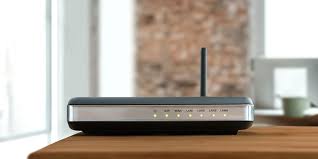
Utilizing an Old Router as a Switch: A Step-by-step Guide
Are you looking to breathe new life into an old router? Perhaps it’s still in good condition, but you’ve upgraded to a newer model and want to repurpose the old one as a switch? Look no further! In this article, we’ll guide you through the process of converting an old router into a functional switch.
Why Utilize an Old Router as a Switch?
Before we dive into the nitty-gritty, let’s explore why someone would want to utilize an old router as a switch. The primary reason is cost-effectiveness. You might have an old router lying around that you no longer use or need. Instead of disposing of it, you can repurpose it as a switch, which will save you money compared to buying a new one.
Preparation is Key
Before we begin, make sure you’ve got the following:
- An old router (preferably with Ethernet ports)
- A PC or laptop with an Ethernet port
- A cable of net RJ45 standard
- Optional: A crossover cable or adapter
Step 1: Reset And Re-configure The Router
The first step is to reset your old router to its factory settings. This will help you start from a clean slate. To do this:
- Locate the small hole on the back of the router, usually marked with a label.
- Use a sharp object (like a paper clip or a pin) to press and hold the tiny button inside the hole for about 10 seconds.
- Release the button and wait for the lights to stabilize.
Step 2: Connect The Router to Your PC
Next, connect your router to your PC using an Ethernet cable:
- Plug one end of the cable into a free LAN port on your PC.
- Insert the other end into a LAN port on the old router.
Step 3: Access The Router’s Interface
Now that you’ve connected your PC and router, it’s time to access the router’s interface:
- Open your web browser and navigate to the IP address of the router (usually 192.168.1.1 Or 192.168.0.1).
- Log in using the default administrator credentials (usually “admin” as both username and password).
Step 4: Configure The Router’s Settings
In this step, you’ll need to configure the router’s settings to make it function like a switch:
- Navigate to the LAN configuration page.
- Change the IP address of the router to an unused address on your network (to avoid conflicts with other devices).
- Set the subnet mask and gateway address accordingly.
Step 5: Disable Dhcp And Nat
To ensure the router doesn’t interfere with your existing network, you’ll need to disable DHCP and NAT:
- Navigate to the Internet configuration page.
- Disable DHCP (if it’s enabled).
- Disable NAT (Network Address Translation).
Step 6: Connect Devices to The Router
Now that your old router is configured as a switch, connect devices to it using Ethernet cables. Make sure to assign static IP addresses to each device to avoid conflicts.
Step 7: Test Your Network
Finally, test your network by connecting multiple devices and verifying that they can communicate with each other successfully.
Common Issues And Solutions
Here are some common issues you might encounter when utilizing an old router as a switch:
- Router Not Recognized: Ensure the router is properly connected to your PC and that the cable is functioning correctly.
- Device Not Connecting: Verify that the device is assigned a valid IP address and subnet mask.
- Network Congestion: Increase the speed of your network by upgrading your Ethernet cables or adding more switches.
Conclusion
Utilizing an old router as a switch can be a cost-effective solution for expanding your network. By following these steps, you’ll be able to breathe new life into an old router and enjoy faster, more efficient networking. Remember to troubleshoot common issues and take necessary precautions to ensure your network runs smoothly.
Frequently Asked Questions (FAQs)
- Q: Can I Use my Old Router as a Switch if It’s Wireless?
A: Yes, but you’ll need to disable the Wi-Fi feature on the router. - Q: What Kind of Cable do I Need to Connect Devices to The Router?
A: Use Ethernet cables with RJ45 connectors. - Q: How Many Devices Can I Connect to a Single Switch?
A: The number of devices you can connect depends on the switch’s specifications and your network’s capacity. - Q: Can I Use an Old Router as a Switch if It’s Been Damaged?
A: It depends on the extent of the damage. If the router is still functional, you might be able to repurpose it as a switch. However, if it’s severely damaged, it’s best to consider purchasing a new one. - Q: Can I Use an Old Router as a Switch With my Existing Network?
A: Yes, but ensure that the router is properly configured and that the devices are assigned valid IP addresses.
Recommended Products
- Cable Patch LAN Crossover (Amazon)
- 1ATTack – Ethernet LAN Cat. 5 UTP Crossover with 2 RJ45 Doors (Amazon)
- C2G 0.5 M-Cable of Net Incrociato Cat 5e (UTP) – Cable Patch, Colour: Nero (Amazon)
- Goobay 68912 RJ45 Modular Adapter, Crossover, CAT 5e (Amazon)


